
Forgetting your KNEC QMIS Portal password can prevent you from accessing your account and managing examination-related queries or requests. If you can no longer remember your login password, you can use the available password recovery option to regain access to your existing QMIS account.
This guide explains how to reset your password on the KNEC QMIS Portal. It takes you through the password recovery process, including the information required to verify your account and the steps for creating a new password for your QMIS KNEC account.
READ ALSO: How To Log In To KNEC QMIS Portal
What is KNEC QMIS Portal Password?
The KNEC QMIS Portal password is a security credential used together with your account details to access the Query Management Information System (QMIS). It helps protect your account and the examination-related queries, requests, and information that you manage through the KNEC QMIS Portal.
When you register on the QMIS KNEC Portal, you receive or create the login credentials required to access your account. You should keep your KNEC QMIS password confidential and avoid sharing it with other people. If you forget your password, you can use the available password reset option to regain access to your account.
What is KNEC QMIS Portal Password Reset?
KNEC QMIS Portal Password Reset is the process of recovering access to your account when you have forgotten or lost your current password. Instead of creating a new QMIS KNEC account, the password reset option allows you to establish new login credentials for your existing account on the KNEC QMIS Portal.
The reset process involves providing the required account information and following the verification instructions provided by the system. Once the password reset is completed successfully, you can use your new password to log in to the KNEC QMIS Portal and continue accessing the available examination-related services.
Requirements Needed To Reset KNEC QMIS Portal Password
To reset your KNEC QMIS Portal password, you need the email address associated with your QMIS KNEC account. Ensure that you can access this email address, as it may be used to receive the instructions or information required to complete the password reset process. The requirement needed to reset your KNEC QMIS Portal password is:
- Email Address Registered on KNEC QMIS Portal
Once you have access to the email address registered on your KNEC QMIS Portal account, you can proceed with the password recovery process. The steps involve accessing the password reset option, entering your registered email address, and following the instructions provided to create a new password.
How To Reset KNEC QMIS Portal Password
If you have forgotten your KNEC QMIS Portal password, you can use the available password reset option to regain access to your existing account. With access to the email address registered on your QMIS KNEC account, you can follow the recovery process and create new login credentials. Follow the steps below to reset your KNEC QMIS Portal password:
- Step 1: Visit KNEC QMIS Portal
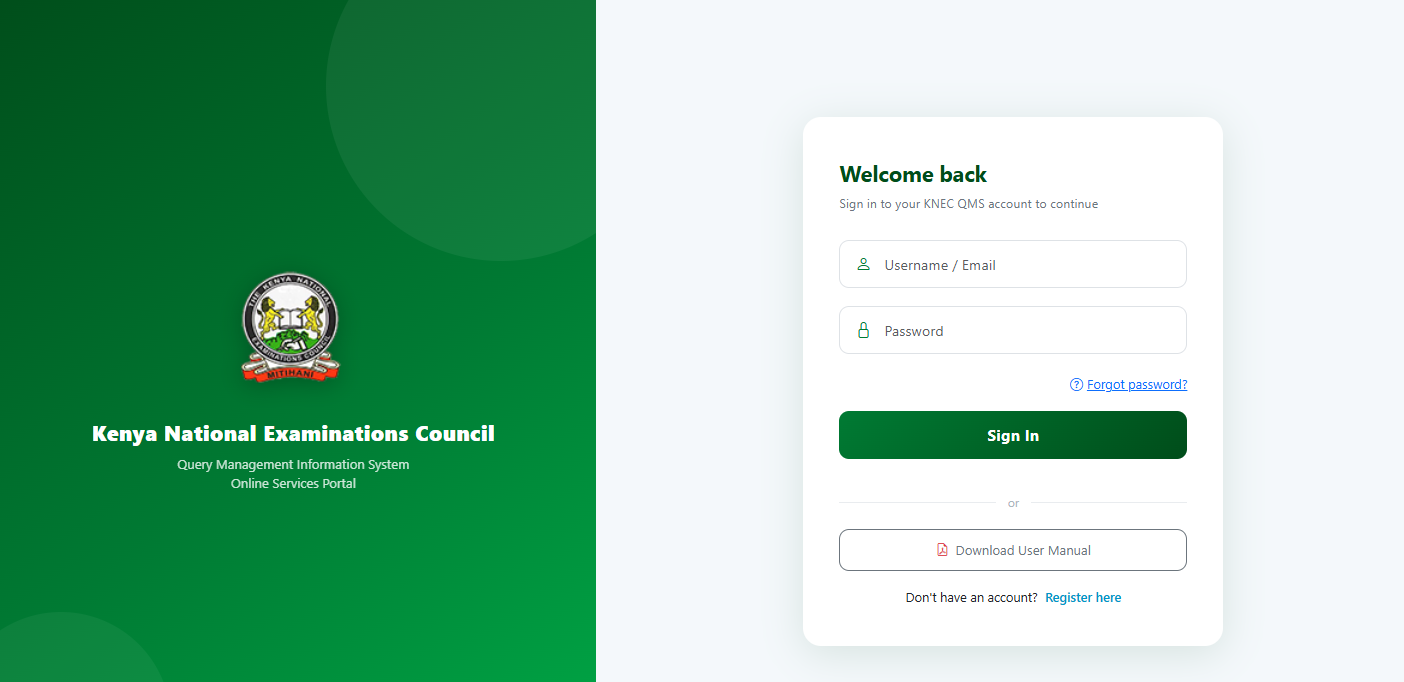
The first step in the process of resetting KNEC QMIS Portal is to visit https://qmis.knec.ac.ke/
- Step 2: Click Forgot Password
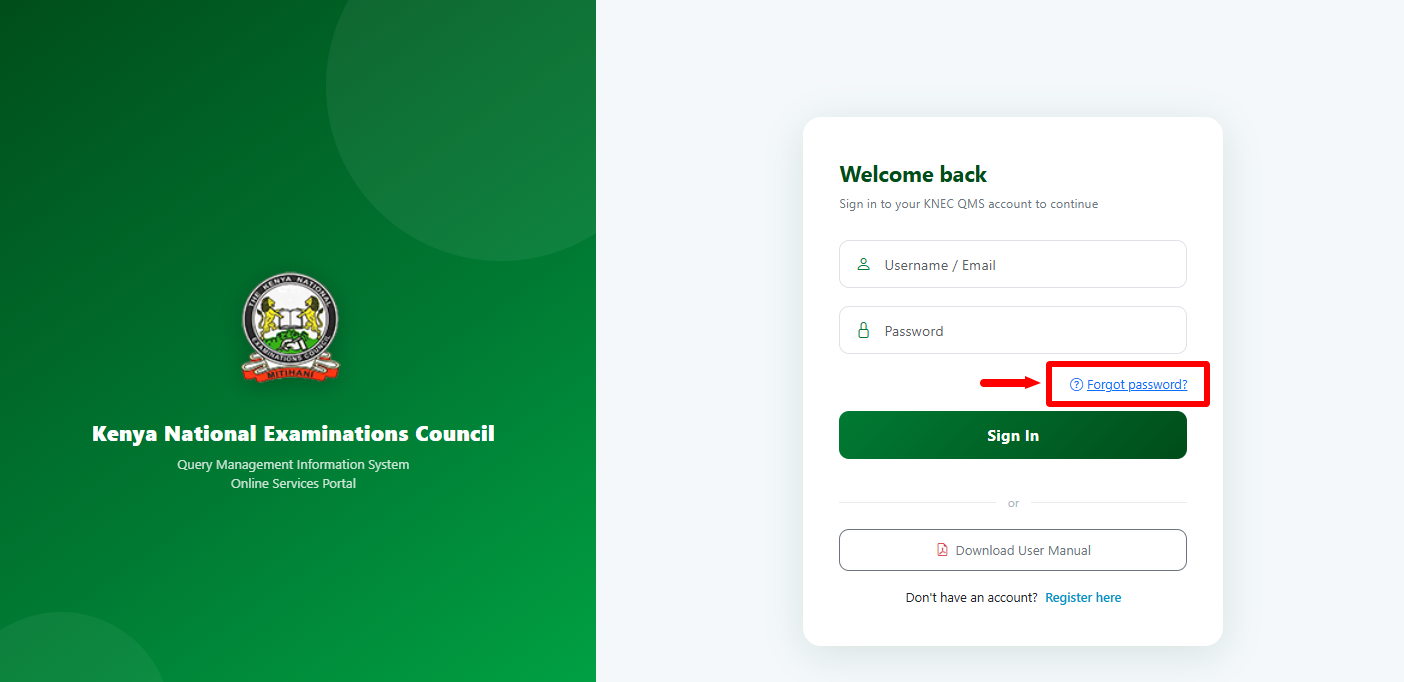
Once you are KNEC QMIS Portal, proceed and click on the “Forgot Password” link.
- Step 3: Reset Password
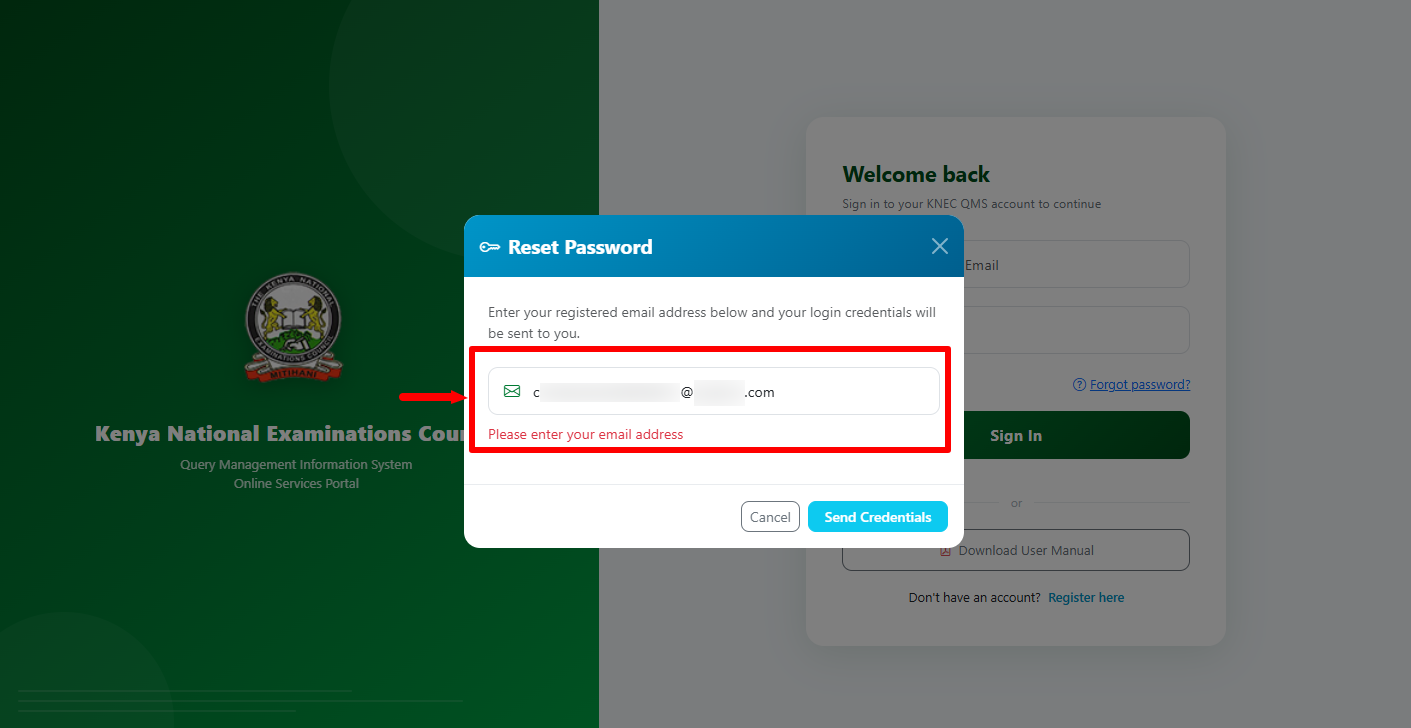
In this step, you need to enter the email address that is linked to your QMIS KNEC Portal account. Enter your registered email address and your login credentials will be sent to you.
- Step 4: Click Send Credentials
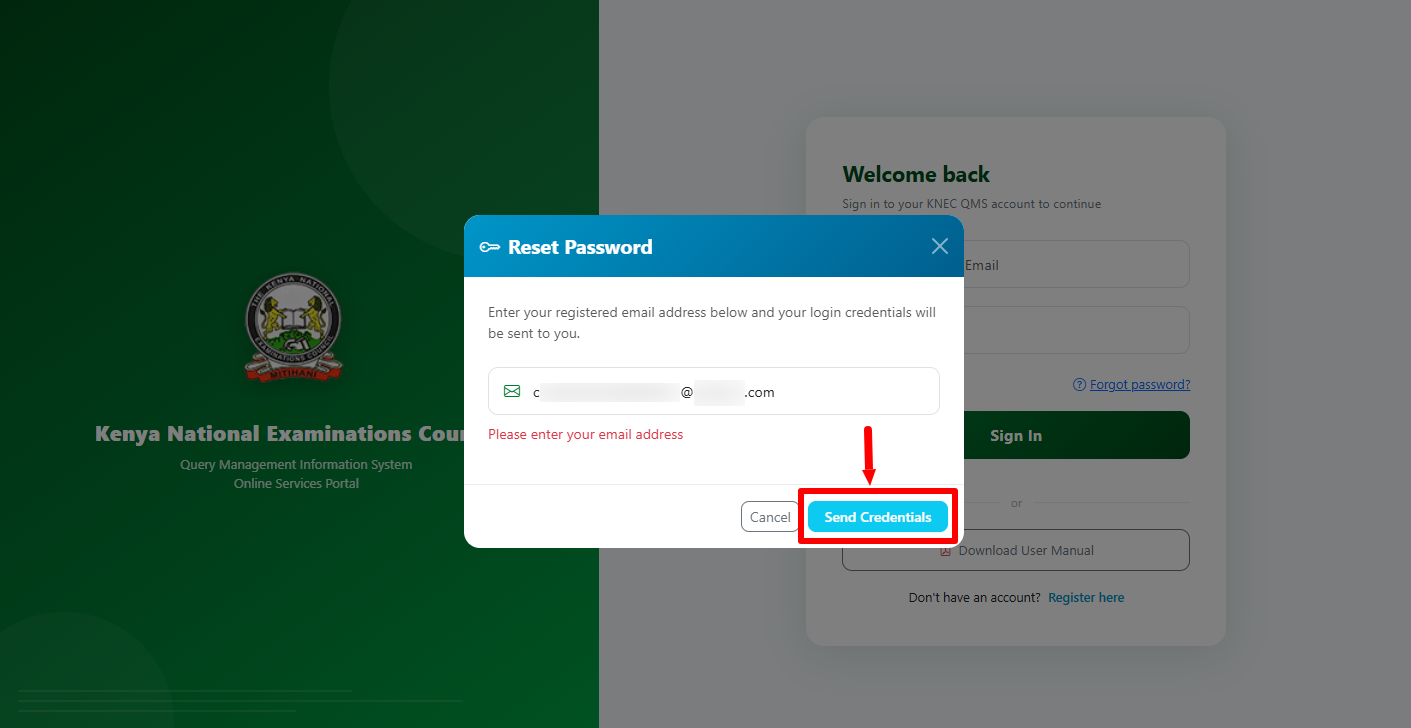
Once you have entered the registered email address, click on the “Send Credentials” button.
- Step 5: Check Email for Username and Password
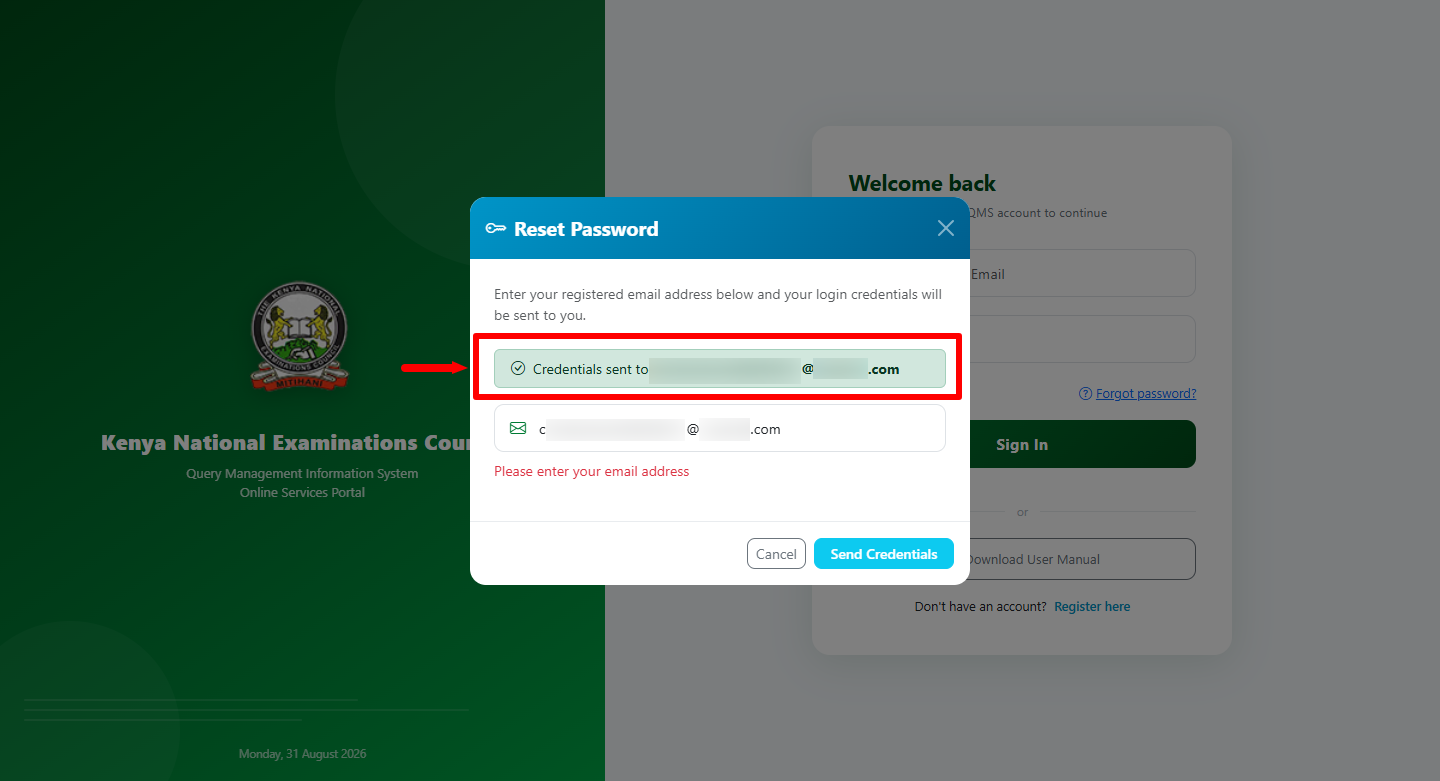
After clicking on the send credentials button, proceed and check the registered email address for QMIS Portal login credentials i.e. username and password.
- Step 6: Check Email for Username and Password
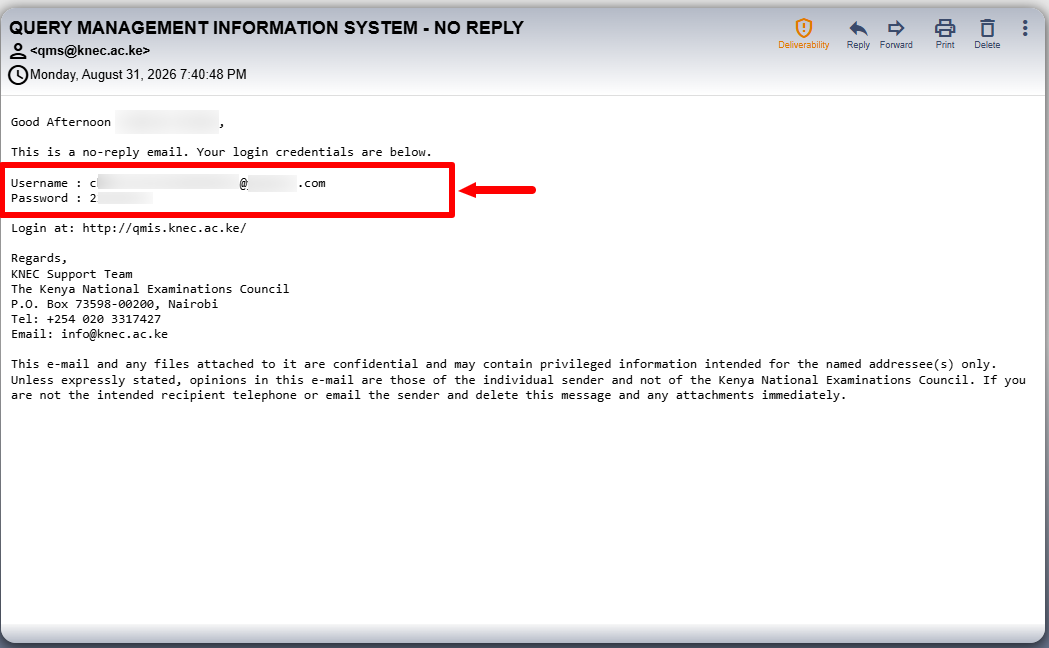
Lastly, check your email address for both the KNEC QMIS Portal username and password. You wil now be able to log in to QMIS Portal using those two important credentials.
Overview: KNEC QMIS Portal Password Reset
To begin resetting your password, visit the KNEC QMIS Portal and locate the login section. Click Forgot Password to open the password recovery option, then select Reset Password. Enter the email address associated with your QMIS KNEC account in the required field and click Send Credentials to submit your password recovery request.
READ ALSO: How To Register on KNEC QMIS Portal
After submitting the request, check the registered email address for the message containing your username and password. Once you receive the credentials, you can use them to access your KNEC QMIS Portal account and continue using the available services.