
KNEC E-Certificate Platform allows registered users to securely access their accounts and manage their KNEC certificates online. After completing registration, you can log in to the platform to access available services, including viewing, downloading, and verifying your examination certificates.
This guide explains how to log in to the KNEC E-Certificate Platform using your registered account credentials. It takes you through the login process from accessing the KNEC e-Certificate Systemto entering your details and successfully accessing your account dashboard.
READ ALSO: How To Register on KNEC E-Certificate Platform
What is KNEC E-Certificate Platform?
The KNEC E-Certificate Platform is an online digital platform provided by the Kenya National Examinations Council (KNEC) for accessing, downloading, and verifying examination certificates. It provides users with a convenient way to manage their KNEC certificates digitally without relying solely on physical copies.
The platform, also referred to as the KNEC e-Certificate Platform, KNEC E-Certificate System, or KNEC eCertificate Platform, allows registered users to access available certificate services online. Through the KNEC E-Certificate Platform, users can securely access their certificates and use the available options to download or verify them.
What is KNEC E-Certificate Platform Login?
KNEC E-Certificate Platform Login is the process of signing in to your account on the Kenya National Examinations Council (KNEC) E-Certificate Platform. The login allows registered users to securely access the platform and use its available services for accessing, downloading, and verifying KNEC certificates.
To complete KNEC e-Certificate Platform login process, you need to provide the credentials associated with your registered account. Once your details are successfully verified, you can access your KNEC E-Certificate System dashboard and manage the certificate services available through your account.
Requirements Needed To Log In To KNEC E-Certificate Platform
To log in to the KNEC E-Certificate Platform, you need the email address linked to your account. An OTP (One-Time Password) will be sent to this registered email address during the login process, and you will need to enter the verification code to authenticate your account and gain access to the platform. The requirement needed to log in to the KNEC E-Certificate Platform is:
- Email Address Linked to KNEC E-Certificate Platform
Once you have access to the email address linked to your KNEC E-Certificate Platform account, you can proceed with the login process. You will enter your registered email address, request the OTP, and use the verification code sent to your email to complete the sign-in process.
How To Log In To KNEC E-Certificate Platform
With the email address linked to your account ready, you can proceed to log in to the KNEC E-Certificate Platform. The process involves entering your registered email address, requesting an OTP, and entering the verification code sent to your email address to authenticate your account. Follow the steps below to log in to the KNEC E-Certificate Platform:
- Step 1: Visit KNEC E-Certificate Platform
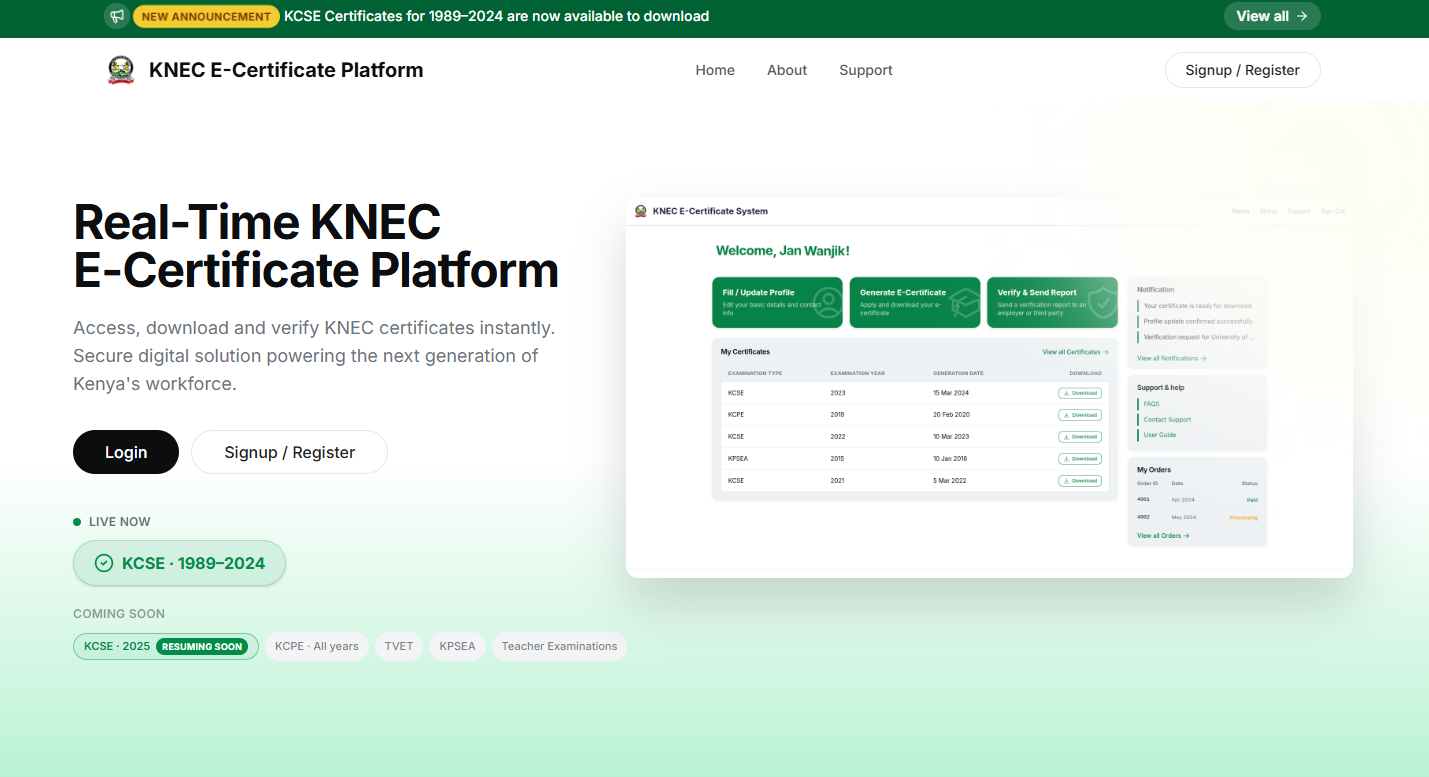
The first and foremost step in the process of KNEC E-Certificate Platform login i sto visit https://ecertificate.knec.ac.ke/
- Step 2: Click on Login
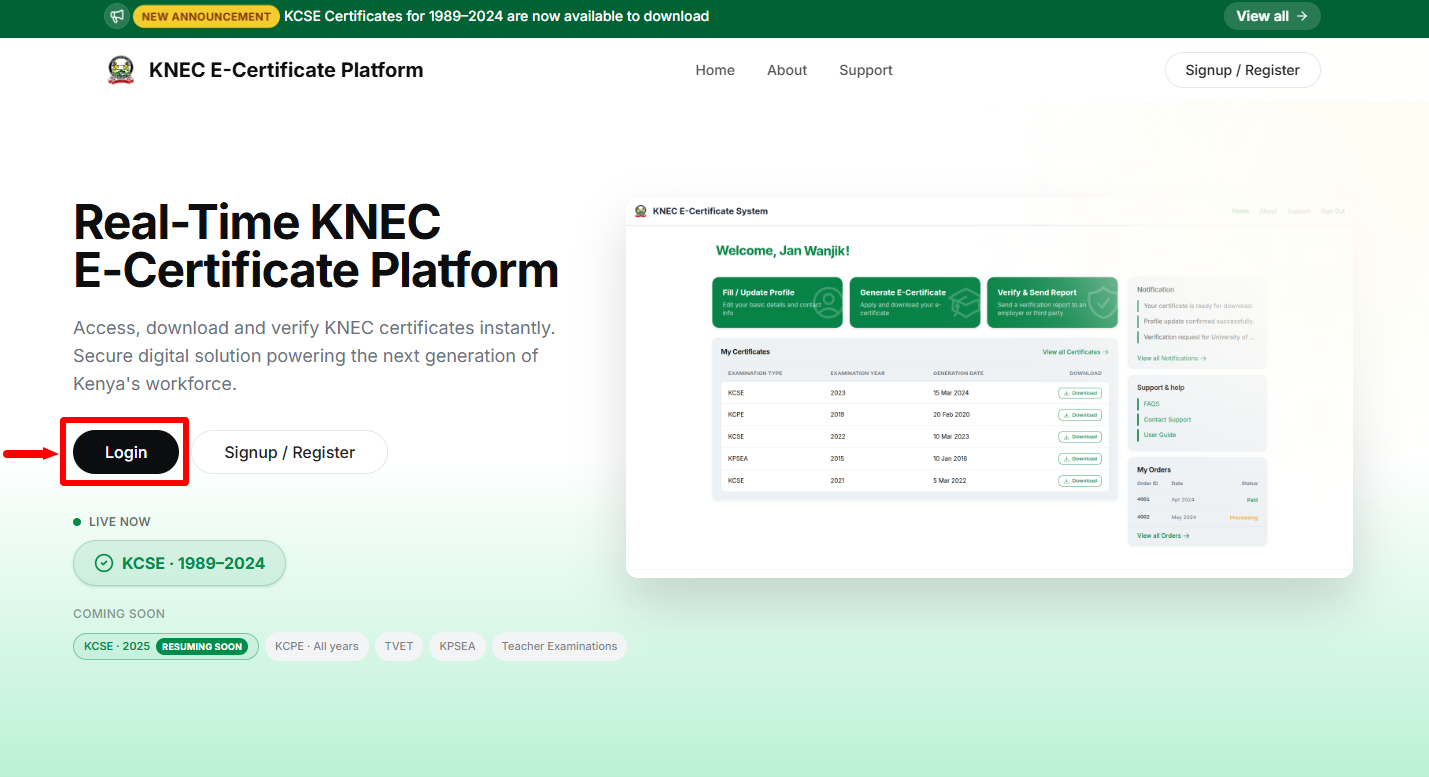
Next, once you are on KNEC E-Certificate Platform, proceed and click on the “Login” button.
- Step 3: Enter Email Address
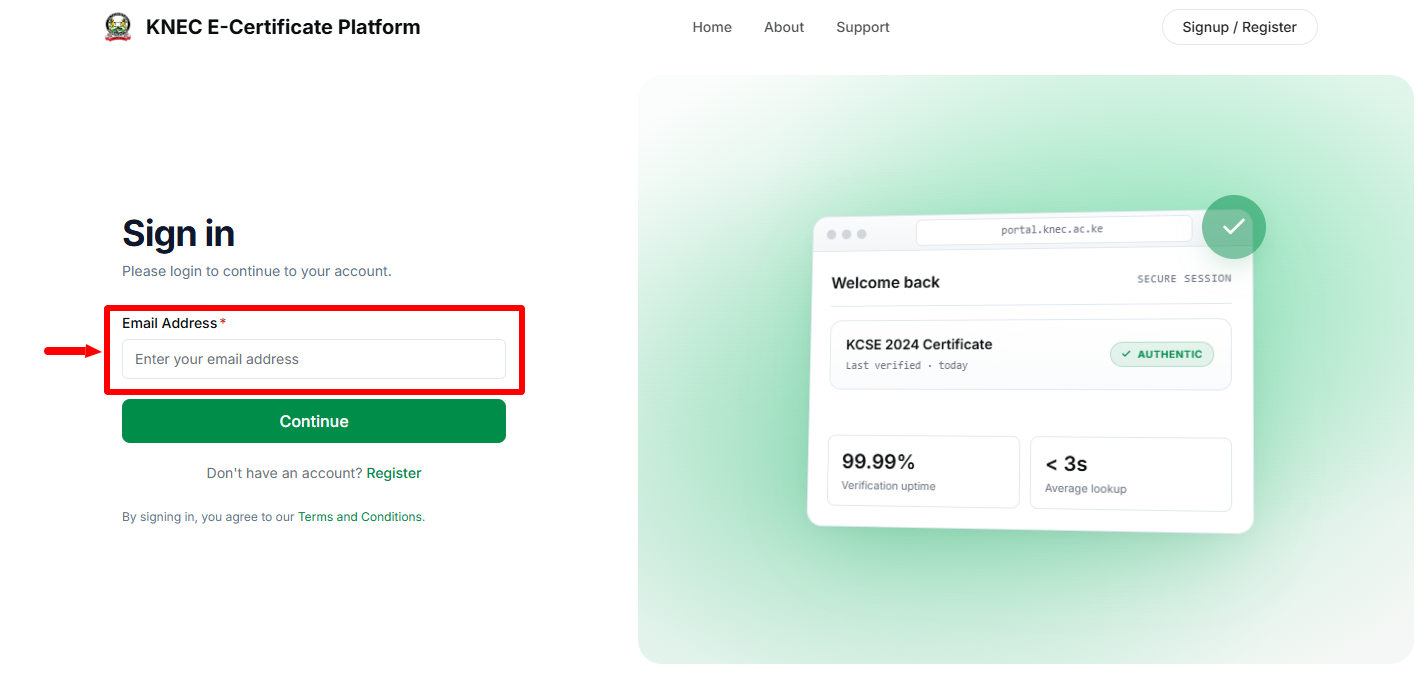
In tis step, you need to enter the “Email Address” associated with your KNEC E-Certificate System account. Ensure the email is valid and active.
- Step 4: Click Continue
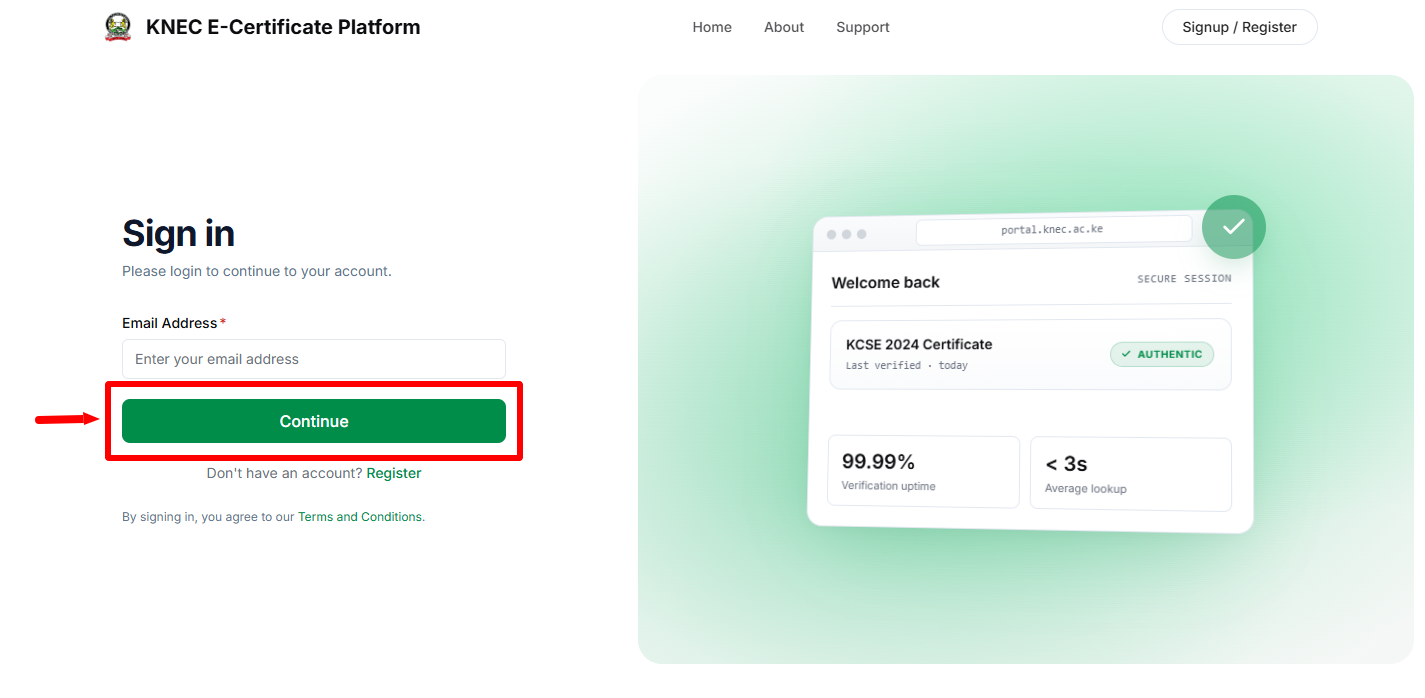
Once you have entered your email address, proceed and click on the “Continue” button to proceed to the next step.
- Step 5: Enter Verification Code
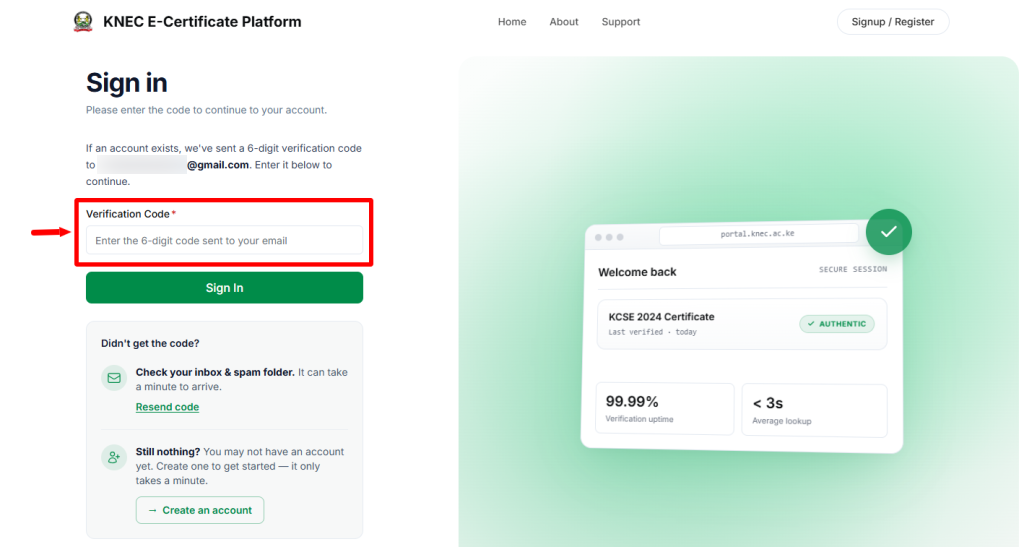
In this step, you need to enter the 6-digit verification code (OTP) that has been sent to your email address. Didn’t get the code? Check your inbox and spam folder. It can take upto a minute to arrive in email inbox.
- Step 6: Click on Sign In
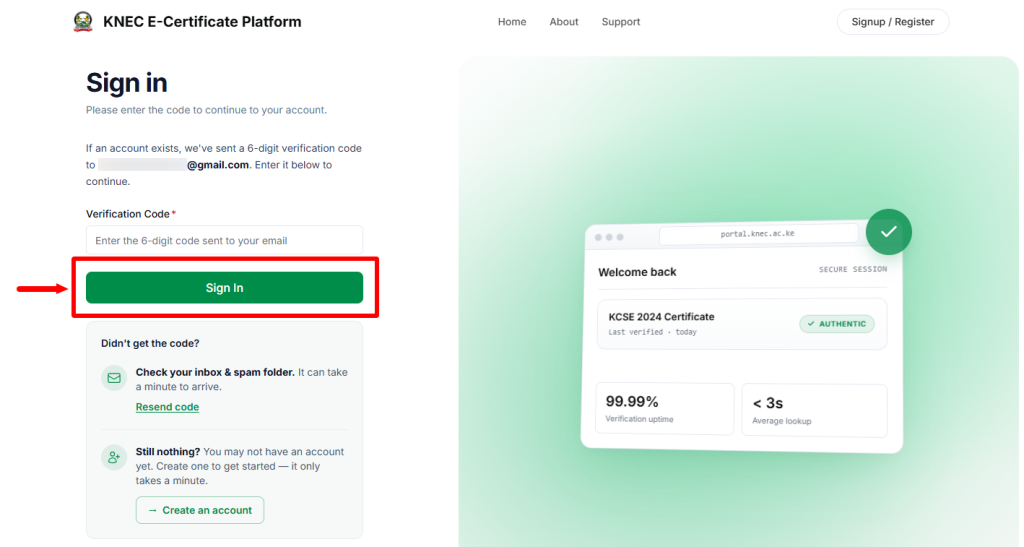
Once you have entered the 6-digit verification code, proceed and click on the “Sign In” button to access the KNEC E-Certificate System dashboard.
- Step 7: KNEC E-Certificate Platform Login Successful
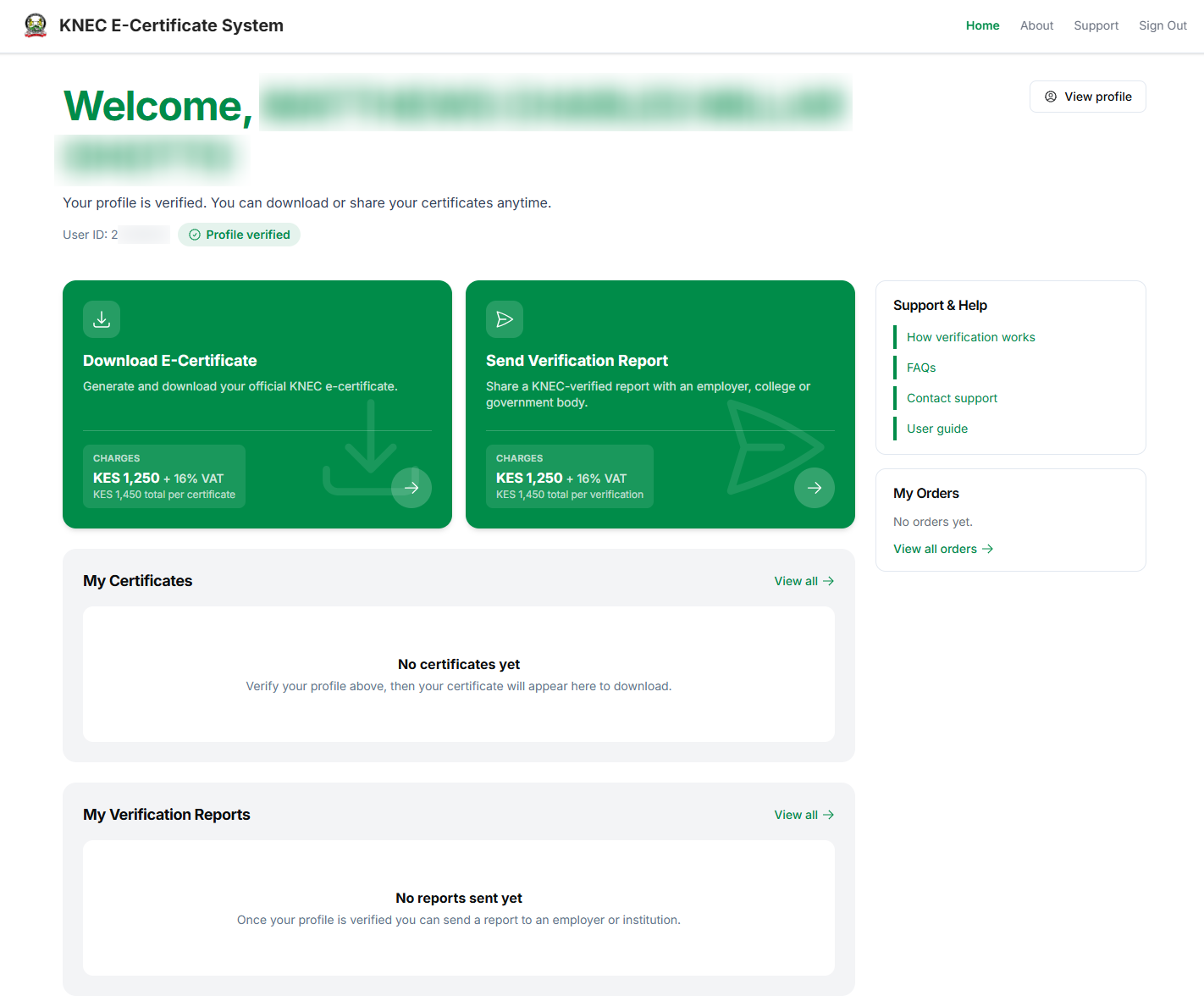
Lastly, once the systems has validated your login credentials, you will be able to access your KNEC E-Cerificate Platform dashbaord and from there you can now start using the online e-Certificate system to: generate and download your official KNEC e-Certificate or to share a KNEC verified report with an employer, college or government body.
Overview: KNEC E-Certificate Platform Login
To begin the login process, visit the KNEC E-Certificate Platform and click Login to open the sign-in page. Enter the email address linked to your account and click Continue. The platform will send a verification code (OTP) to your registered email address, which you will need to retrieve before proceeding with the login.
READ ALSO: How To Log In To KNEC QMIS Portal
Enter the verification code received in your email address and click Sign In to submit the code for verification. If the code is correct, you will be successfully signed in and granted access to your account dashboard, confirming that your KNEC E-Certificate Platform login is successful.