
KNEC E-Certificate Platform is an online system that allows users to access, download, and verify KNEC certificates i.e. KCSE certificates digitally. The platform provides a convenient way to manage examination certificates online, making it easier for users to access their documents without relying solely on physical copies.
If you are using KNEC e-Certificate Platform for the first time, you need to create an account before accessing the available services. This guide explains how to register on KNEC E-Certificate System, including the information required during registration and the steps to successfully create your account.
READ ALSO: How To Log In To KNEC QMIS Portal
What is KNEC E-Certificate Platform?
KNEC E-Certificate Platform is an online digital system provided by Kenya National Examinations Council (KNEC) for accessing, downloading, and verifying KNEC certificates online i.e. KCSE certificates. The platform provides a convenient way for users to manage their examination certificates digitally and access them whenever needed.
Through KNEC e-Certificate Platform, users can access available certificate services online without relying solely on physical documents. The platform is also referred to as the KNEC ECertificate Platform or KNEC eCertificate System, and it provides a secure digital solution for accessing and verifying KNEC certificates.
What is KNEC E-Certificate Platform Registration?
KNEC E-Certificate Platform Registration is the process of creating a user account on Kenya National Examinations Council (KNEC) E-Certificate Platform. Registration gives you access to the platform’s digital services, including the ability to access, download, and verify KNEC certificates online.
The registration process involves providing the required personal and account information and submitting it through KNEC e-Certificate System. Once your account has been successfully created, you can use your login credentials to access KNEC ECertificate Platform and use the available certificate services.
Requirements Needed To Register on KNEC E-Certificate Platform
To register on KNEC E-Certificate Platform, you need to provide personal and contact information that will be used to create and identify your account. Having your full names, ID number, phone number, and email address ready will help you complete the registration form accurately and proceed with creating your account. The four requirements needed to register on KNEC E-Certificate Platform are:
- Full Names
- ID Number
- Phone Number
- Email Address
Once you have your full names, ID number, phone number, and email address ready, you can proceed with registering your account on KNEC E-Certificate Platform. The registration process involves entering the required information, submitting your details, and following the instructions provided by the platform to complete the account setup.
How To Register on KNEC E-Certificate Platform
With your full names, ID number, phone number, and email address ready, you can proceed to create your account on KNEC E-Certificate Platform. The registration process involves accessing the platform, entering your personal and contact details, and submitting the required information to create your account. Follow the steps below to register on KNEC E-Certificate Platform:
- Step 1: Visit KNEC E-Certificate Platform
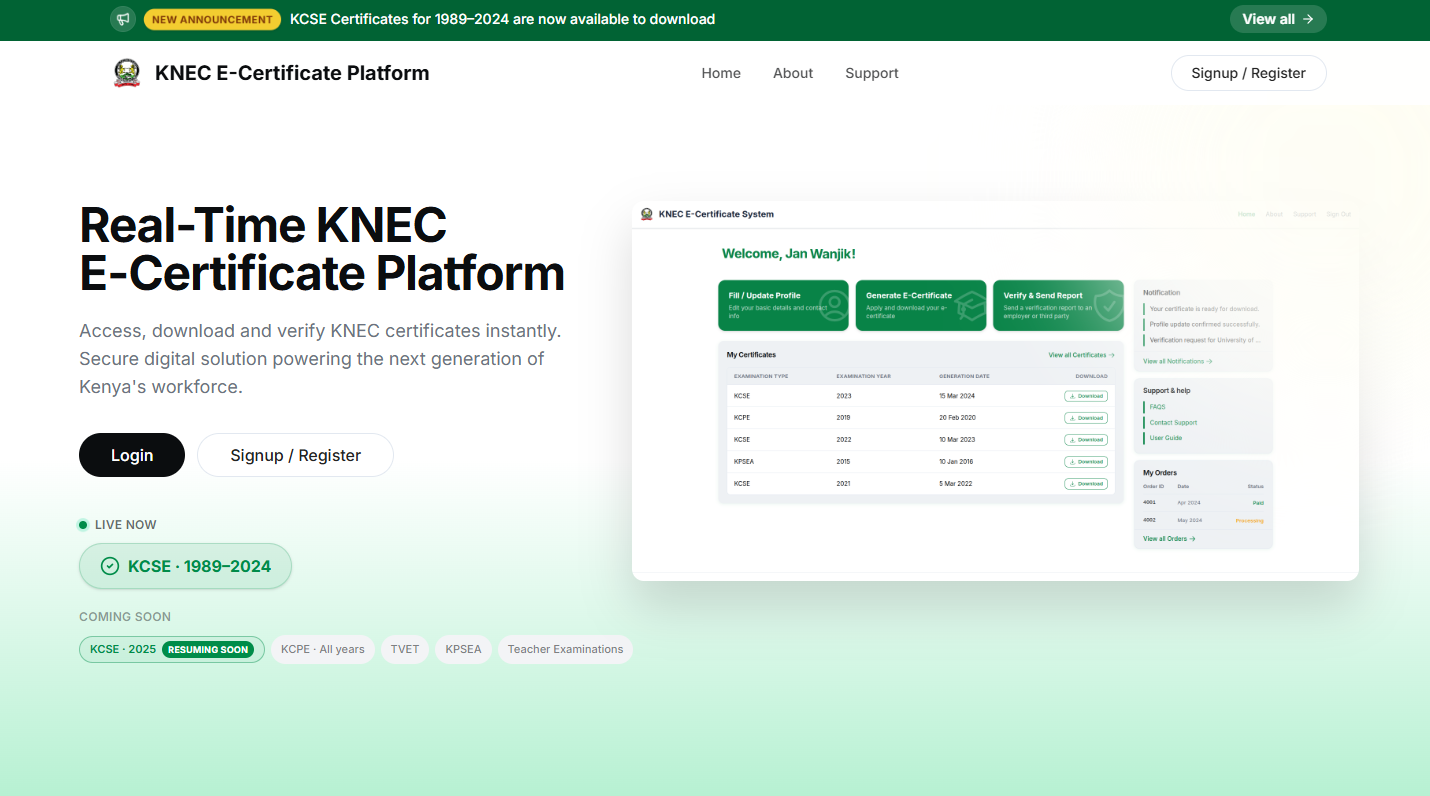
The first step in the process of registering on KNEC E-Certificate Platform (E-Certificate System) is to visit https://ecertificate.knec.ac.ke/
- Step 2: Click on Signup/Register
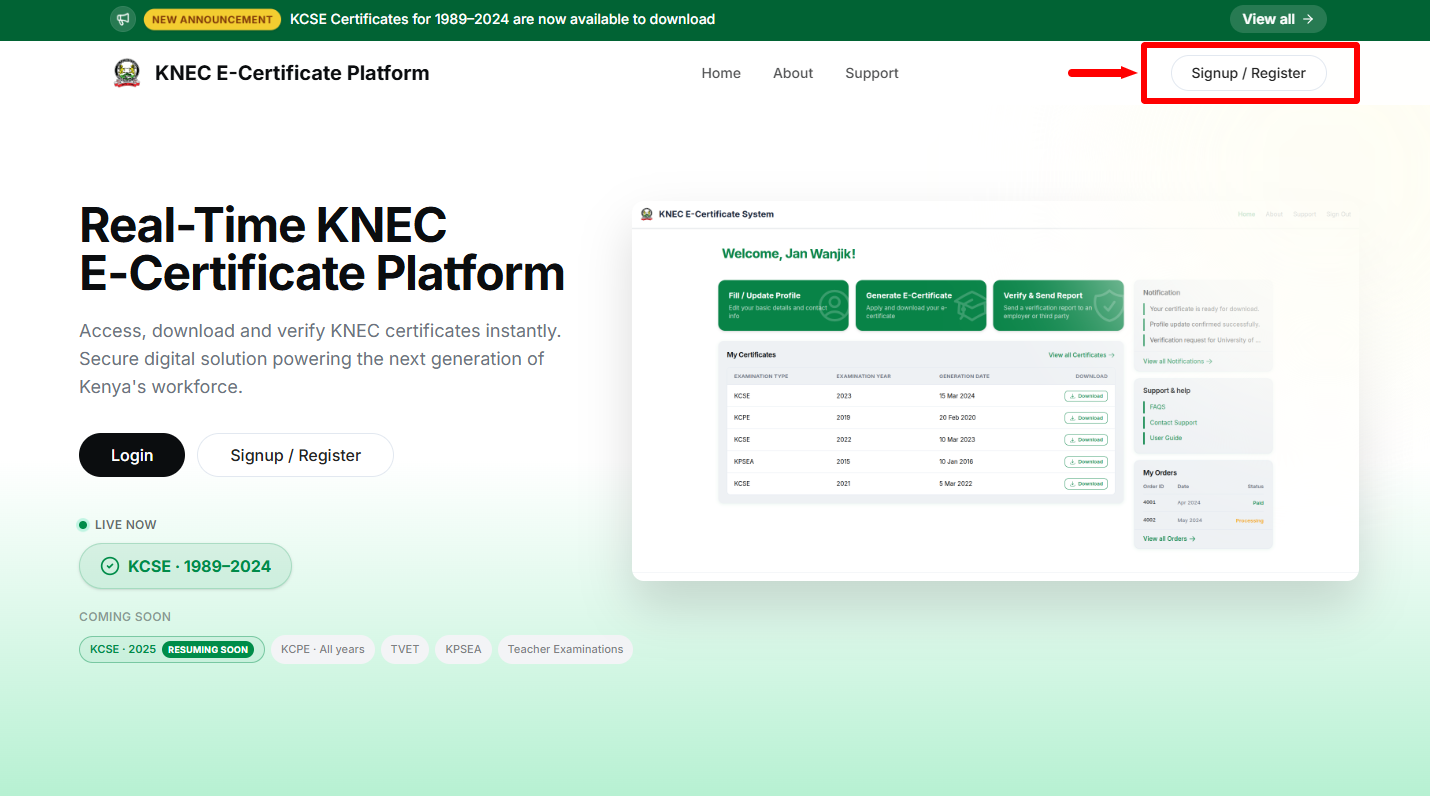
Once you are KNEC E-Certificate Platform, proceed and click on the “Signup/Register” button.
- Step 3: Select Type of Account
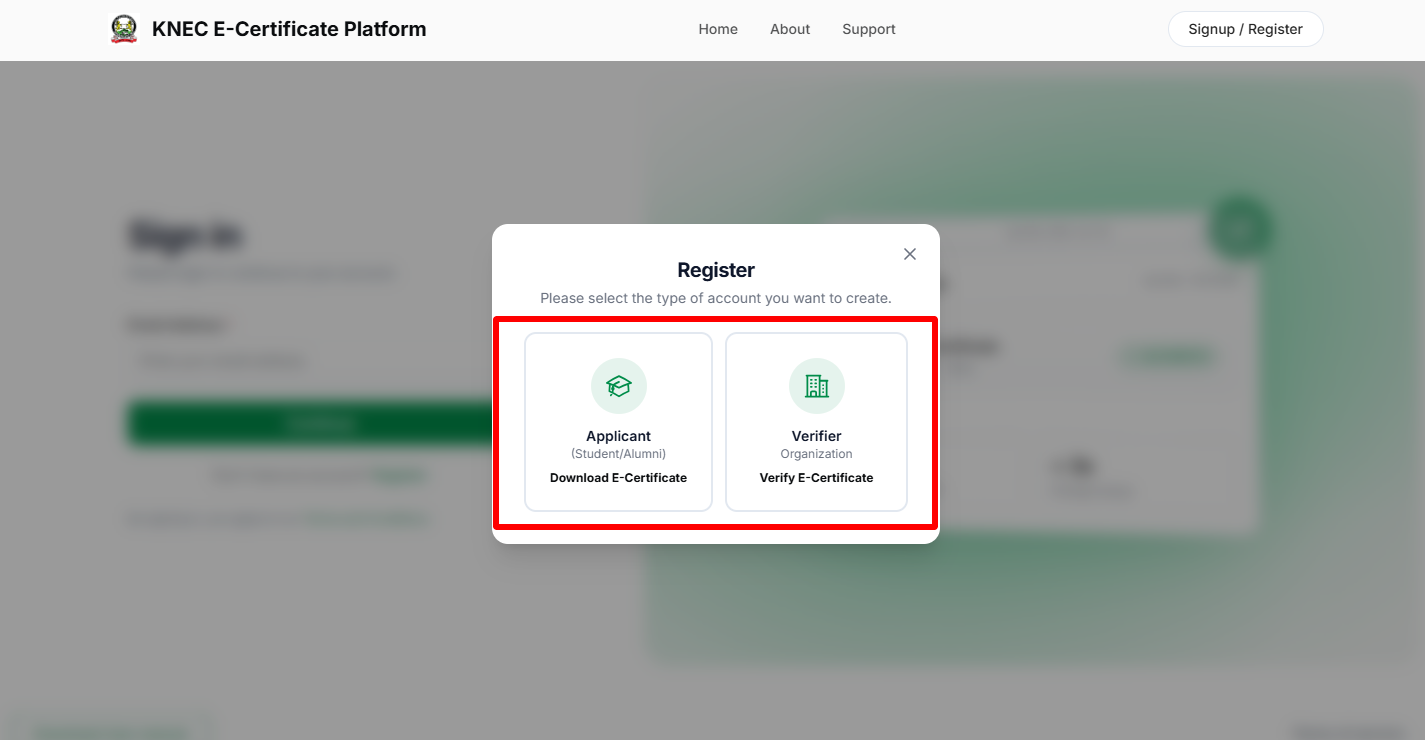
In this step, you need to select the account type that you want to register or create online. There are two types of accounts i.e. “Applicant (student/alumni)” account or “Verifier (organization)” account. The Applicant account is used to download the E-Certificate online while the Verifier account is used to verify the E-Certificate online.
- Step 4: Register as an Applicant (Student/Alumni)
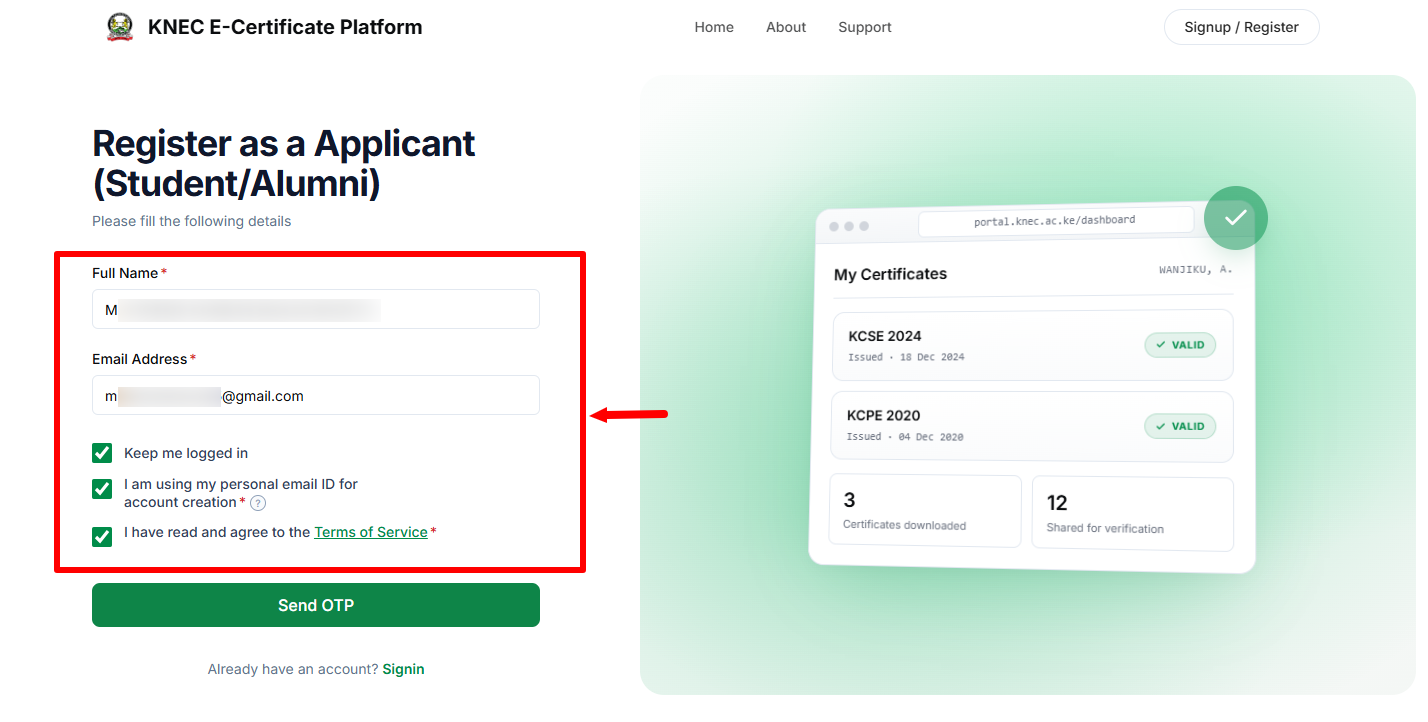
Next, if you selected Applicant as account type, you now need to Register as Applicant (student/alummni). You need to enter your full names as per national ID card, email address, check the appropriate check boxes and agree to the Terms of Service.
Step 5: Click Send OTP
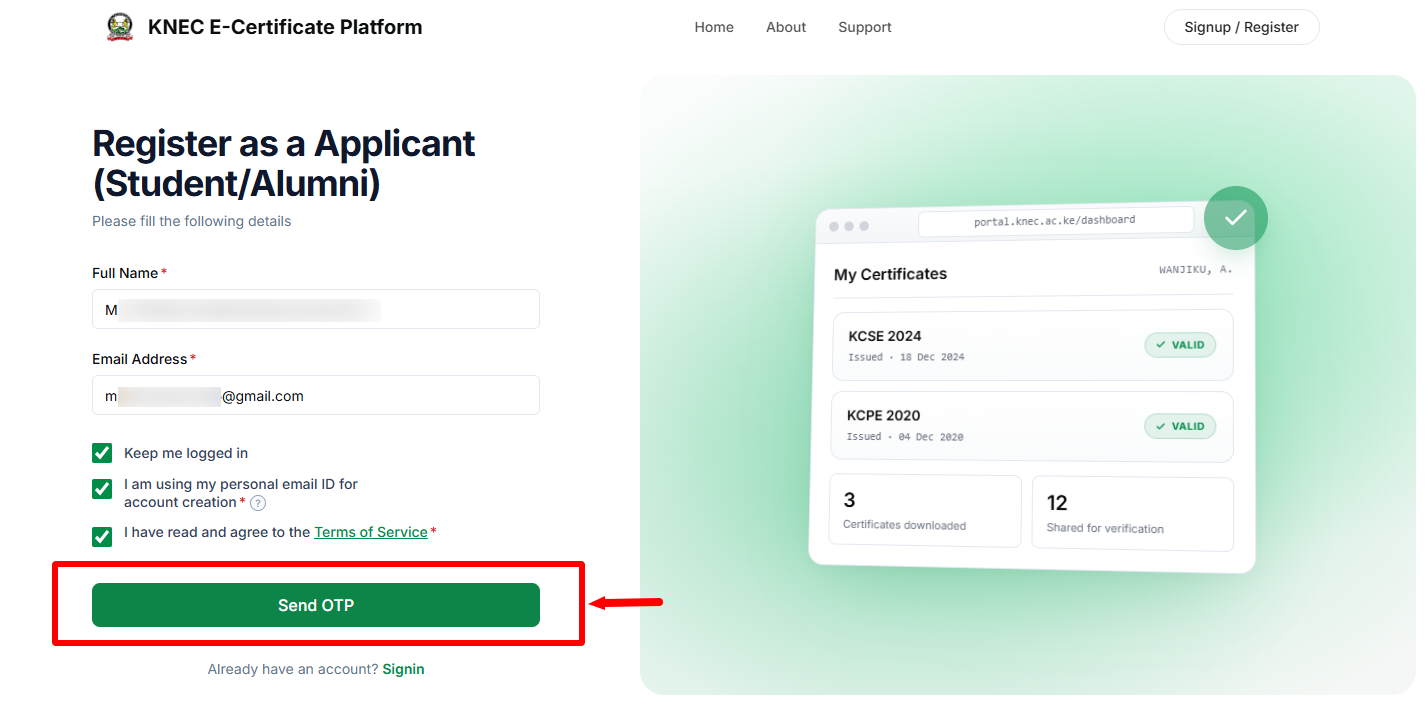
Once you have filled in your full names, email address, checked the appropriate checkboxes and agreed to the Terms of Service, proceed and click on the “Send OTP” button.
- Step 6: Enter Verification Code (OTP)
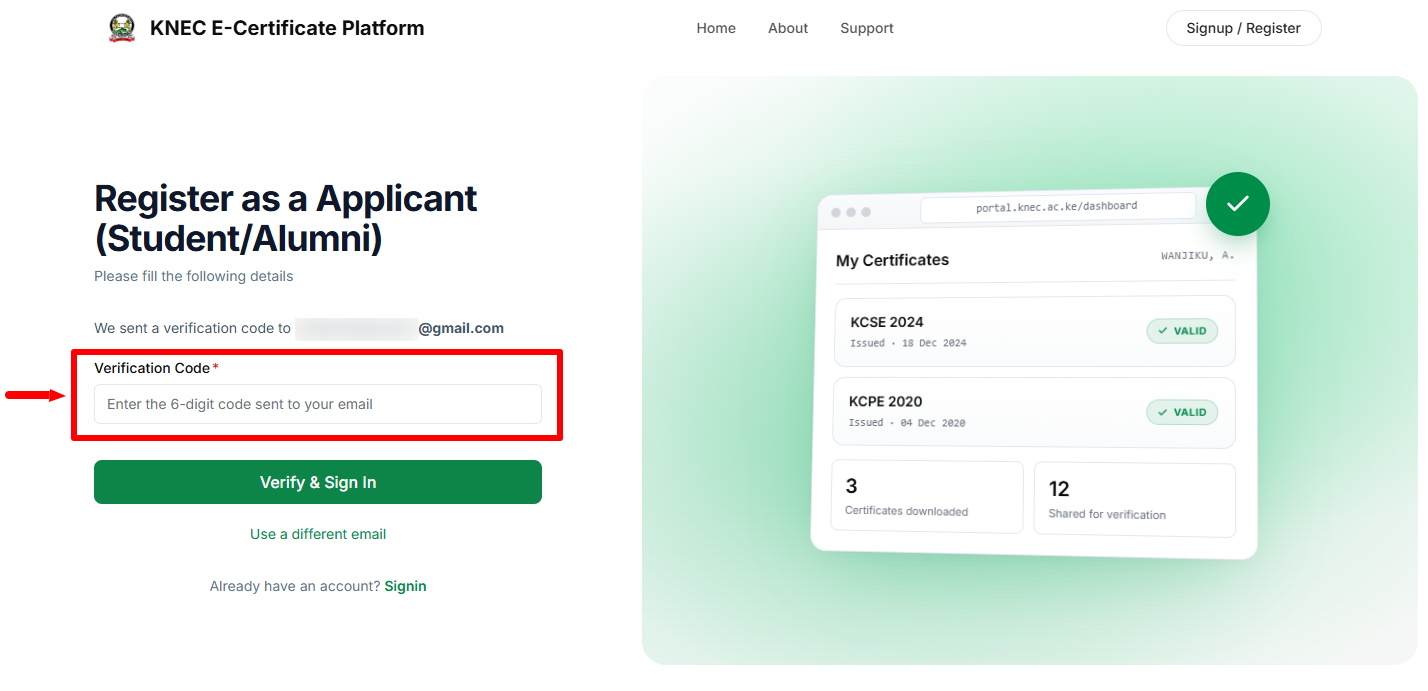
In this step, you need to check your email address and enter the OTP Verification Code that has been sent there. Take note that the verification code expires in 10 minutes. Once you have entered the verification code click on the “Verify and Sign In” button.
- Step 7: KNEC E-Certificate Platform Dashboard
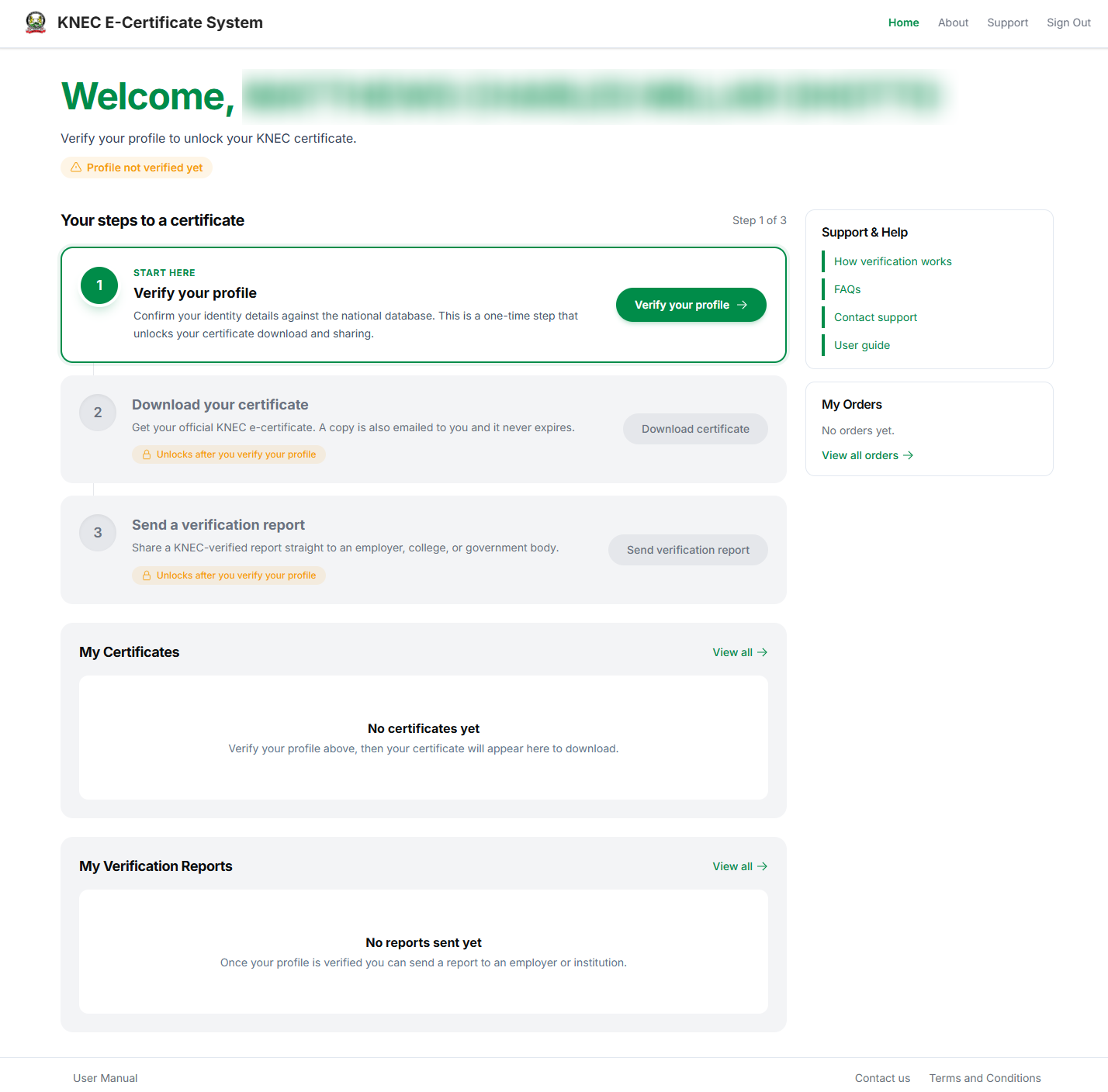
Once you have entered the verification code (OTP) correctly, you will be logged into your KNEC E-Certificate Platform dashboard. At this step, you now need to verify your profile, before the KNEC E-Certificate Systems features become available for you to use online.
- Step 8: Verify your Profile
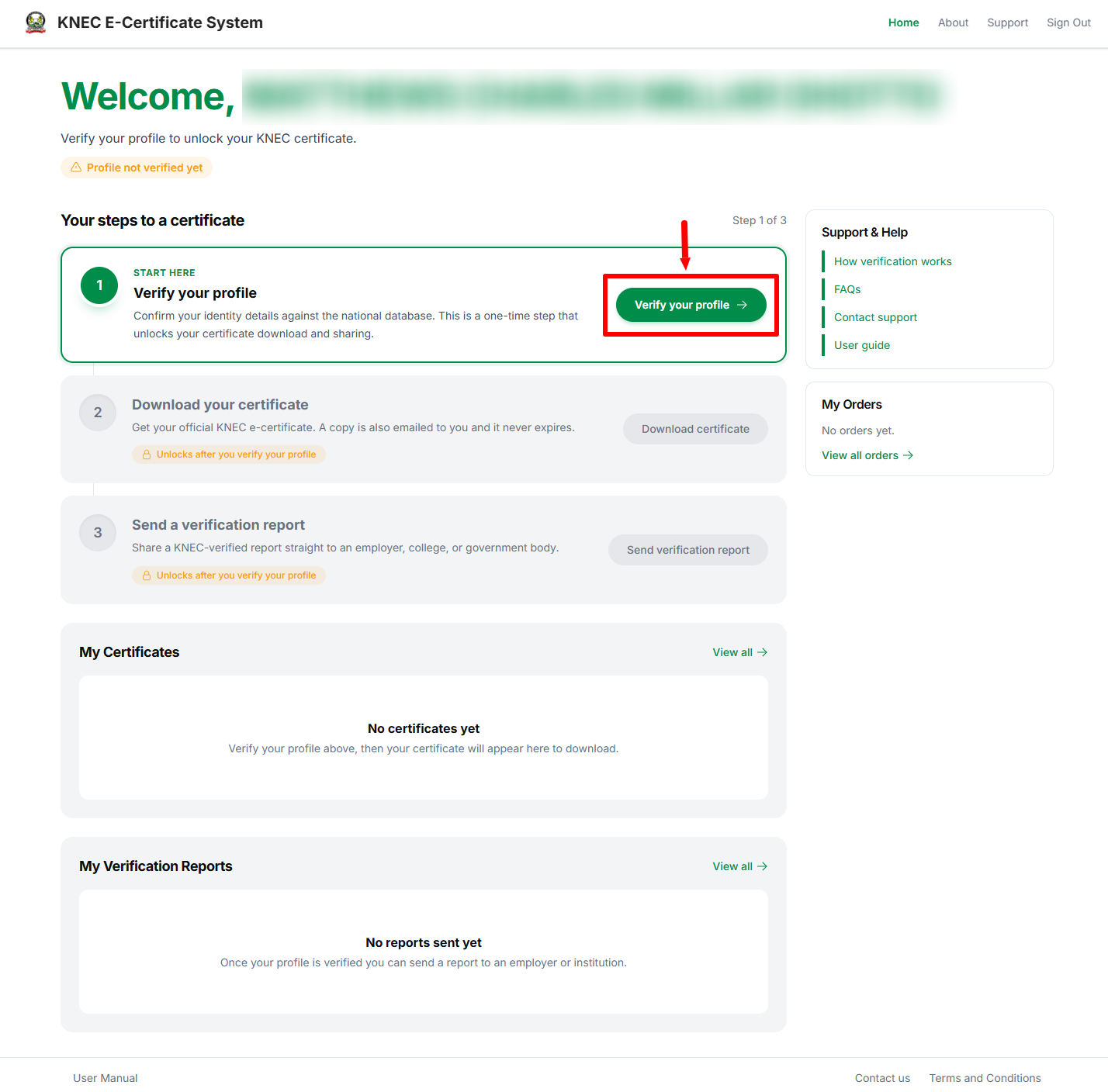
In this step, you need to click on the “Verify your Profile” button before the KNEC E-Certificate Platform features become available for use.
- Step 9: Enter your Details
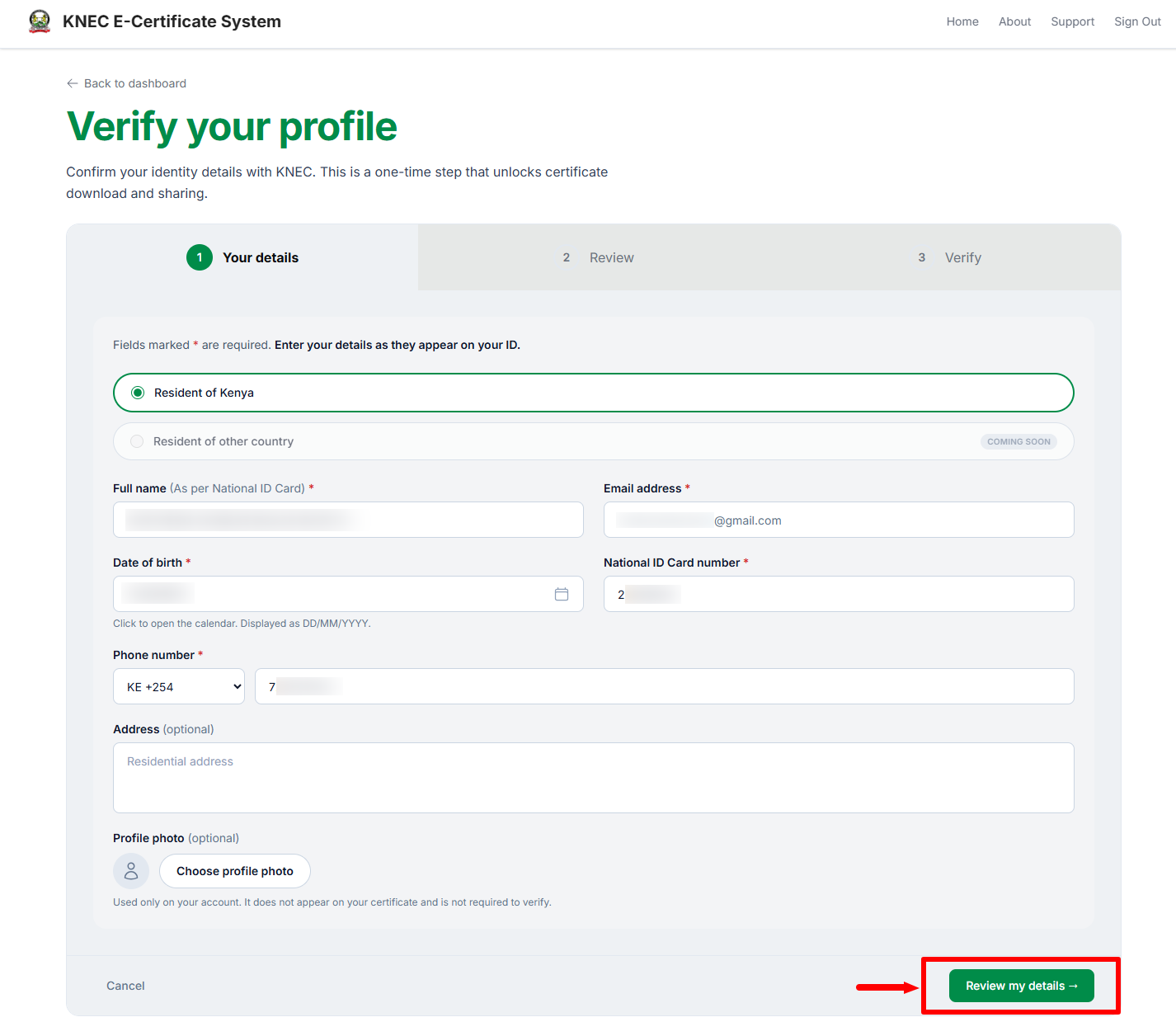
Next, under verify your details you need to enter your full names as per national ID card, date of birth, national id number and phone number. Once you have entered these details, click on “Review My Details” to proceed.
- Step 10: Review your Details
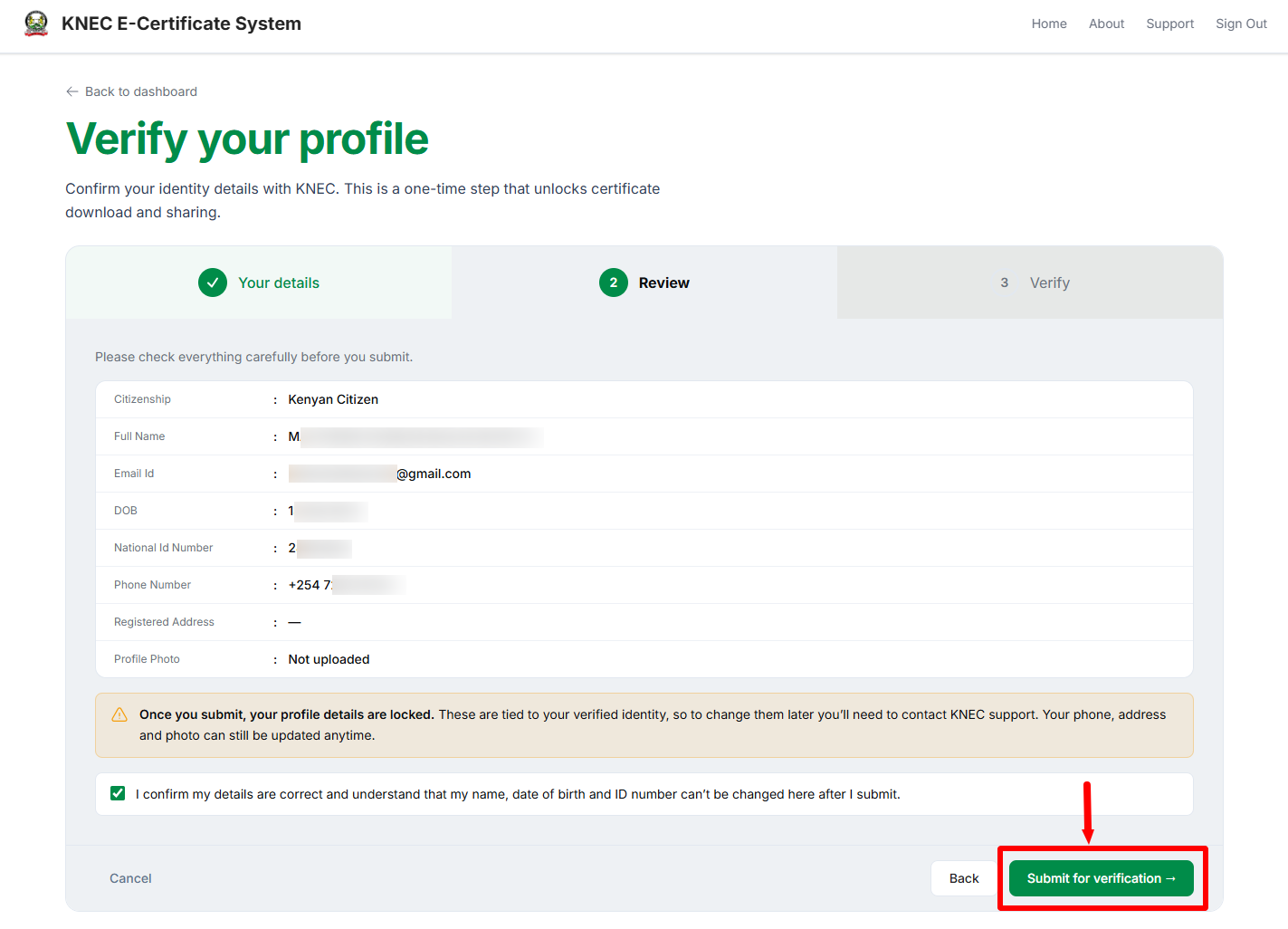
In this step, you need to review your profile details before submitting. Take note that once you submit, your profile details are locked. These are tied to your verified identity, so to change them later you’ll need to contact KNEC support. Your phone, address and photo can still be updated anytime. Tick the checkbox confirming that you agree that the details are correct and can’t be changed after you submit. Once you have confirmed everything is correct, click on “Submit for Verification” button.
- Step 11: Your Profile is Verified
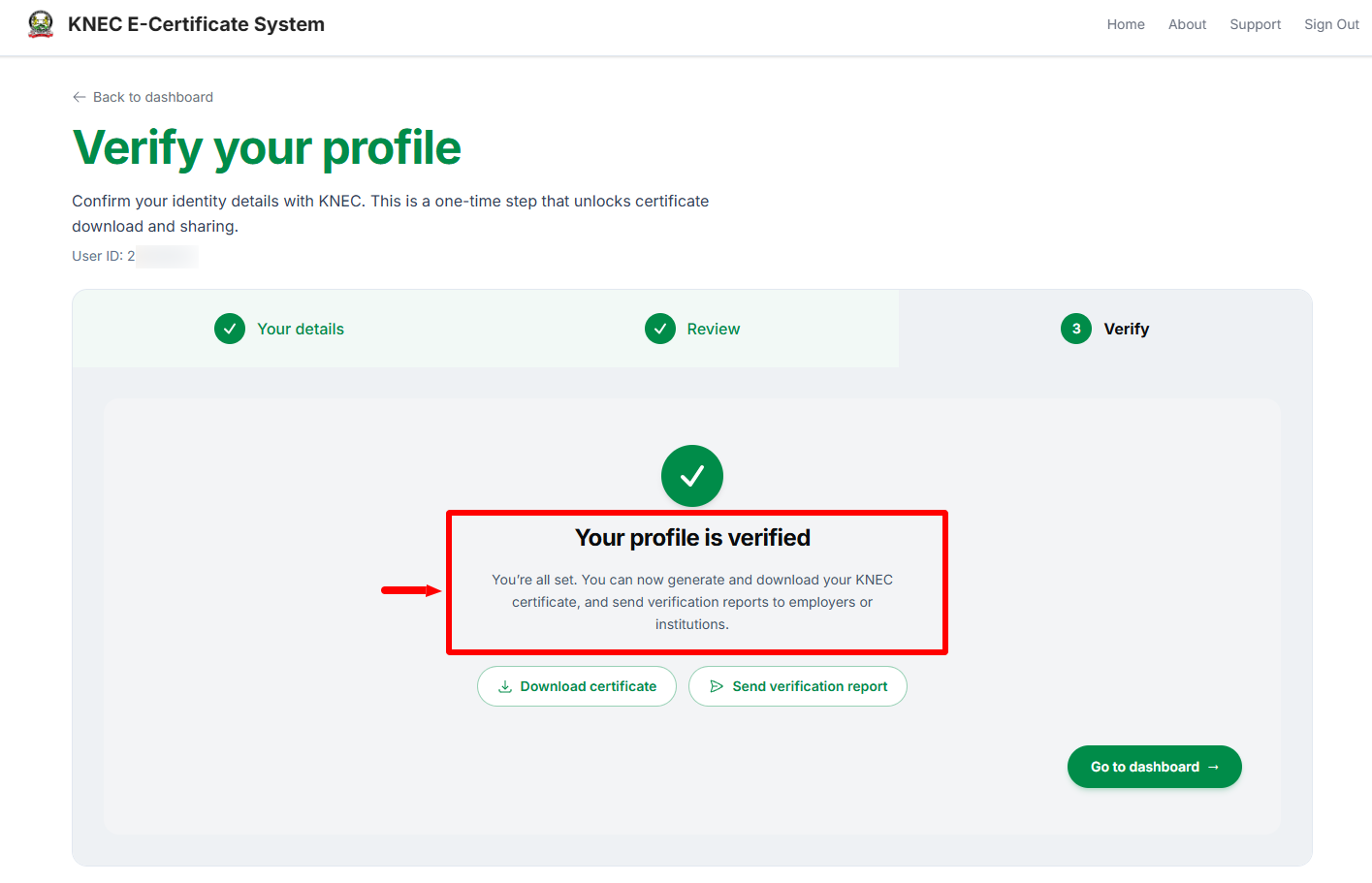
Next, you will get a notification confirming the successfull verification of your profile details on KNEC E-Certificate Platform. You can now generate and download your KNEC certificate and send verification reports to employers or institutions using the E-Certificate Online KNEC Platform. Click on “Dashboard” to mark the completion of KNEC E-Certificate Platform Registration online.
- Step 12: KNEC E-Certificate Platform Registration Successful
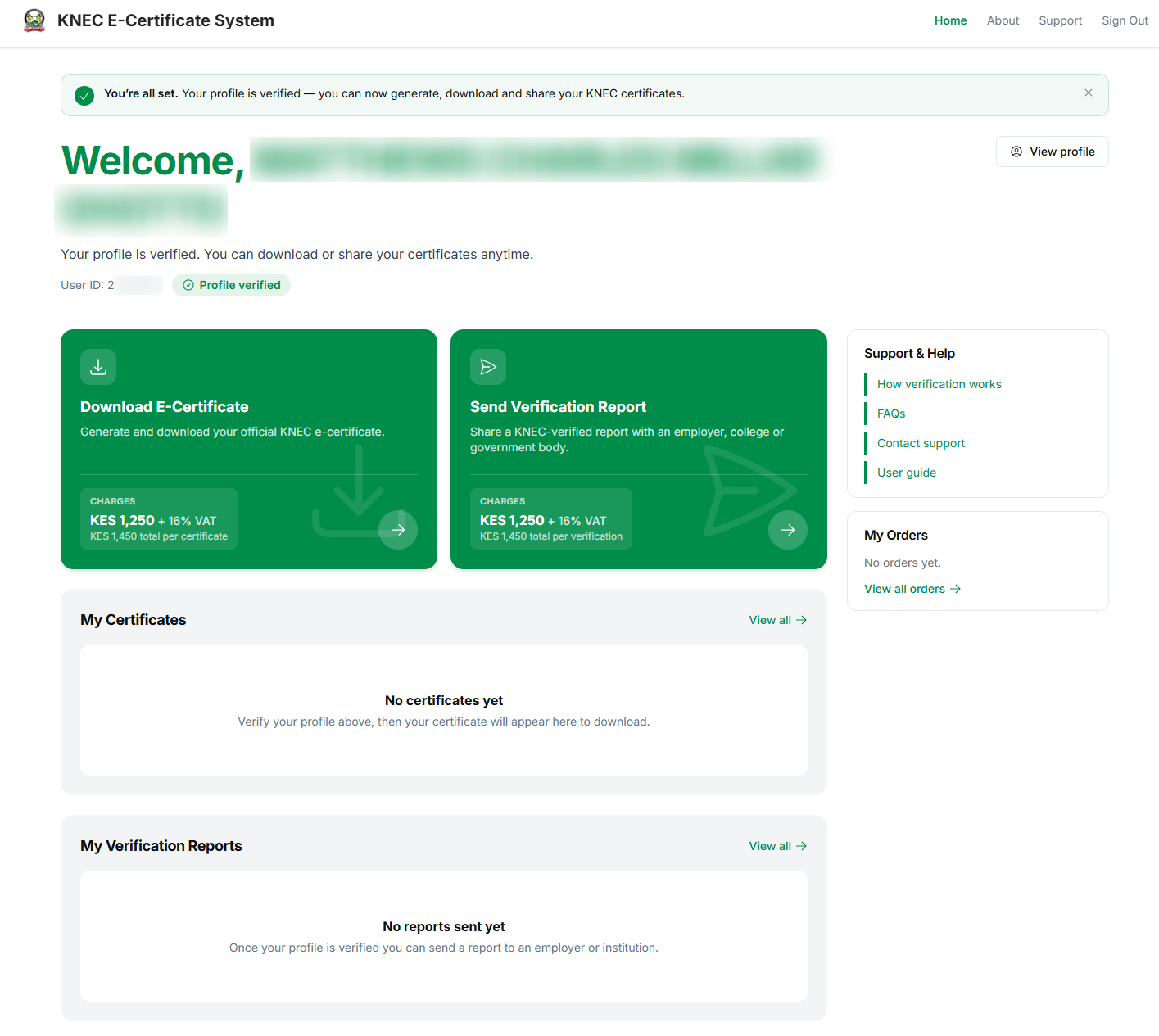
Lastly, once you click on dashboard, your KNEC E-Certificate System dashboard will load and from this point you can generate and download your official KNEC e-Certificate online. Also, you can share a KNEC verified report with an employer, college or government body.
Overview: KNEC E-Certificate Platform Registration
To begin your registration, visit KNEC E-Certificate Platform and click Signup/Register to open the account creation page. Select the appropriate Type of Account, then choose Applicant (Student/Alumni) as your account category. Click Send OTP and enter the verification code (OTP) sent to your registered phone number to complete the initial account verification. Once the OTP is successfully verified, you will be directed to KNEC E-Certificate System Dashboard.
READ ALSO: How To Reset KNEC QMIS Portal Password
From the dashboard, select the option to Verify your Profile and enter the required personal details. Review the information you have provided carefully to ensure that all the details are accurate before submitting them for verification. Once your information has been successfully verified, your profile will be confirmed, completing your KNEC E-Certificate Platform registration and giving you access to the available certificate services.