
This Step-by-Step Tutorial explains How To Update eCitizen Account Electronic Signature, providing clear and detailed guidance through each step of the process from start to finish to help you Update eCitizen Account Electronic Signature in a few minutes.
What is eCitizen Account Electronic Signature?
An eCitizen Account Electronic Signature is a digital signature associated with your eCitizen account that allows you to electronically sign documents through the eCitizen platform. It provides a way of signing eligible documents digitally without having to print, physically sign, and scan them.
READ ALSO: How To Check eCitizen Account Electronic Signature
The electronic signature is displayed on documents after they have been signed using the eCitizen digital signature feature. It forms part of the document’s electronic signing information and helps indicate that the document was digitally signed through the eCitizen platform.
What is eCitizen Account Electronic Signature Update?
eCitizen Account Electronic Signature Update is the process of updating or changing the electronic signature associated with an eCitizen account. It allows an account holder to manage the signature information used when electronically signing eligible documents through the eCitizen platform.
Once the electronic signature is updated, the new signature information may be displayed on documents that are subsequently signed using the eCitizen digital signature feature. Keeping the electronic signature information up to date helps ensure that the correct signature is used when completing digital document signing processes through eCitizen.
Requirements Needed To Update eCitizen Account Electronic Signature
To successfully Update eCitizen Account Electronic Signature, you need to have the following 2 requirements:
- ID Number
- eCitizen Password
How To Update eCitizen Account Electronic Signature
To Update eCitizen Account Electronic Signature, follow the step-by-step process outlined below.
- Step 1: Visit eCitizen website

To update Electronic Signature (eCitizen Digital Signature), the first step that you need to take is to visit eCitizen website using https://accounts.ecitizen.go.ke/
- Step 2: Click on Sign in
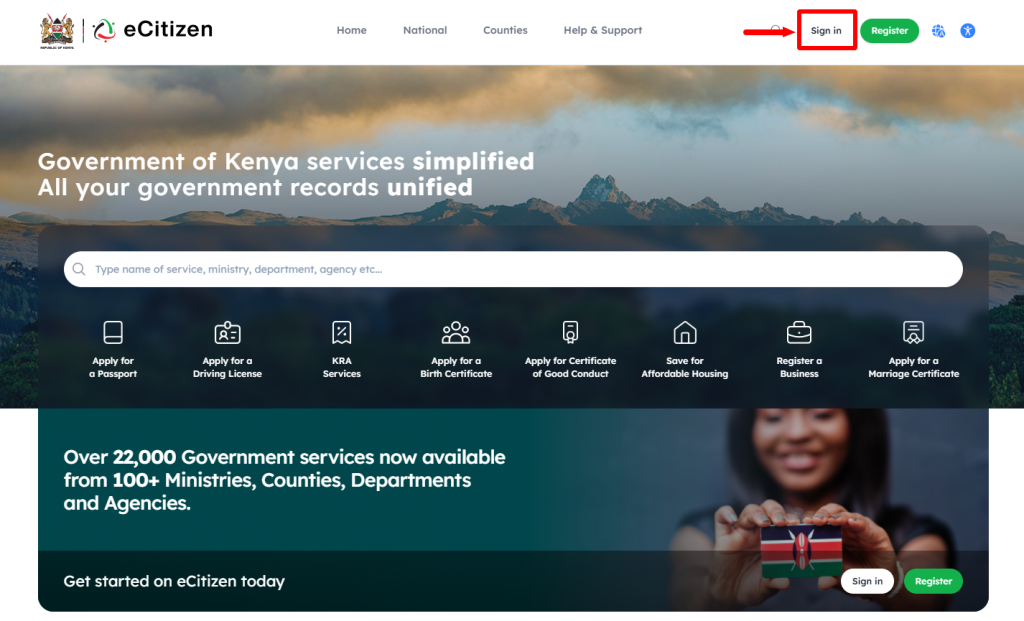
Once you are on the eCitizen website, on the top menu, click on “Sign In” button.
- Step 3: Enter ID Number
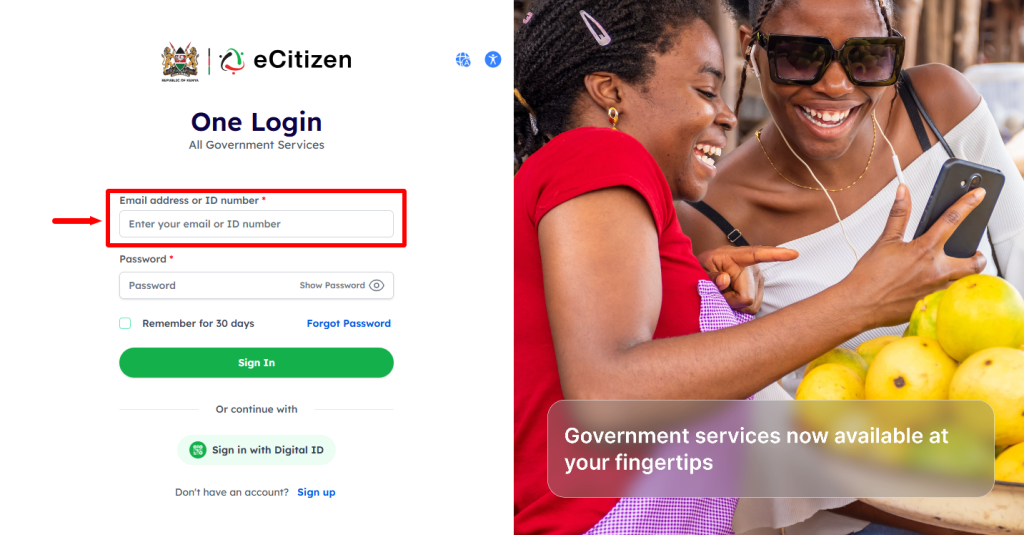
In this step, you need to enter “ID Number” and proceed to the next step.
- Step 4: Enter eCitizen Password
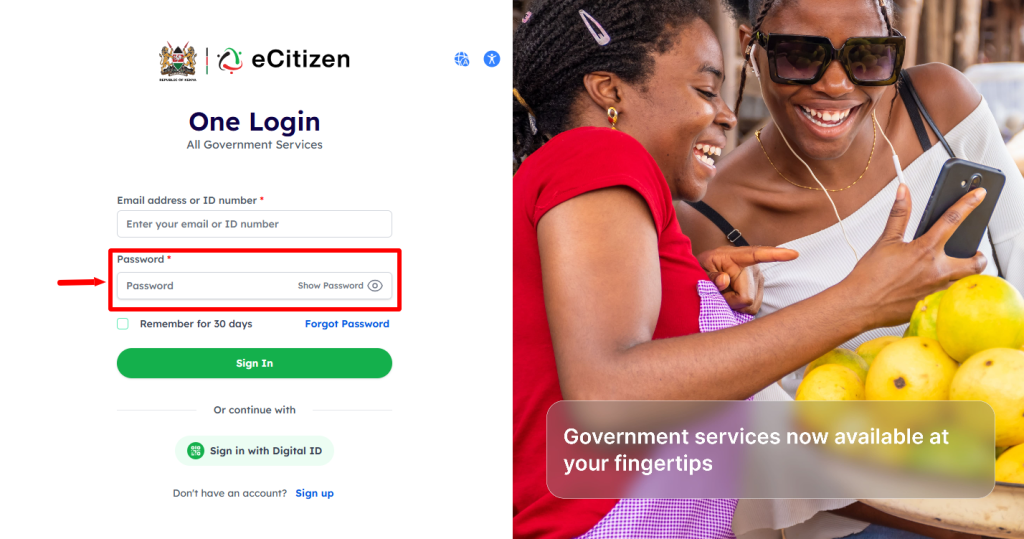
Next, enter “eCitizen Password” and click on the “Sign In” button.
- Step 5: OTP Verification
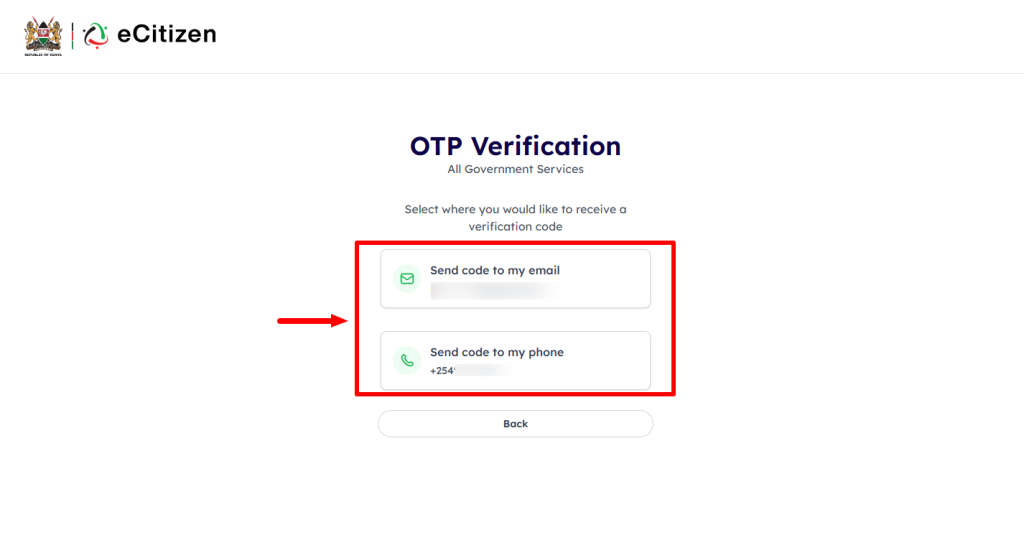
If you have 2FA (Two-Factor Authentication) enabled on your eCitizen account, select the option that you want to receive the eCitizen OTP Verification code either via Phone Number or Email Address.
- Step 6: Enter eCitizen OTP Verification Code
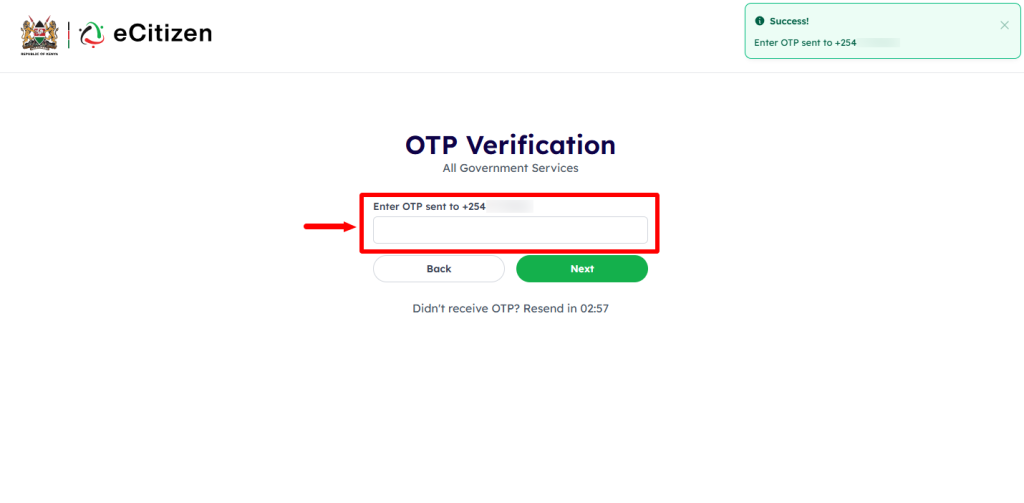
Proceed and enter the “eCitizen OTP Verification Code” and click on the “Next” button.
- Step 7: eCitizen Login Successfull

Once you have entered the correct eCitizen login details i.e. ID Number, eCitizen Password and eCitizen OTP Code, you will be logged into your eCitizen account successfully.
- Step 8: Click on Account Management
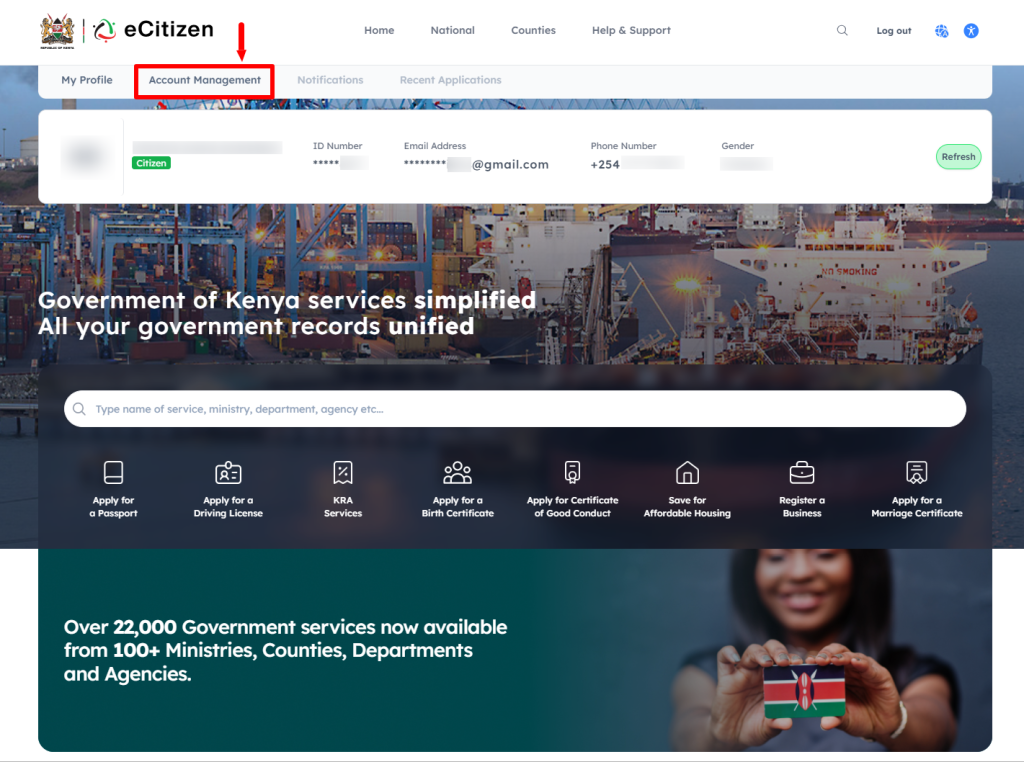
In this step, click on “Account Management” and scroll down to “Electronic Signature” section to start the process of updating eCitizen Electronic Signature (eCitizen Digital Signature).
- Step 9: Electronic Signature
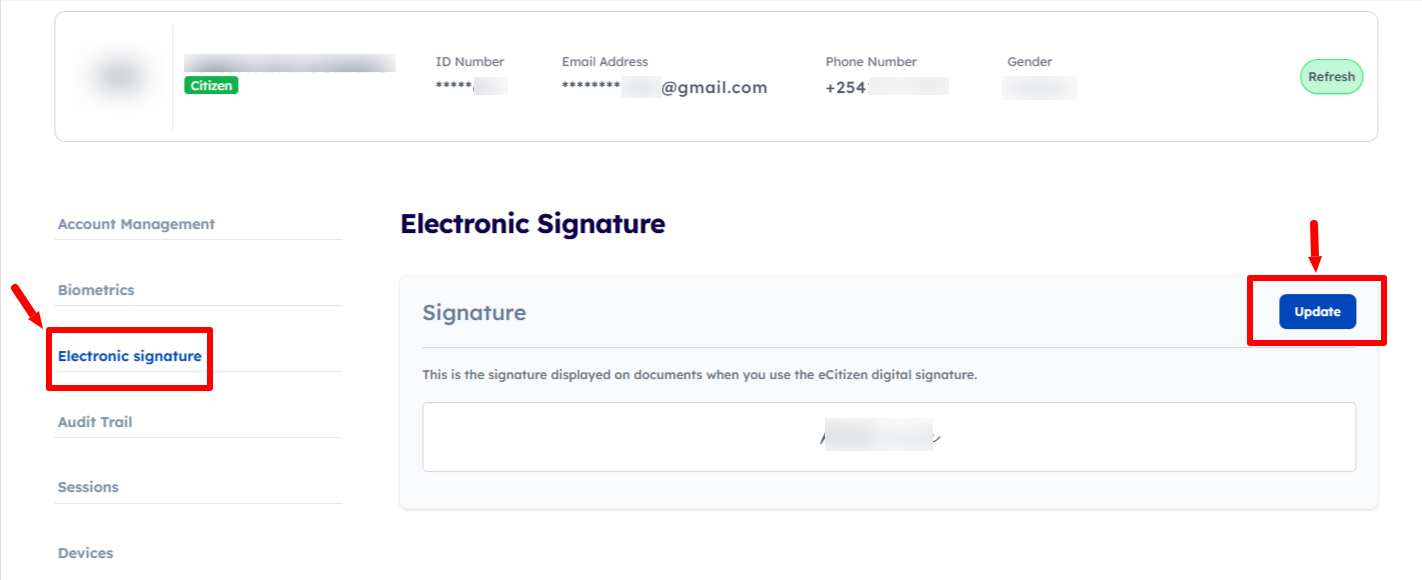
Next, under Electronic Signature section, click on the “Update” button to start the process of updating electronic signature on eCitizen account.
- Step 10: Update Document
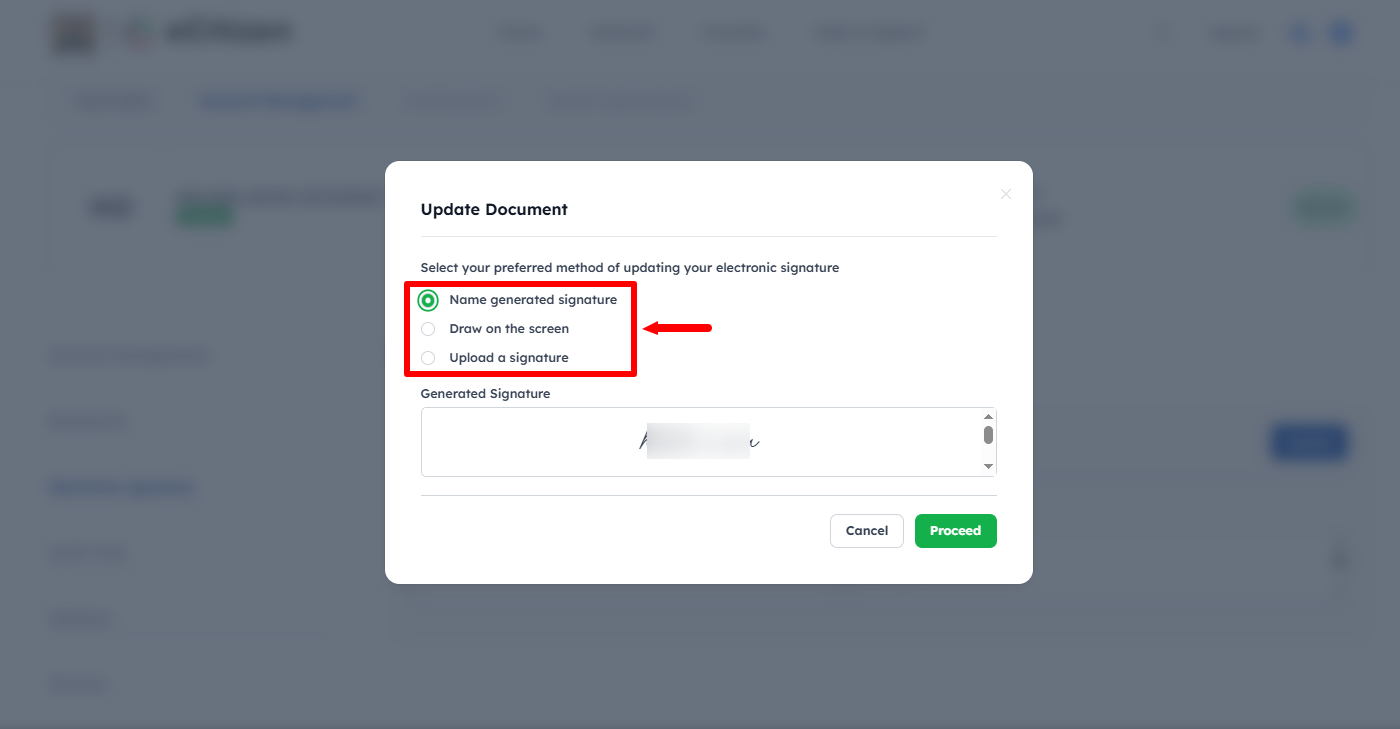
In this step, you need to select your preferred method of updating your eCitizen account electronic signature. The available methods includes: name generated signature, draw on the screen or upload a signature. Once you have selected the option, click on the “Proceed” button.
- Step 11: eCitizen Account Electronic Signature Updated Successfully
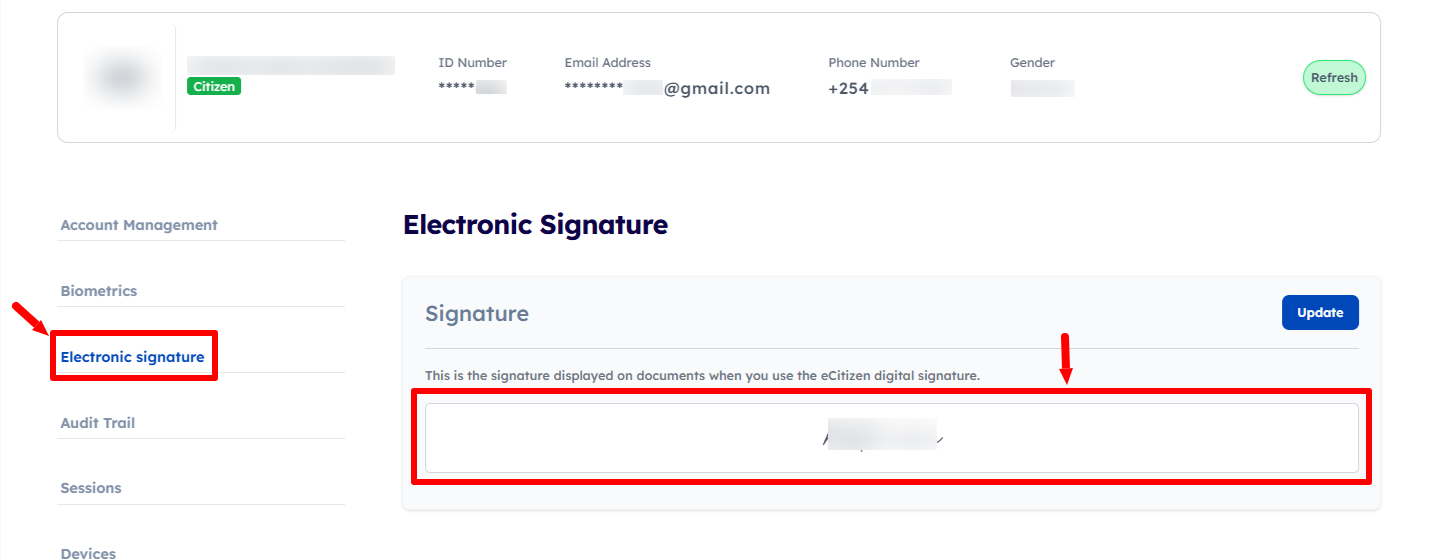
Lastly, once you have selected your preferred method for updating your electronic signature, the signature will be updated successfully on eCitizen. You can then use the updated digital signature when signing documents on the eCitizen platform.
Overview: eCitizen Account Electronic Signature Update
To update your eCitizen Account Electronic Signature, start by visiting the eCitizen website and clicking on Sign in. Enter your ID number and eCitizen password, then complete the OTP verification by entering the eCitizen OTP verification code. Once the login is successful, you will be able to access your eCitizen account.
READ ALSO: How To Check eCitizen Account Audit Trail
After logging in, click on Account Management and select Electronic Signature. From the Electronic Signature section, select Update Document to update the electronic signature information associated with your eCitizen account. Follow the instructions provided on the platform to complete the update process successfully.