
This Step-by-Step Tutorial explains How To Enable Two-Factor Authentication (2FA) on eCitizen Account, providing clear and detailed guidance through each step of the process from start to finish to help you Enable Two-Factor Authentication (2FA) on eCitizen Account in a few minutes.
What is eCitizen Account Two-Factor Authentication (2FA)?
eCitizen Account Two-Factor Authentication (2FA) is an additional security feature that helps protect your eCitizen account from unauthorised access. It requires you to provide a second form of verification in addition to your usual eCitizen login credentials, such as your password.
READ ALSO: How To Change Email Address on eCitizen Account
When 2FA is enabled, you may be required to enter a verification code sent to your registered phone number/email address or provided through an approved authentication method when signing in to eCitizen account online. This adds an extra layer of security to your eCitizen account, even if someone obtains your password.
What is eCitizen Account Two-Factor Authentication (2FA) Enable?
eCitizen Account Two-Factor Authentication (2FA) Enable refers to the process of activating two-factor authentication on your eCitizen account. This security feature adds an extra verification step when signing in, in addition to entering your eCitizen account password.
Once two-factor authentication is enabled, you may be required to provide a verification code during login to confirm your identity. This additional security layer helps protect your eCitizen account from unauthorised access and provides greater security for the government services and personal information associated with your account.
Requirements Needed To Enable eCitizen Account Two-Factor Authentication (2FA)
To successfully Enable Two-Factor Authentication (2A) on eCitizen account, you need to have the following 2 requirements:
- ID Number
- eCitizen Password
How To Enable Two-Factor Authentication (2FA) on eCitizen Account
To Enable Two-Factor Authentication (2FA) on eCitizen Account, follow the step-by-step process outlined below.
- Step 1: Visit eCitizen website
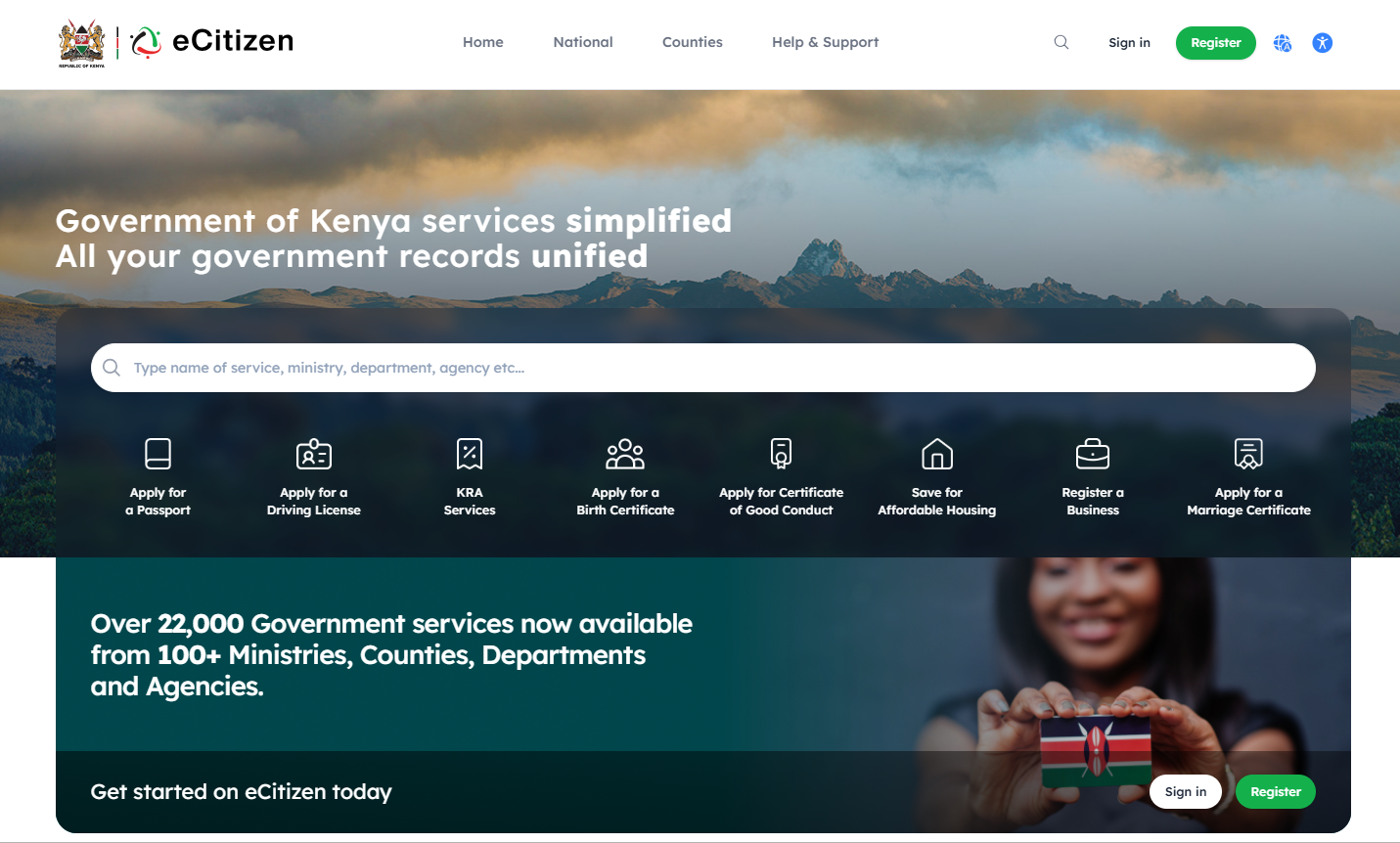
The first step in the process of enebling Two-Factor Authentication (2FA) on eCitizen account is to visit eCitizen website using https://accounts.ecitizen.go.ke/
- Step 2: Click on Sign in
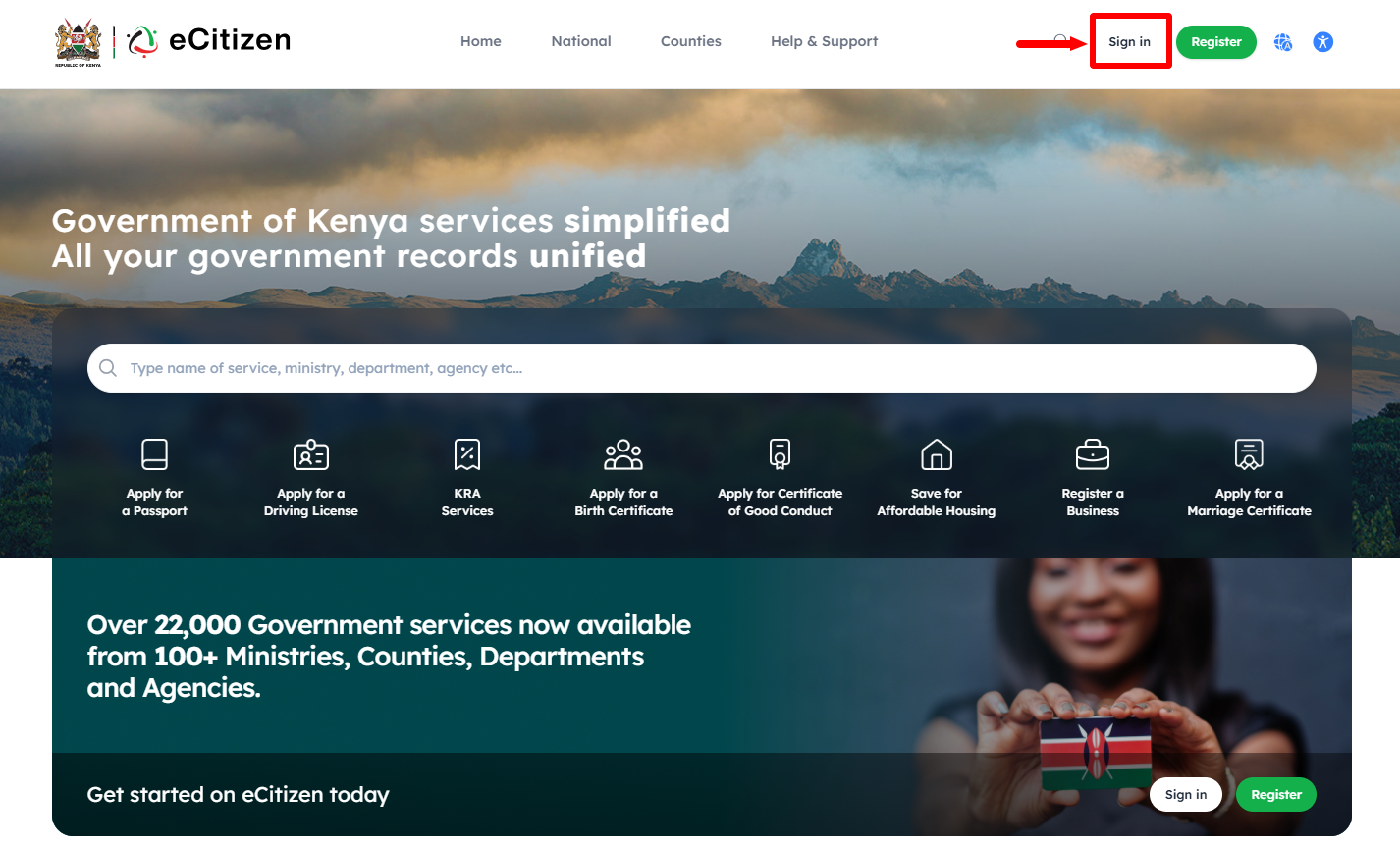
Next, click on the “Sign In” button to start the process of accessing your eCitizen account.
- Step 3: Enter ID Number
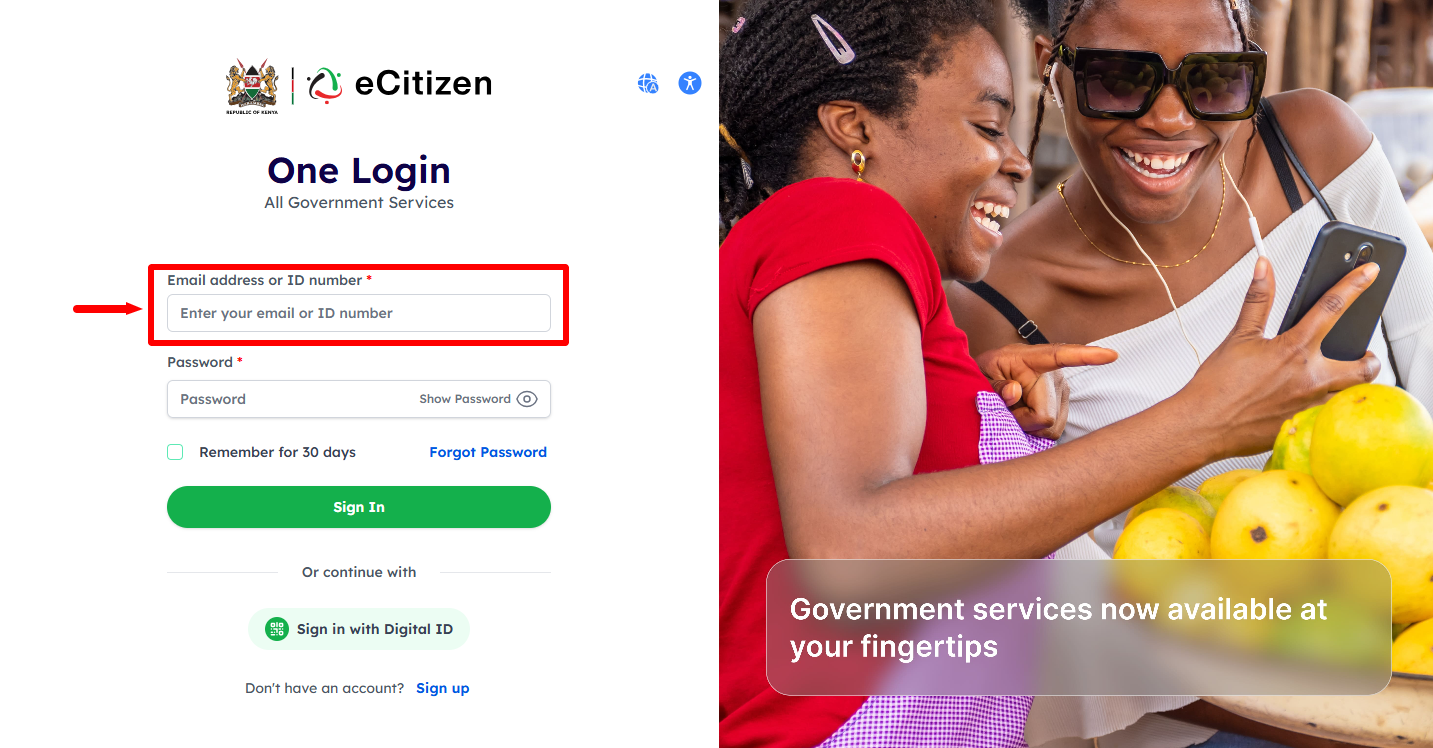
Proceed and enter your “ID Number” then move onto the next step.
- Step 4: Enter eCitizen Password
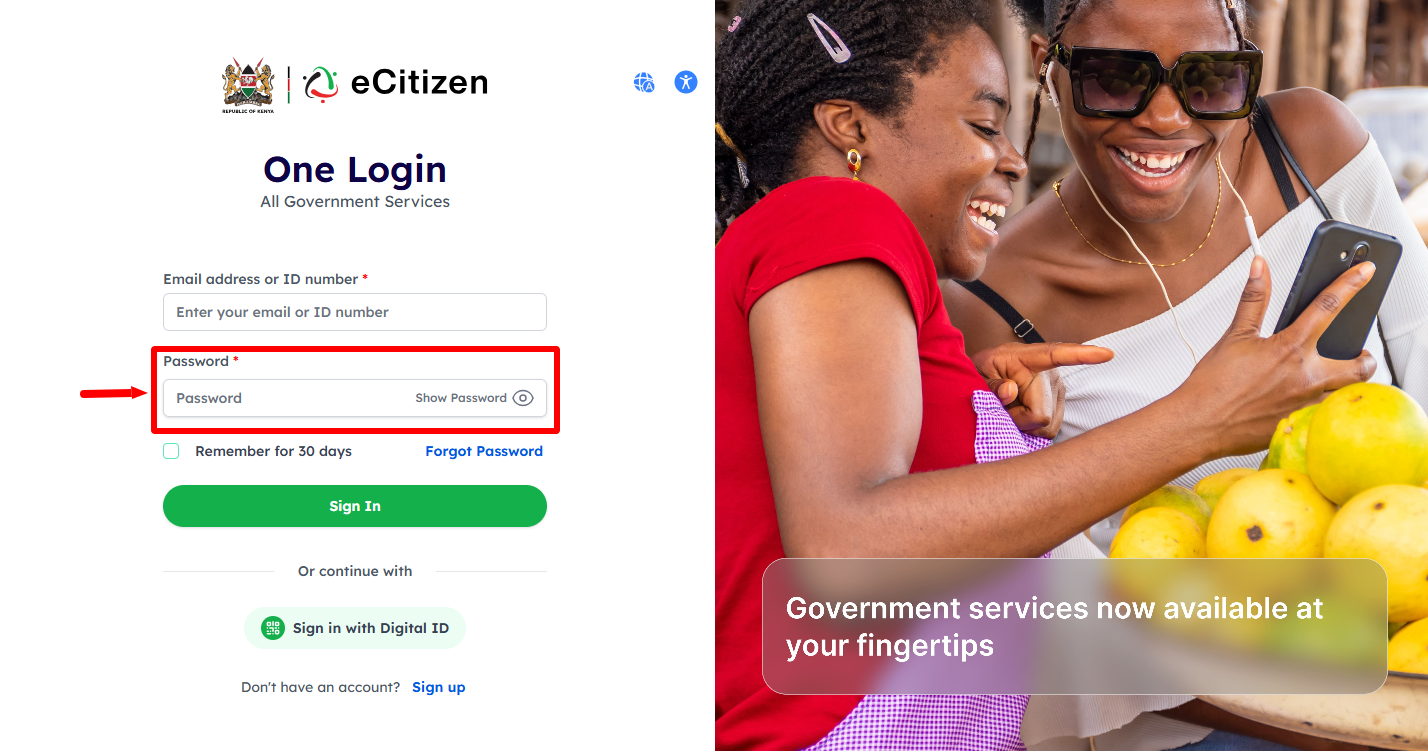
Next, enter your “eCitizen Password” and click on the “Sign In” button to access your eCitizen account.
- Step 5: eCitizen Login Successfull
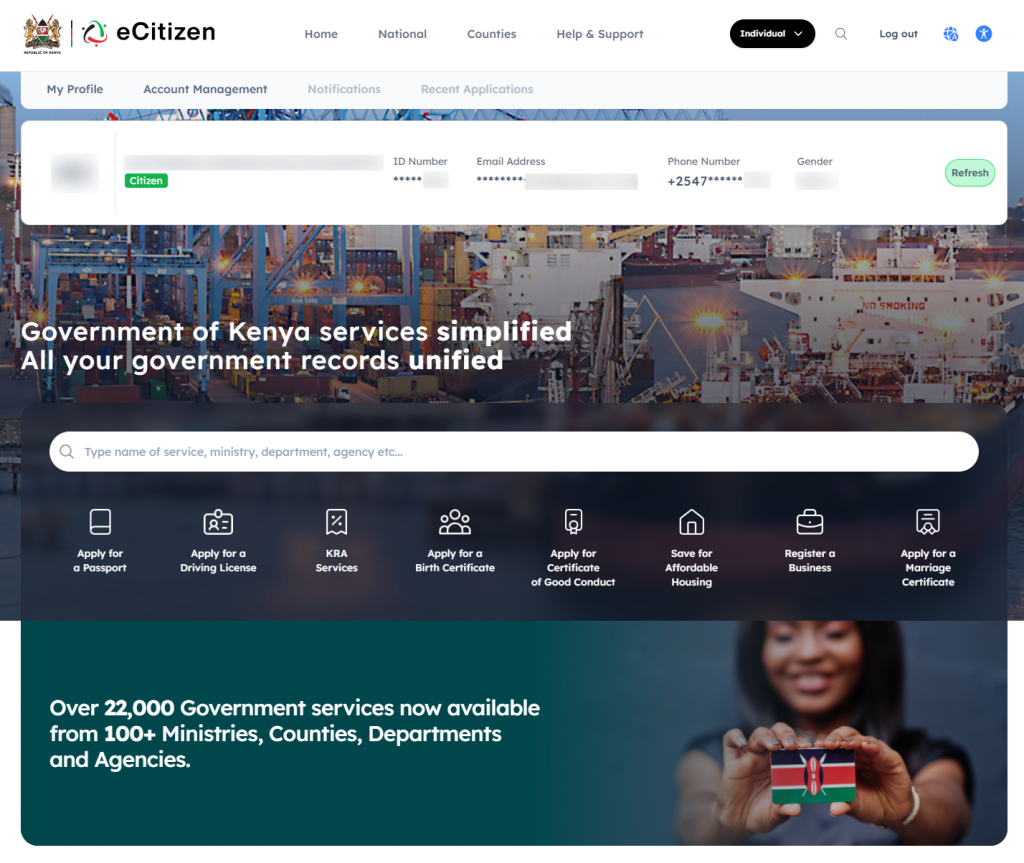
Once you have entered your ID Number and eCitizen account password, you will be successfully logged into your eCitizen account.
- Step 6: Click on Account Management
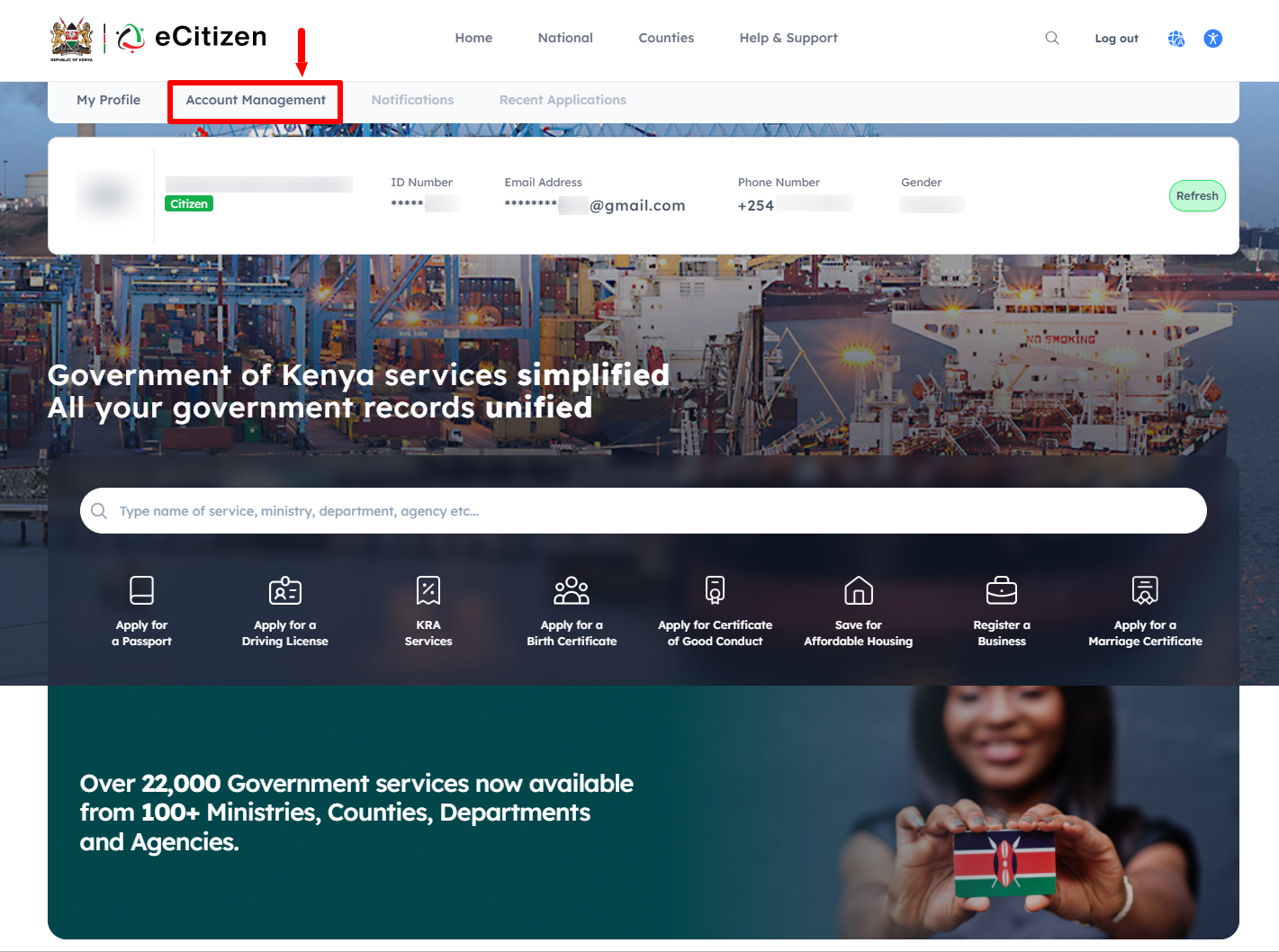
Next, you need to click on “Account Management” to start the process of enabling Two-Factor Aunthentication (2FA) on eCitizen account.
- Step 7: Enable eCitizen Two-Factor Authentication (2FA)
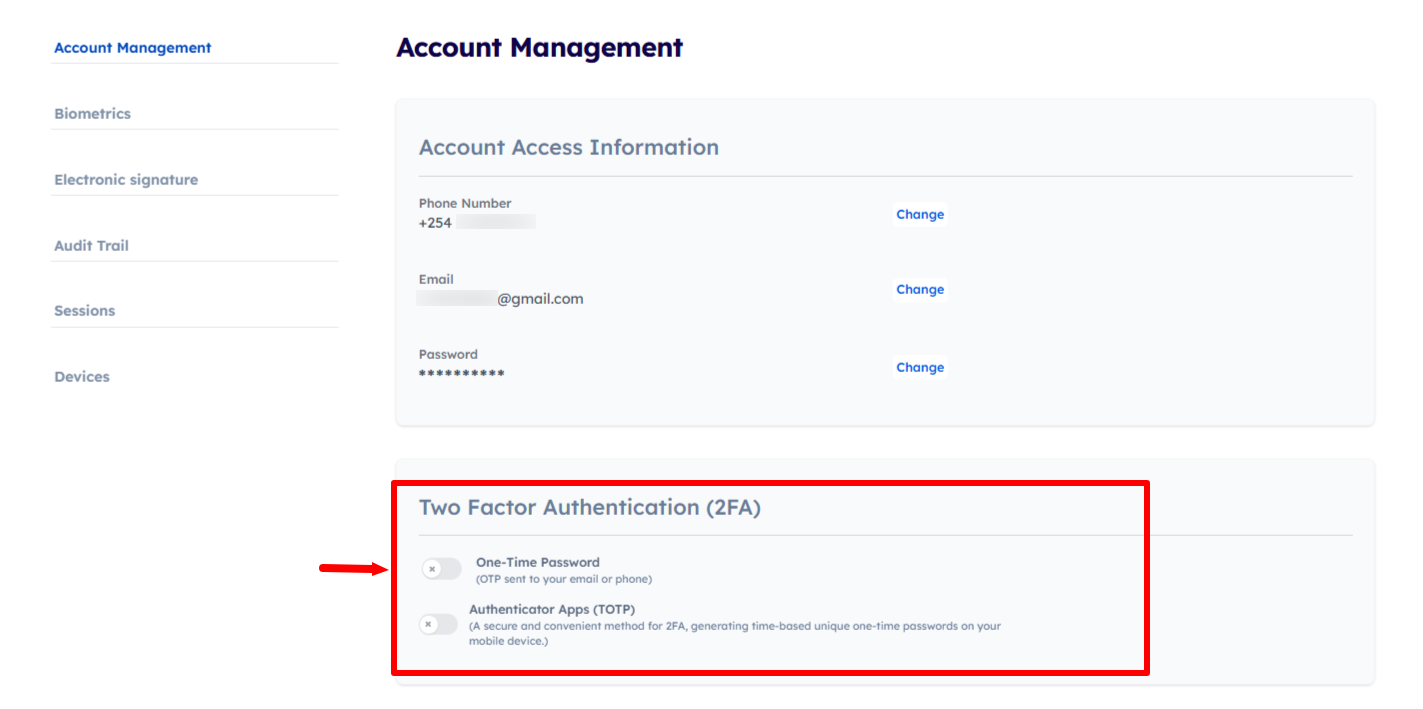
Under eCitizen account management, scroll down to “Two-Factor Authentication (2FA)” section to enable 2FA on eCitizen account. On the One-Time Password, toggle it to “Enable” OTP to be sent to your email or phone number during (toggle to receive OTP while logging in) eCitizen login process.
- Step 8: Verify Account Ownership
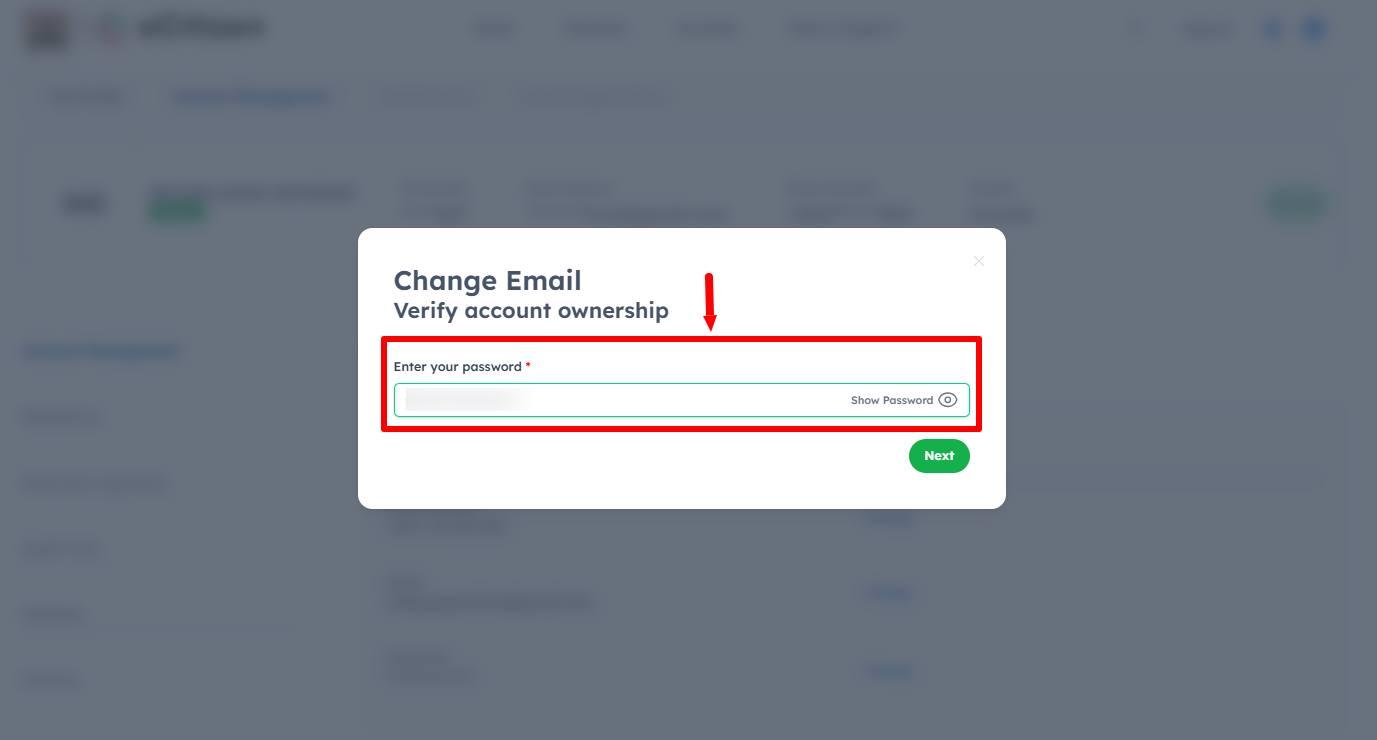
Next, you need to verify eCitizen account ownership by entering your “eCitizen Password” and then clicking on the “Next” button.
- Step 9: Enable One-Time Password (OTP for Email or Phone)
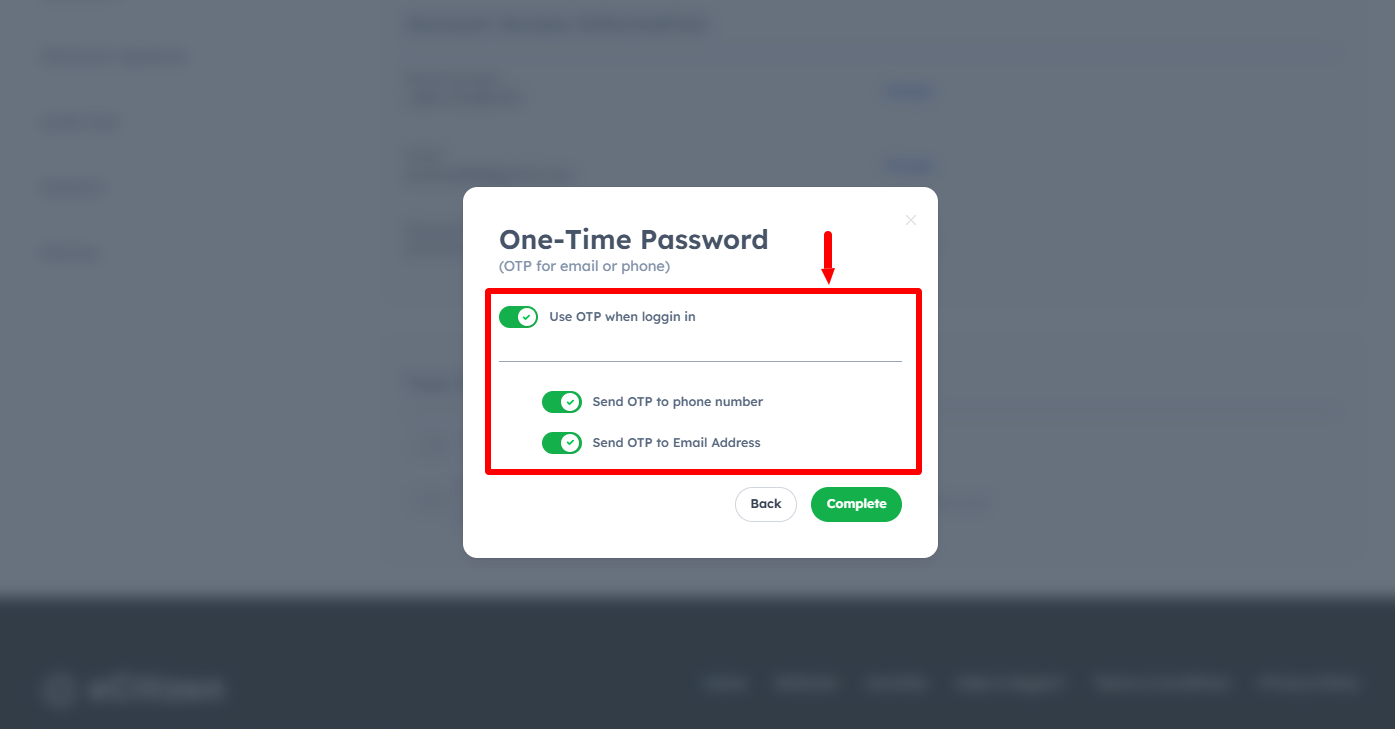
In this step, you now need to toggle on the “Use OTP when logging in” option. Under it, there are two options – “Send OTP to phone number” and “Send OTP to email address” which you can select. It is highly recommended that you enable both options so that the eCitizen OTP Verification Code is sent to both Phone Number and Email Address. Once you have enabled 2FA on eCitizen, click on the “Complete” button.
- Step 10: Login OTP Preferences Updated
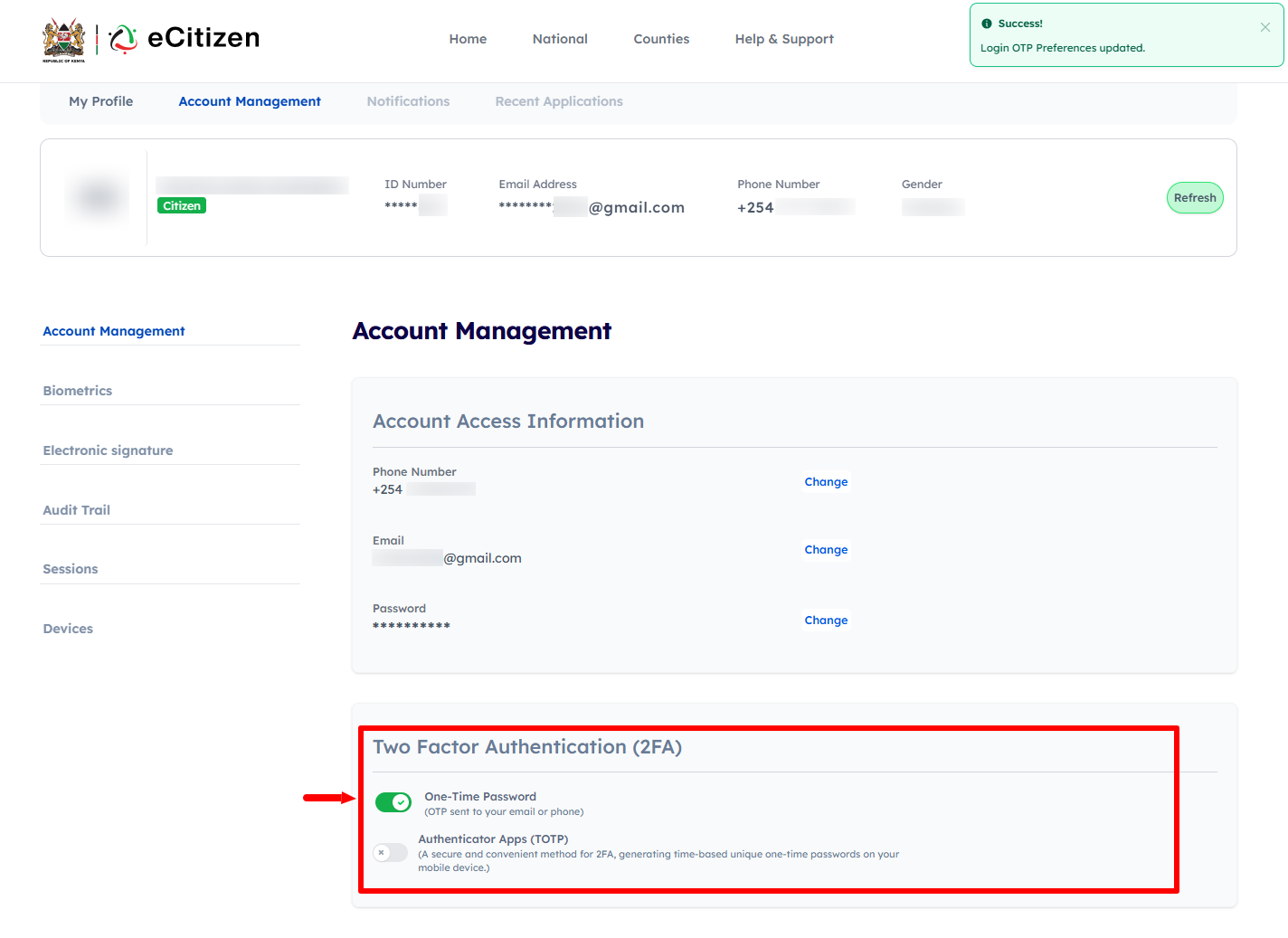
Lastly, you will see a notification that “Login OTP Preferences Updated” meaning that eCitizen Two-Factor Authentication (2FA) has been sucessfully enabled on your eCitizen account. Next time you log in to eCitizen, you will be prompted to enter eCitizen OTP verification code sent to both Phone Number and Email Address so as to be able to access your eCitizen account.
Overview: eCitizen Account Two-Factor Authentication (2FA) Enable
To enable Two-Factor Authentication (2FA) on your eCitizen account, start by visiting the eCitizen website and clicking on Sign in. Enter your ID number and eCitizen password to access your account. Once you have successfully logged in, click on Account Management and select the Two-Factor Authentication (2FA) option.
READ ALSO: How To Change Phone Number on eCitizen Account
You will then be required to verify ownership of your account by entering your eCitizen password. Next, select how you would like to receive your One-Time Password (OTP), either through your phone, email, or both. After confirming your preferred OTP method, your login OTP preferences will be updated and Two-Factor Authentication will be enabled on your eCitizen account.