
This Step-by-Step Tutorial explains How To Change Phone Number on eCitizen Account, providing clear and detailed guidance through each step of the process from start to finish to help you Change Phone Number on eCitizen Account in a few minutes.
What is eCitizen Account Phone Number?
An eCitizen account phone number is the mobile phone number registered and linked to a user’s eCitizen account. It is provided when creating or updating an eCitizen account and serves as an important contact detail for account-related communication and verification.
READ ALSO: How To Register eCitizen Account
The registered phone number may be used to receive OTP verification codes, login or security notifications, and other messages related to eCitizen services. It is therefore important to keep the phone number linked to your eCitizen account active and up to date.
What is eCitizen Account Phone Number Change?
eCitizen account phone number change is the process of updating the mobile phone number linked to your eCitizen account. This may be necessary when you have a new phone number, no longer use the number previously registered, or need to update your account contact details.
Changing the phone number ensures that your eCitizen account has the correct and active contact information. An updated phone number may be used for receiving OTP verification codes, account notifications, and other important communication related to your eCitizen account.
Requirements Needed To Change eCitizen Account Phone Number
To successfully Change Phone Number on eCitizen Account, you need to have the following 3 requirements:
- ID Number
- eCitizen Password
- New Phone Number
How To Change Phone Number on eCitizen Account
To Change Phone Number on eCitizen Account, follow the step-by-step process outlined below.
- Step 1: Visit eCitizen website
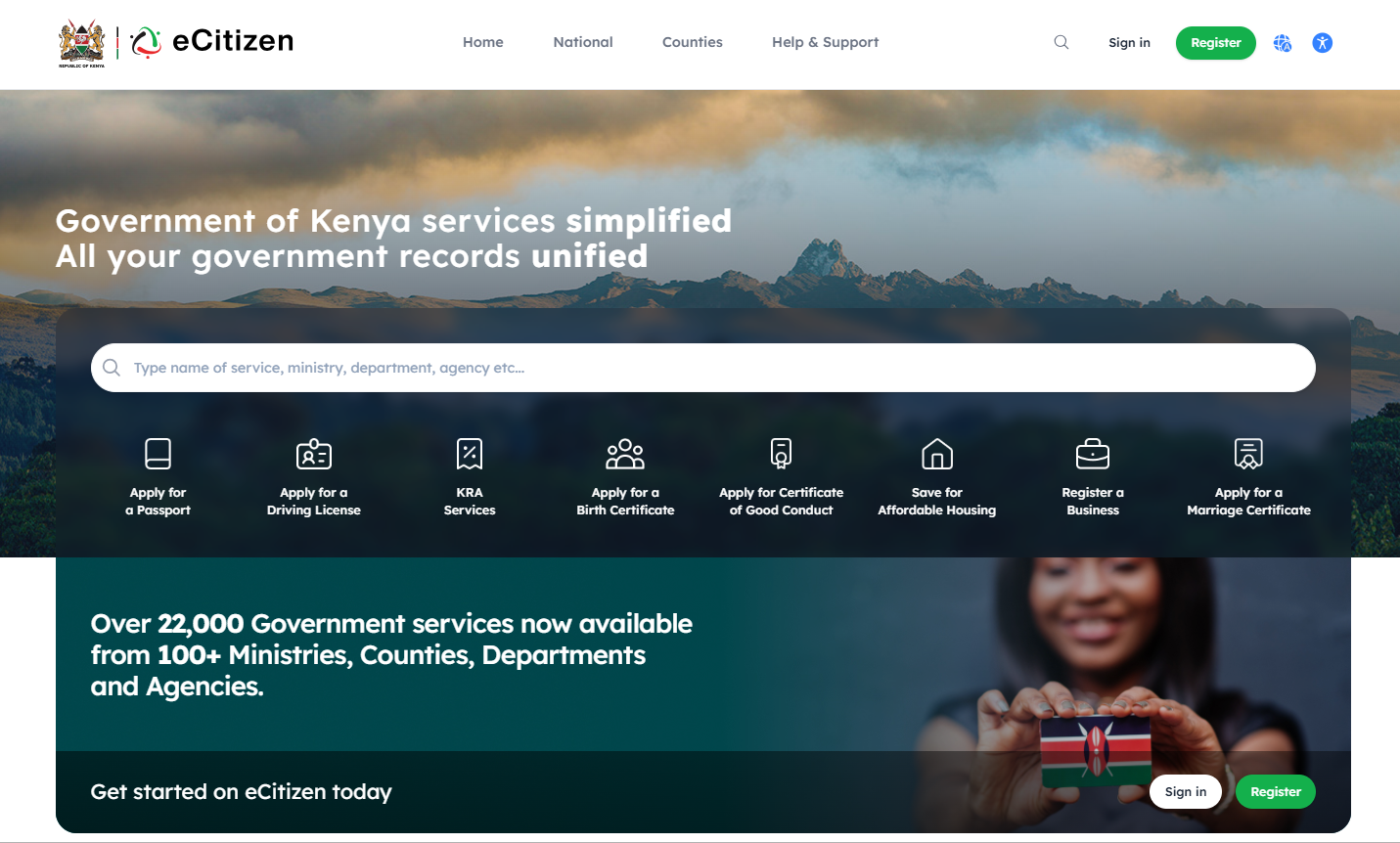
The first step in the process of changing Phone Number on eCitizen account is to visit the eCitizen website using https://accounts.ecitizen.go.ke/
- Step 2: Click on Sign in
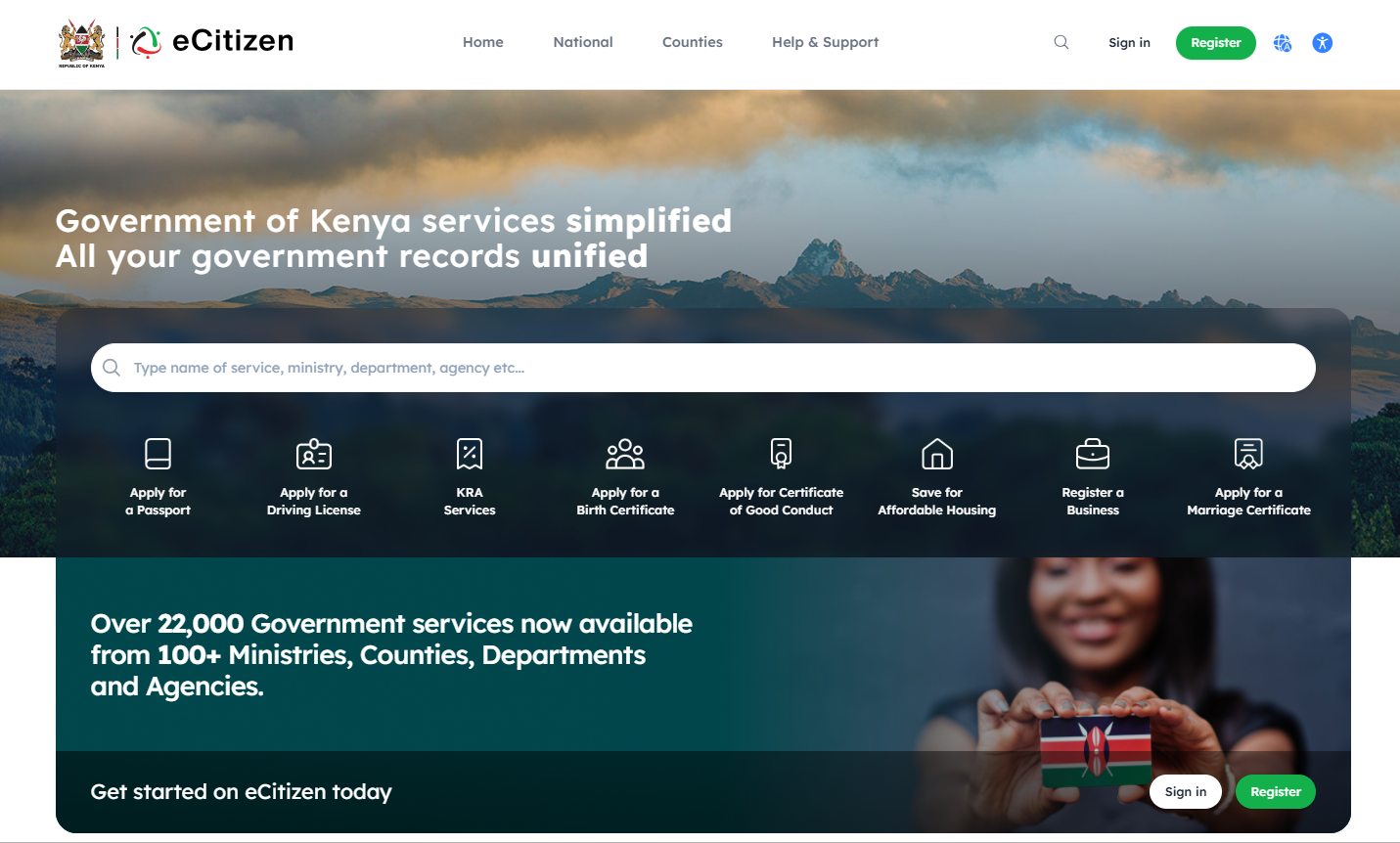
Once you are on eCitizen website, click on the “Sign in” button and proceed to the next step.
- Step 3: Enter ID Number
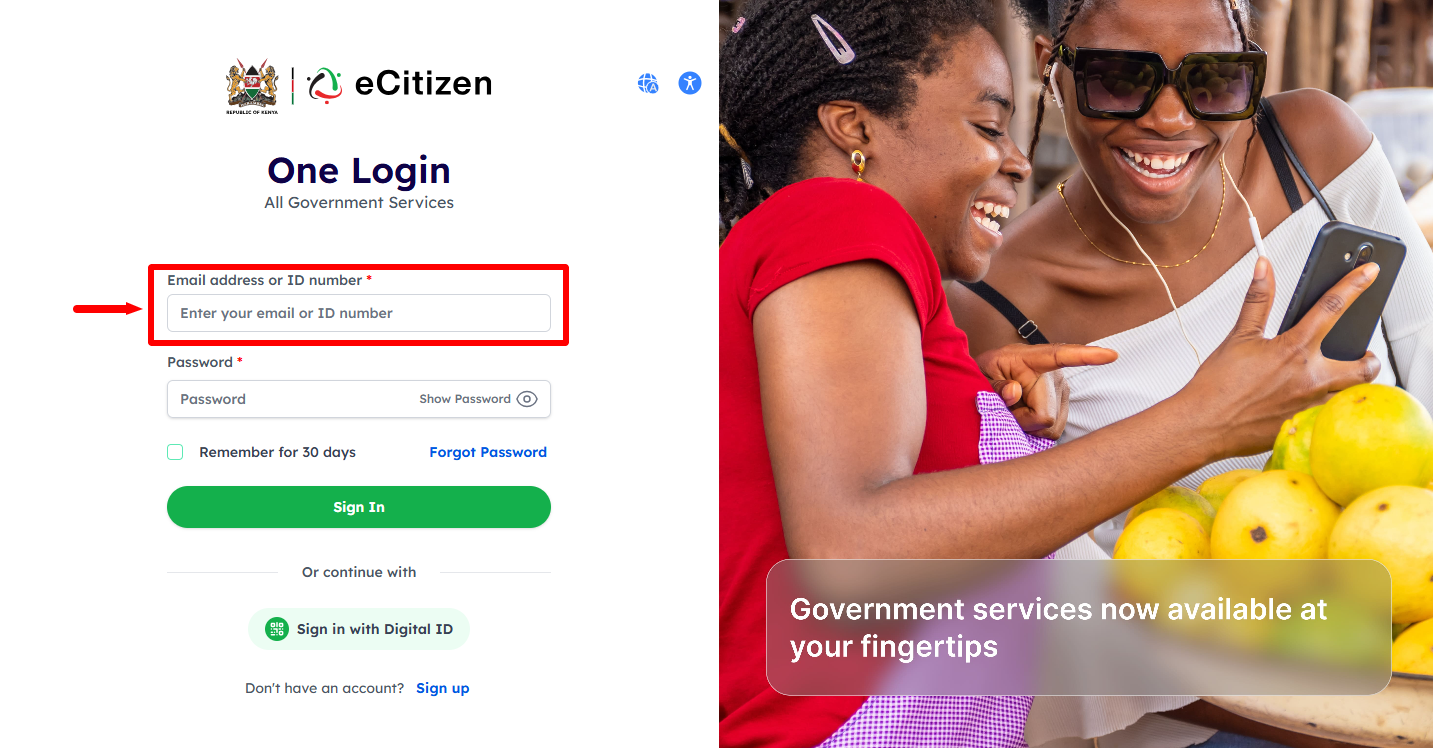
Next, enter eCitizen account Email Address or ID Number and proceed to the next step.
- Step 4: Enter eCitizen Password
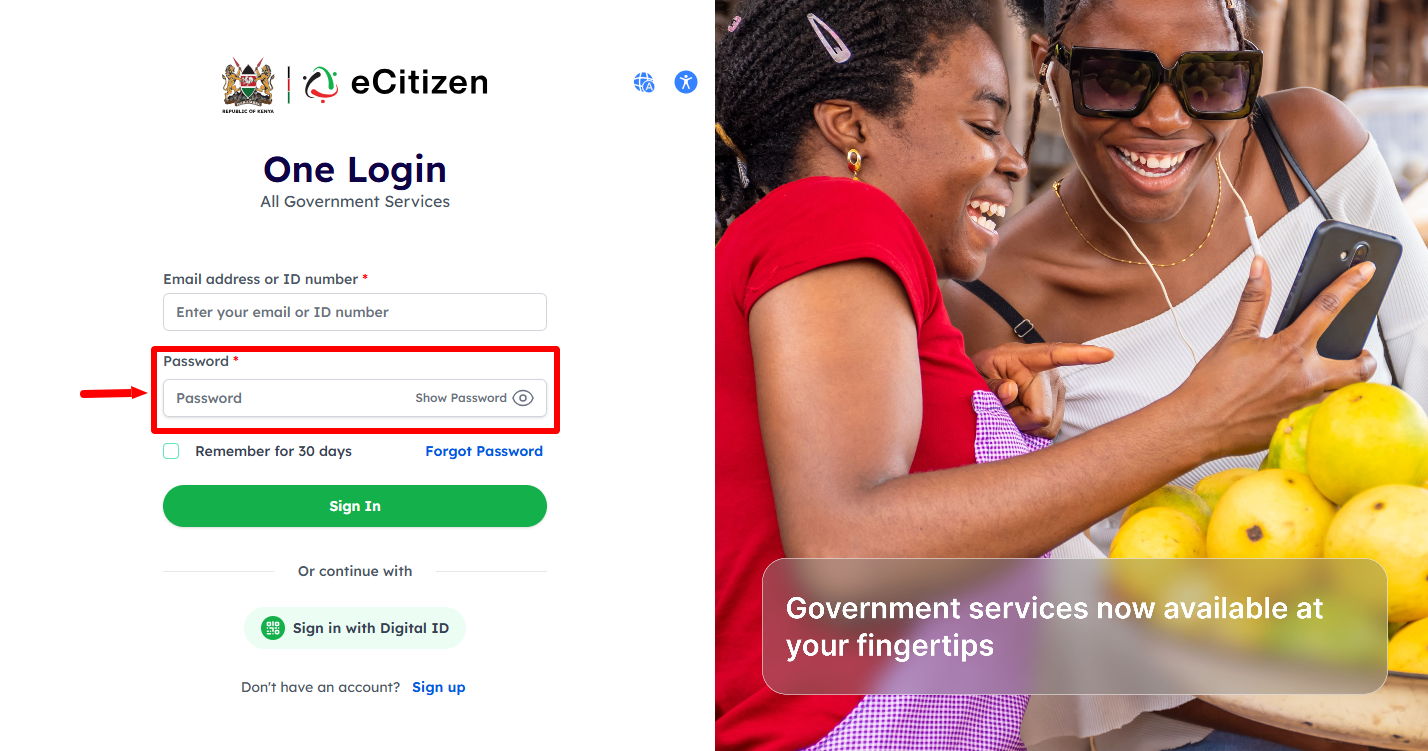
In this step, enter eCitizen account password then click on the “Sign In” button.
- Step 5: OTP Verification
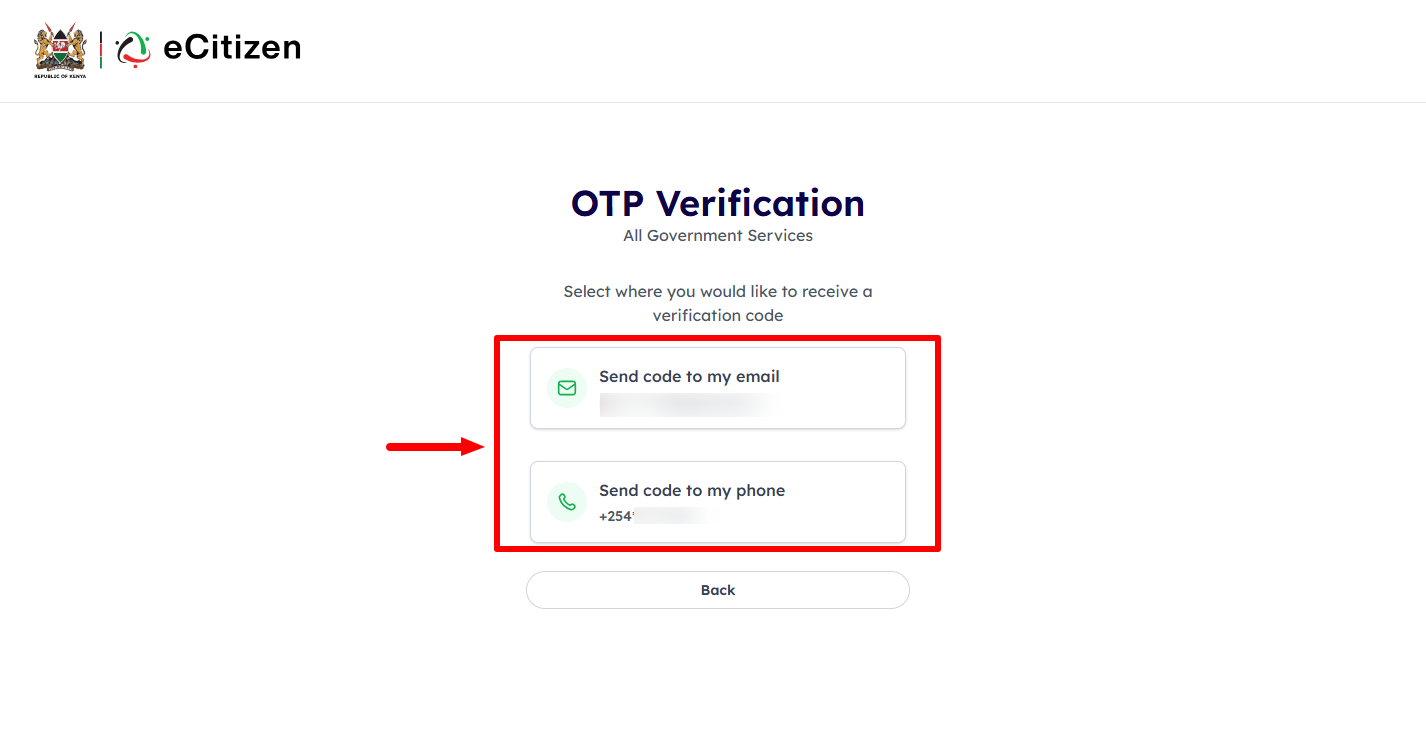
If your account has Two-Factor Authentication (2FA) enabled, you will have to verify your eCitizen account login using OTP verification code sent Email Address or Phone Number linked to eCitizen.
- Step 6: Enter eCitizen OTP Verification Code
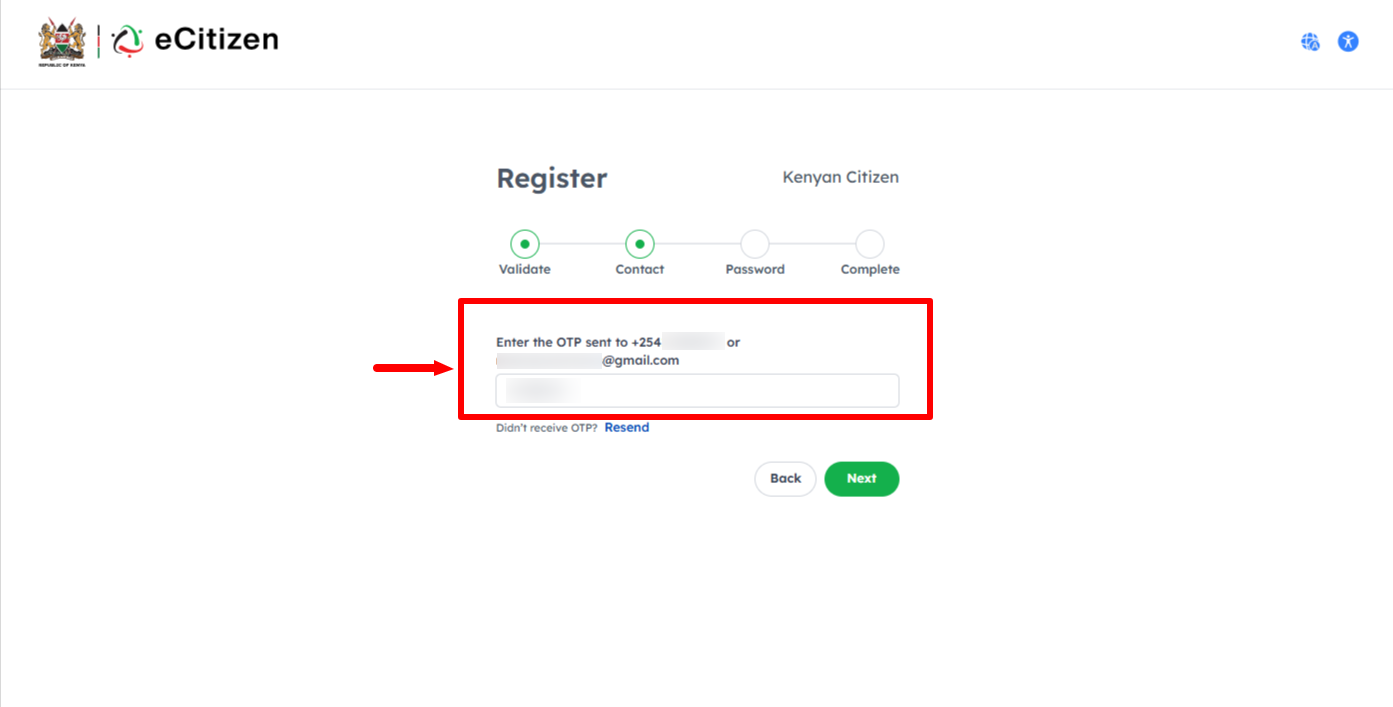
Next, enter the eCitizen OTP Verification sent to Phone Number and Email Address. Once done, click on the “Next” button.
- Step 7: eCitizen Login Successfull
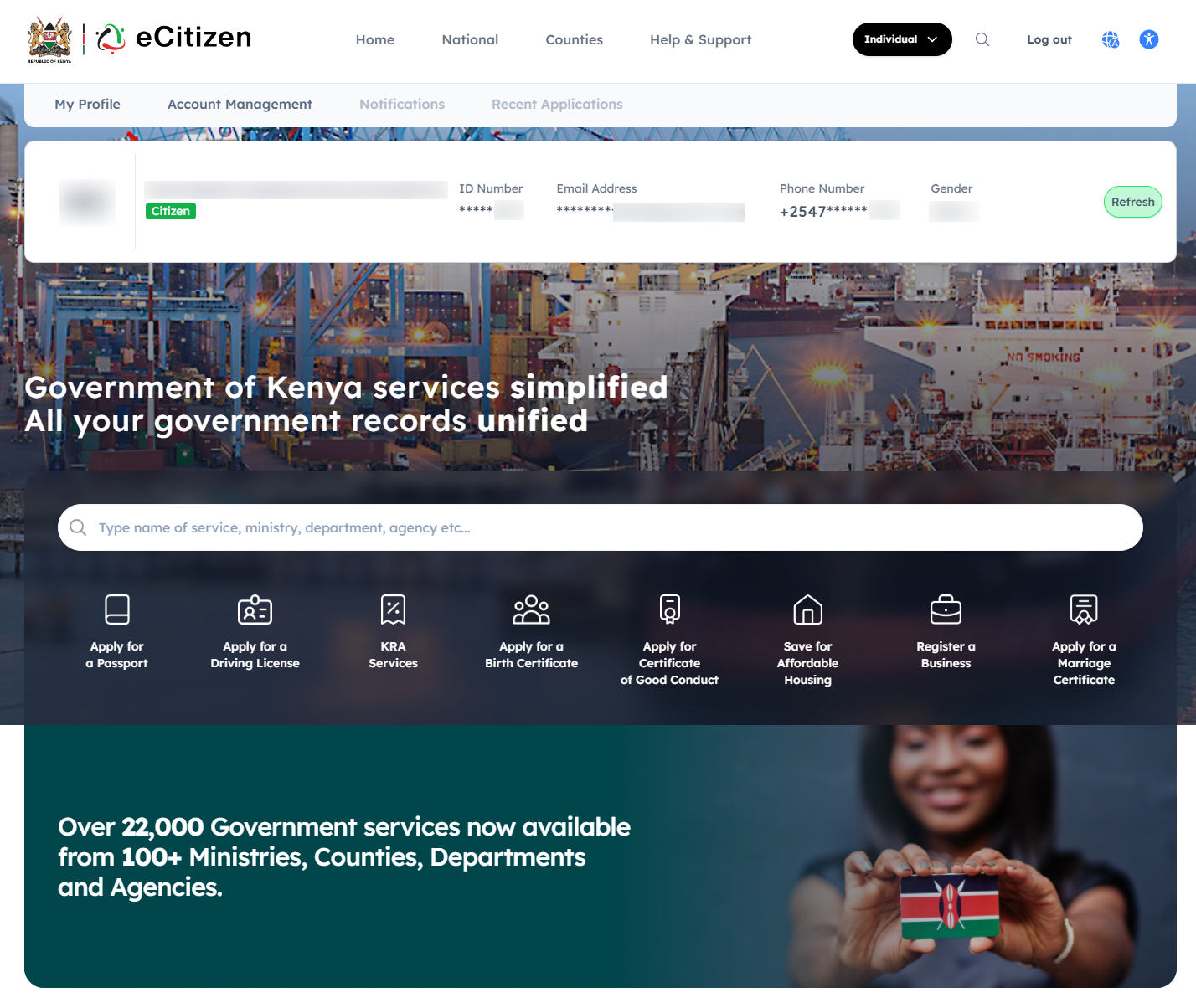
Once you have entered everything correctly, you will be logged into your eCitizen account and you can now start the process of changing Phone Number on the eCitizen account.
- Step 8: Click on Account Management
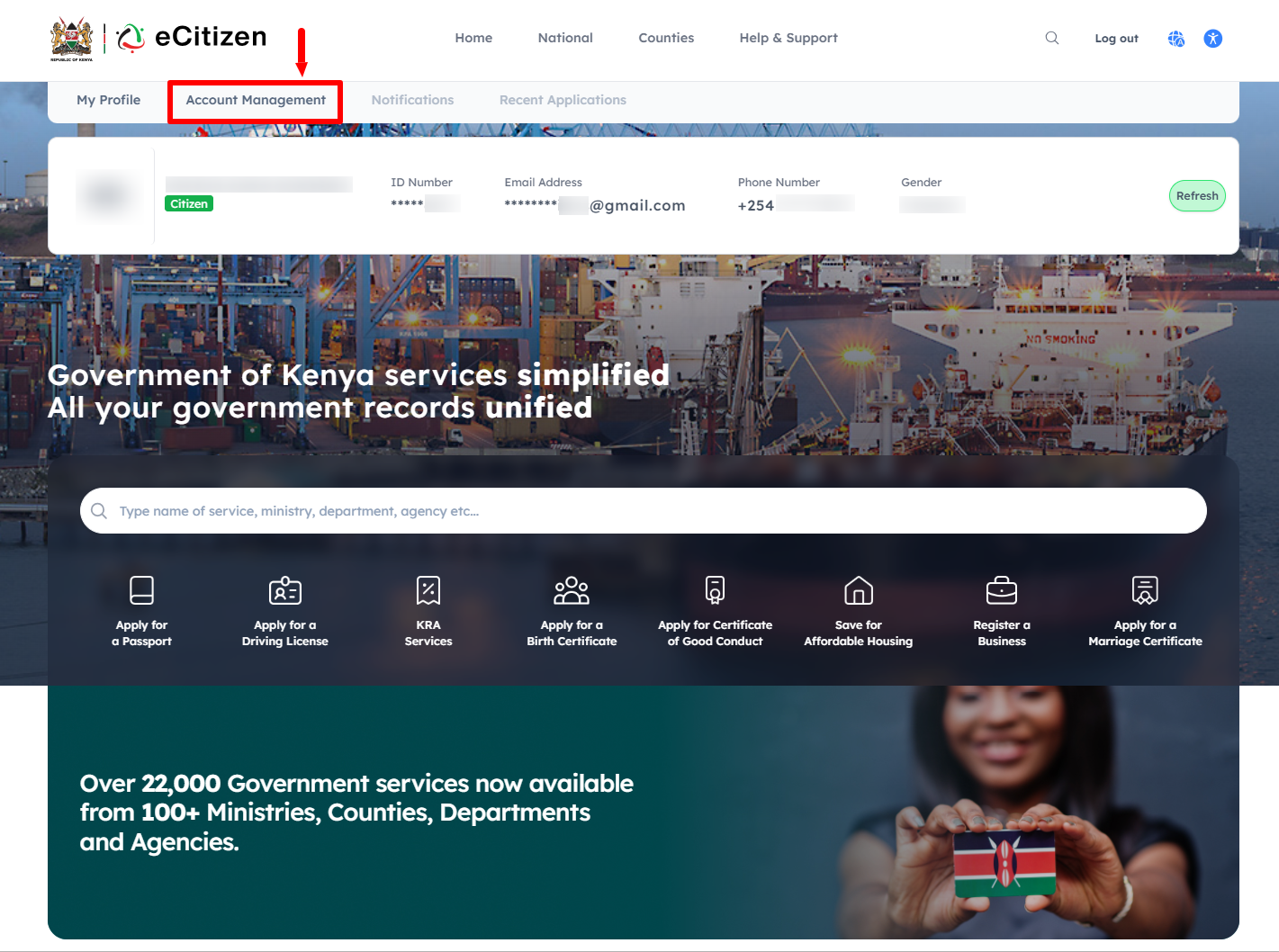
In this step, once you are logged into eCitizen account, click on “Account Management” to start the process of changing Phone Number on eCitizen.
- Step 9: eCitizen Account Access Information
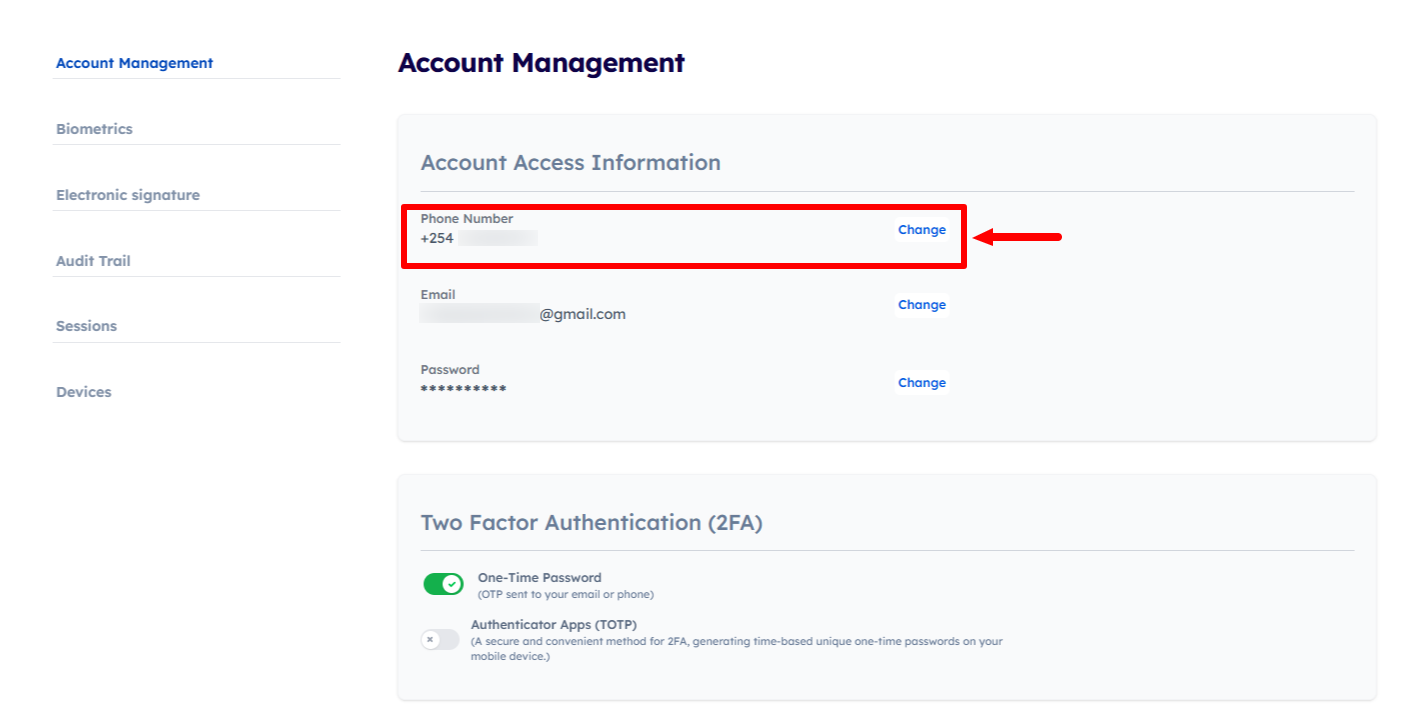
Under Account Management, scroll to “Account Access Information” and the click on “Change” next to the phone number to start the process.
- Step 10: Verify eCitizen Account Ownership
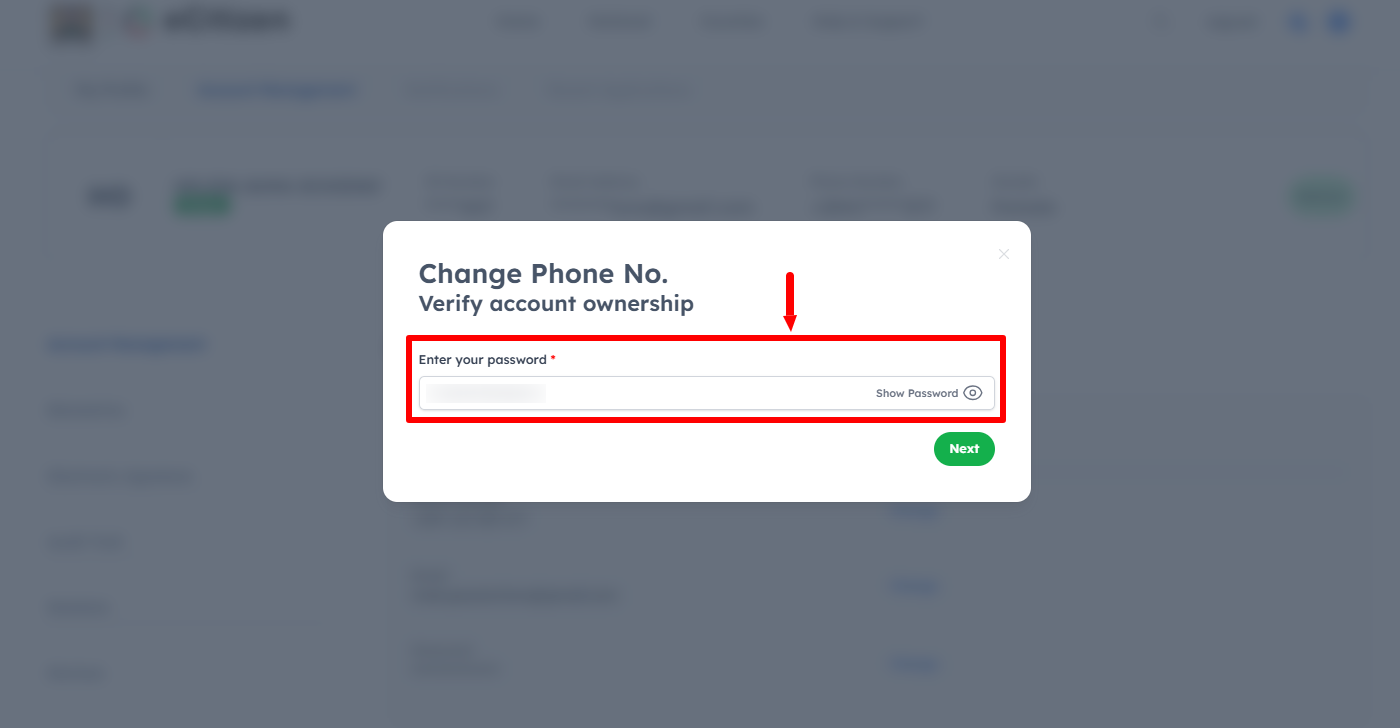
In this step, you need to verify eCitizen account ownership by entering “eCitizen Password” and clicking on the “Next” button.
- Step 11: Enter OTP Sent To Email Address
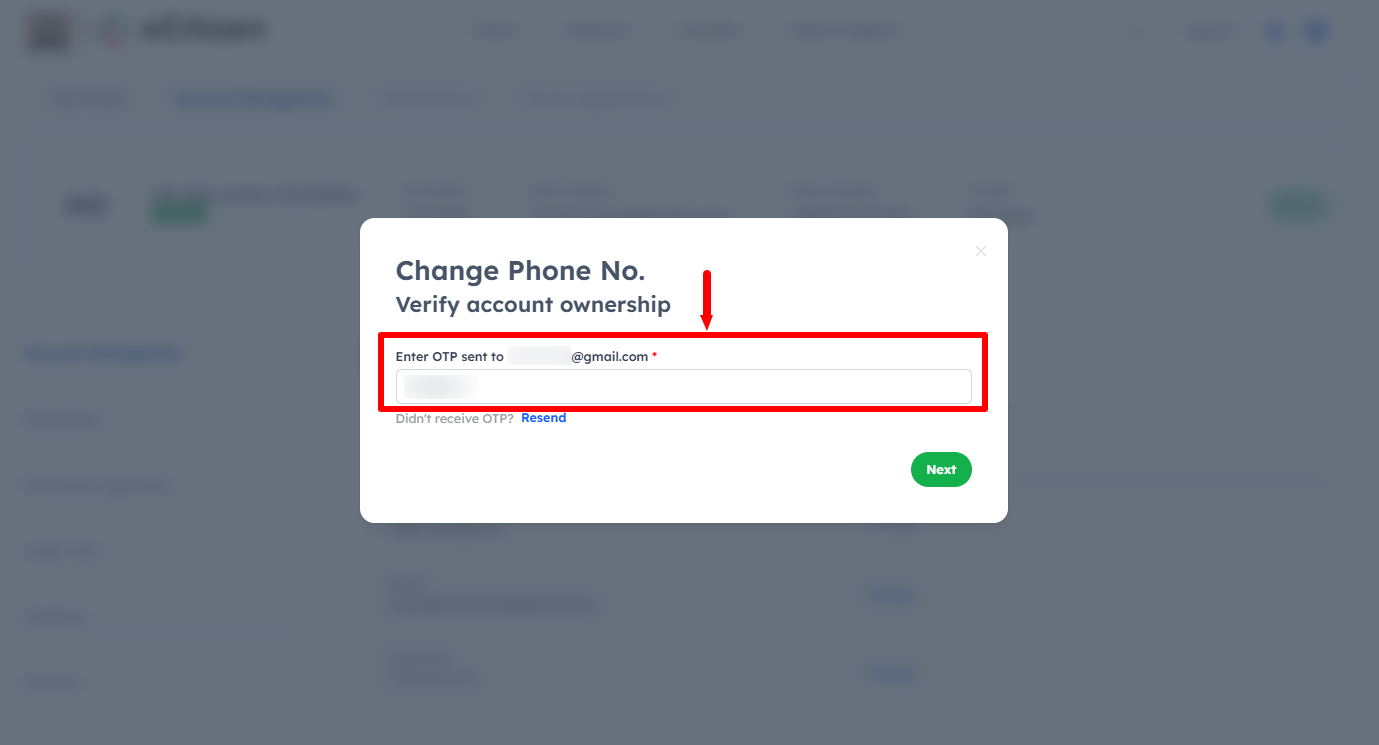
Next, enter the OTP Verification Code that has been sent to the email address registered on eCitizen. Once you have entered the OTP Vertification Code, click on the “Next” button to proceed to the next step.
- Step 12: Enter New Phone Number
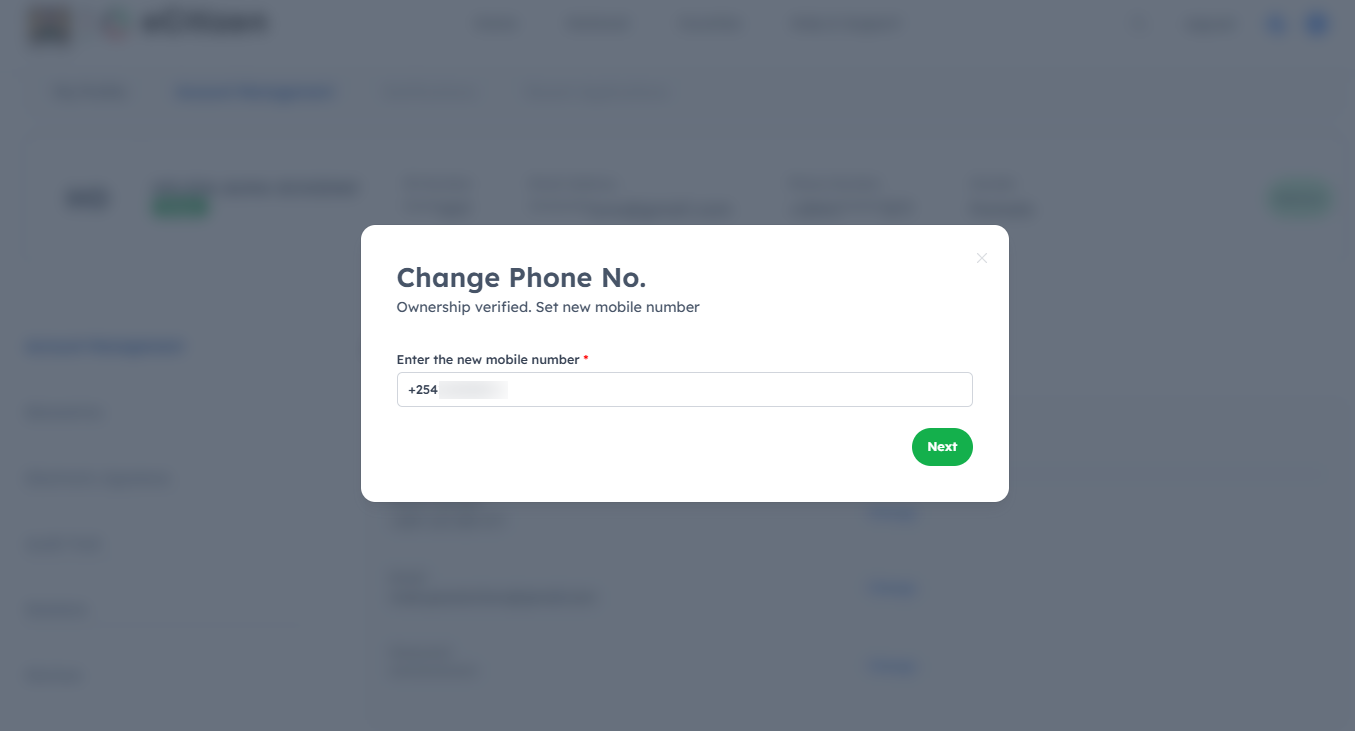
In this, you need to enter the new phone number that you want to use on your eCitizen account. Once you have entered the new phone number, proceed and click on the “Next” buuton.
- Step 13: Enter OTP to Confirm New eCitizen Account Phone Number
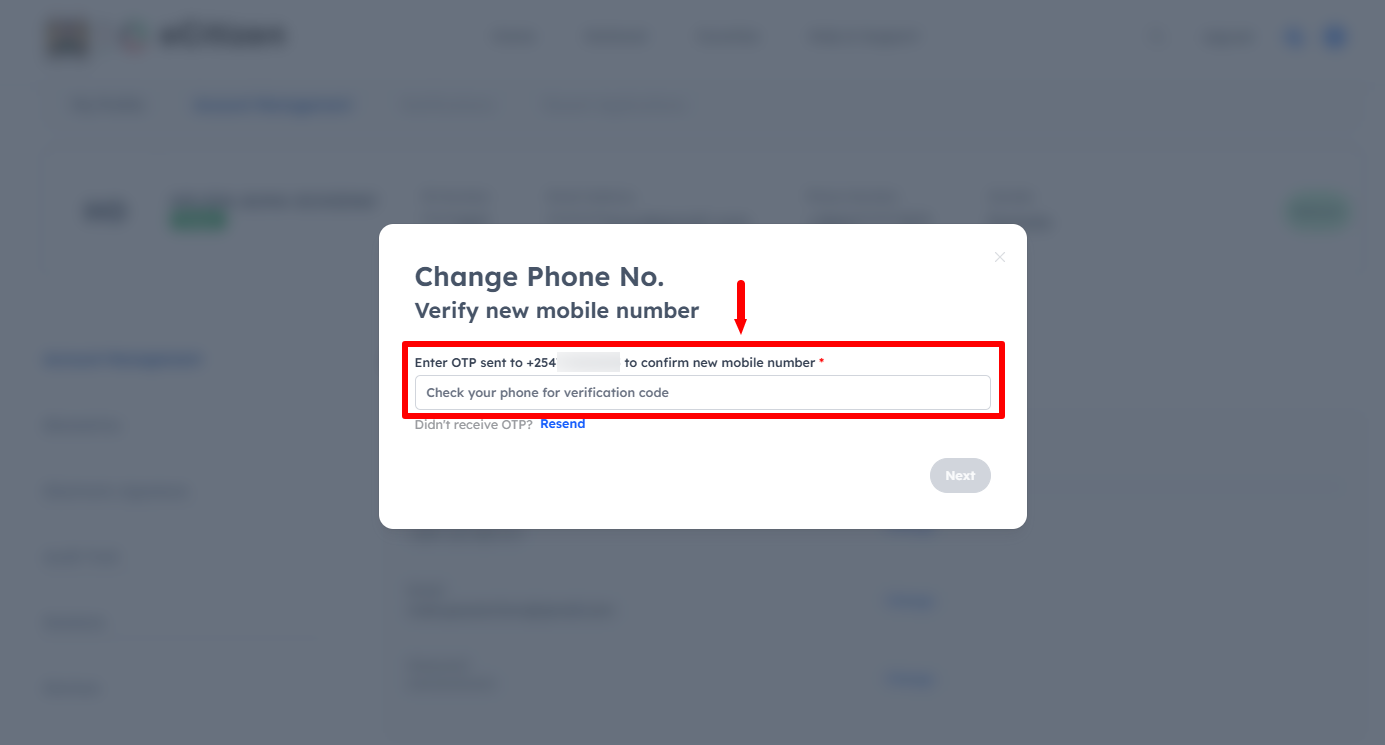
Next, enter the OTP verification code sent via SMS to confirm the new eCitizen Account Phone Number. Once you have done that, click on the “Next” button.
- Step 14: eCitizen Account Phone Number Successfully Changed
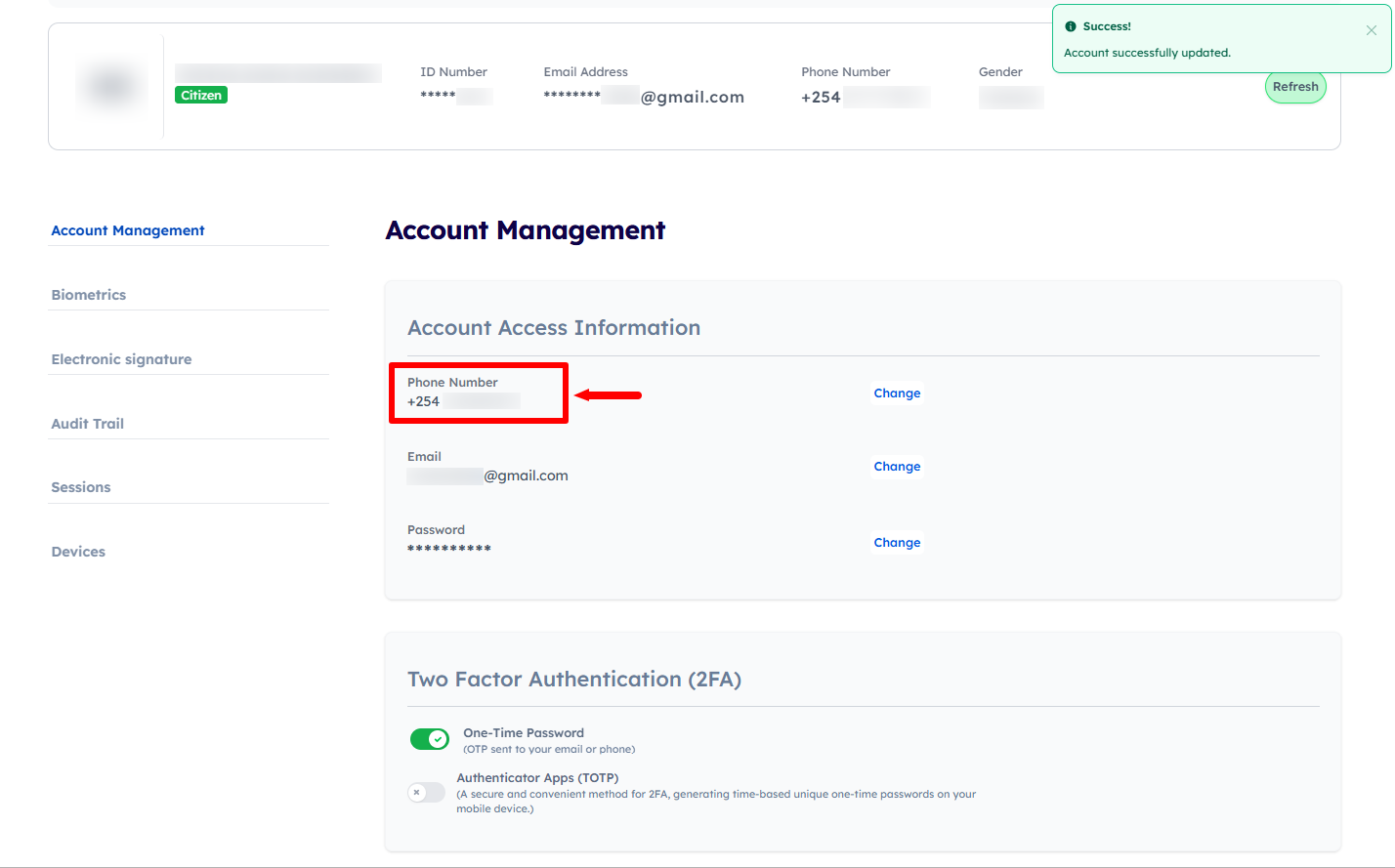
Lastly, after entering everything correctly, you eCitizen account phone number will be changed successfully and you can start using the new phone number on eCitizen account. The message “Account Successfully Updated” will be displayed under “Account Management” where you can also confirm that the eCitizen Phone Number has been successfully changed.
Overview: eCitizen Account Phone Number Change
To change the phone number on your eCitizen account, start by visiting the eCitizen website and clicking on Sign in. Enter your registered email address or ID number and eCitizen password, then complete the OTP verification by entering the verification code sent to you. Once successfully logged in, click on Account Management and access the eCitizen Account Access Information section.
READ ALSO: How To Log In To eCitizen
Next, verify ownership of your eCitizen account as required and proceed to update your contact information. Enter the new phone number you want to link to your account and complete the required verification process. Once the information has been successfully submitted and verified, your eCitizen account phone number will be changed successfully.