
GHRIS Password is used together with your User ID (Personal Number) to access your account on the Government Human Resource Information System (GHRIS). If you have forgotten your password or need to regain access to your account, you can use the available password reset option provided through the GHRIS system.
This guide explains How To Reset GHRIS Password when you are unable to log in to your GHRIS account using your current password. The process involves accessing the GHRIS login page, selecting the password reset option, providing the required account information, and following the instructions provided to create or recover your GHRIS Password.
READ ALSO: How To Download GHRIS Payslip
What is GHRIS Password?
GHRIS Password is a confidential security credential used by a government employee to access their account on the Government Human Resource Information System (GHRIS). The password is used together with the employee’s User ID (Personal Number) during the GHRIS login process. It helps protect access to the account and the personal, employment and human resource information available through the GHRIS platform. A user should keep their GHRIS Password private and avoid sharing it with other people.
GHRIS Password is required whenever an employee wants to log in to their GHRIS account and access the services available on the platform. Users should enter the correct password when signing in and ensure that their login details are kept secure. If an employee forgets their password or can no longer use it to access the account, they can follow the available GHRIS password recovery or reset process to regain access to their account.
What is GHRIS Password Reset?
GHRIS Password Reset is the process of recovering access to a Government Human Resource Information System (GHRIS) account when a user has forgotten their password or is unable to log in using the existing password. The reset process provides a way for government employees to regain access to their GHRIS accounts without having to create a new account. It involves providing the required account information and following the instructions provided by the GHRIS system to reset the password.
GHRIS Password Reset process is important because the GHRIS Password is required when accessing services and information through a user’s account. After completing the password reset process successfully, the user can use the new password together with their User ID (Personal Number) to log in to GHRIS. Keeping the new password secure and not sharing it with other people helps protect the user’s GHRIS account and the information associated with it.
Requirements Needed To Reset GHRIS Password
To Reset GHRIS Password, you need to provide several personal and account details to help the GHRIS system identify and verify your account. The information includes your User ID (Personal Number), ID Number, KRA PIN, Surname, Date of Birth (DOB) and Gender. You will also need to agree to the Terms of Service and provide your registered Mobile Number and Personal Email as required during the password reset process. The following are the requirements needed to reset GHRIS Password:
- User ID (Personal Number)
- ID Number
- KRA PIN
- Surname
- Date of Birth (DOB)
- Gender
- Terms of Service
- Mobile Number
- Personal Email
Once you have all the required personal and account details, you can proceed with the GHRIS Password Reset process. Make sure the information you provide matches the details registered on your GHRIS account, particularly your User ID (Personal Number), ID Number, KRA PIN, Mobile Number, and Personal Email.
How To Reset GHRIS Password
To Reset GHRIS Password, you need to access the official GHRIS website and open the password reset section. The process requires you to provide the personal and account details used to identify your GHRIS account, including your User ID (Personal Number) and other required verification information. Make sure the details you provide are accurate and match the information registered on your account.
After entering the required information, follow the instructions provided by the GHRIS system to complete the password reset process. You may be required to provide your Mobile Number and Personal Email as part of the verification process before creating or receiving your new password. Follow the steps below to Reset GHRIS Password and regain access to your GHRIS account.
- Step 1: Visit GHRIS website
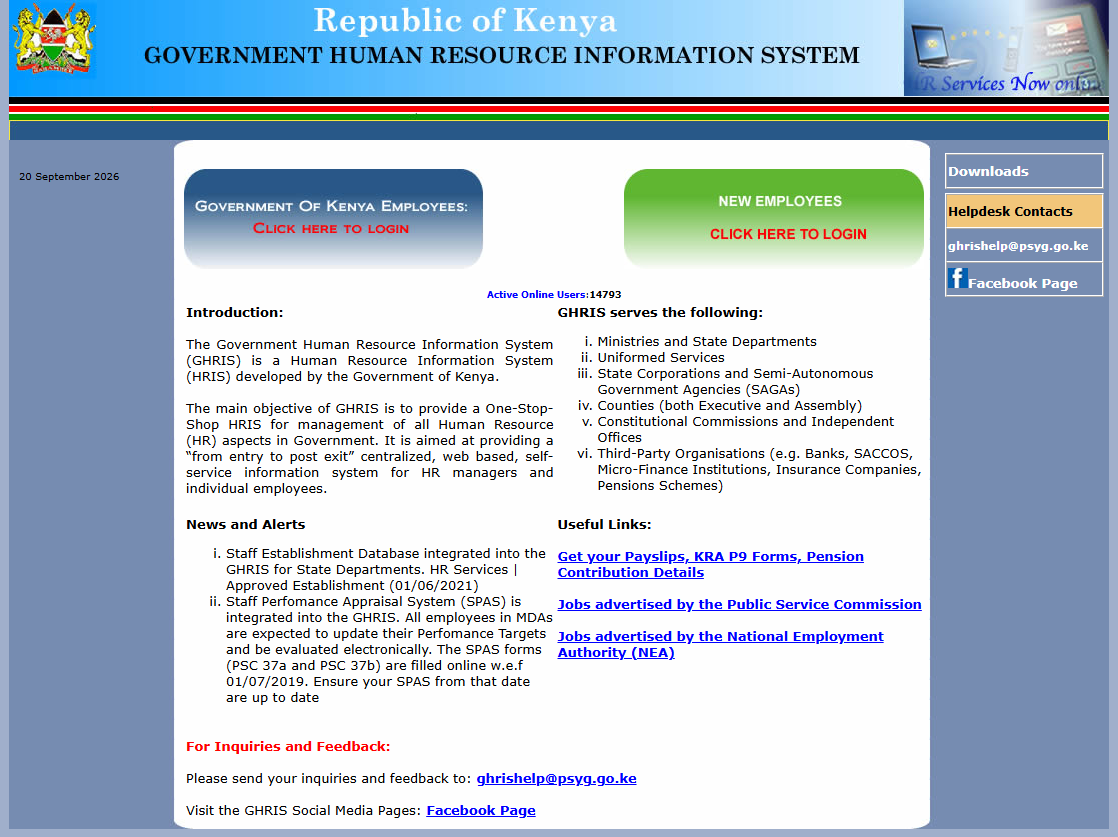
Open your preferred web browser and visit the official GHRIS website at www.ghris.go.ke. Once the GHRIS website loads, access the section where government employees can log in and manage their GHRIS accounts.
- Step 2: Click Government of Kenya Employees
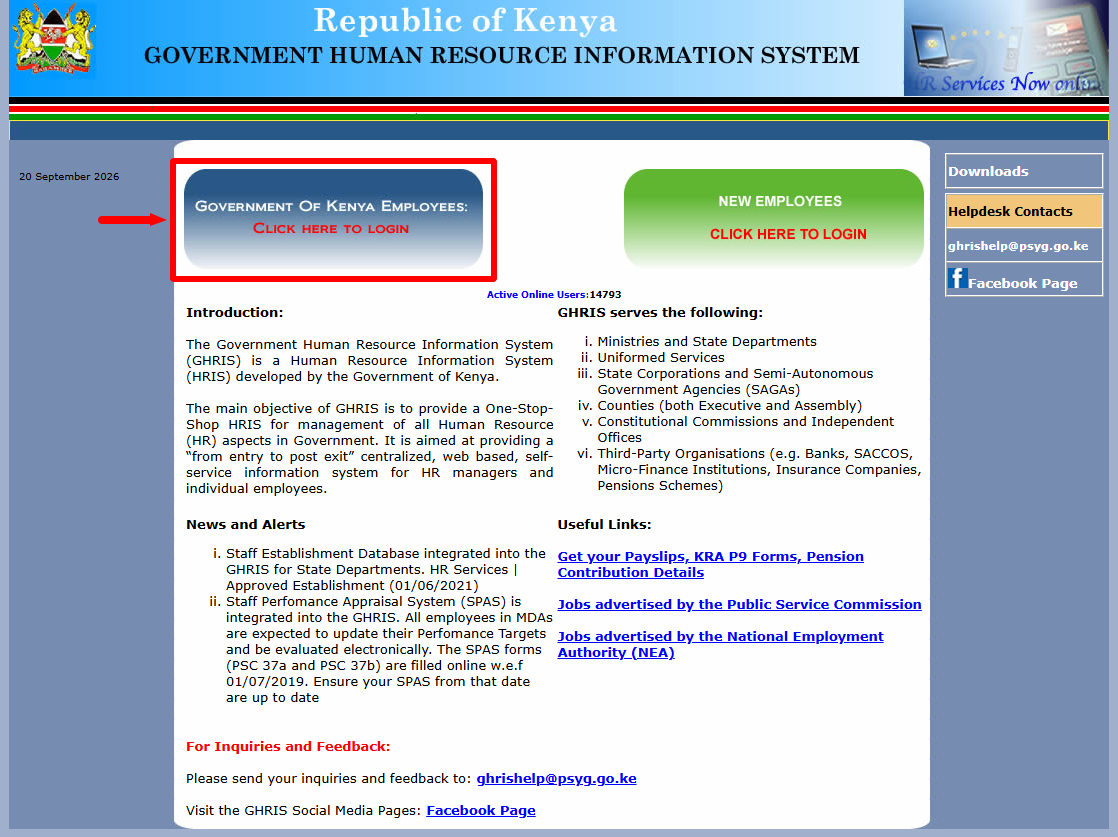
On the GHRIS website, click Government of Kenya Employees to proceed to the section provided for government employees. This will take you to the area where you can access your GHRIS account and the available account-related options.
- Step 3: Click Forgot Your Password
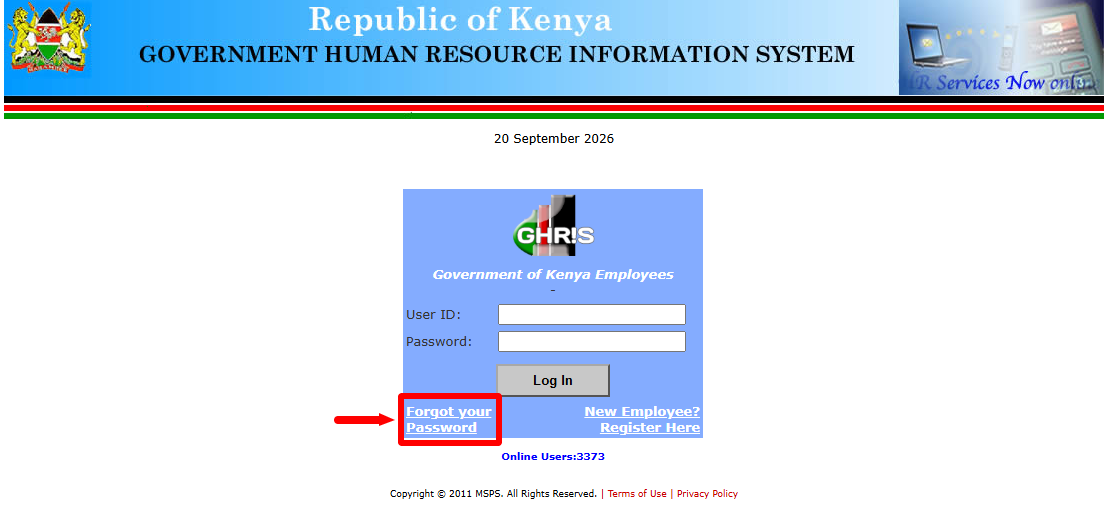
On the GHRIS login section, click Forgot Your Password to begin the process of resetting your GHRIS Password. This option allows you to proceed with the password recovery process if you can no longer access your account using your current password.
- Step 4: Enter Personal Number
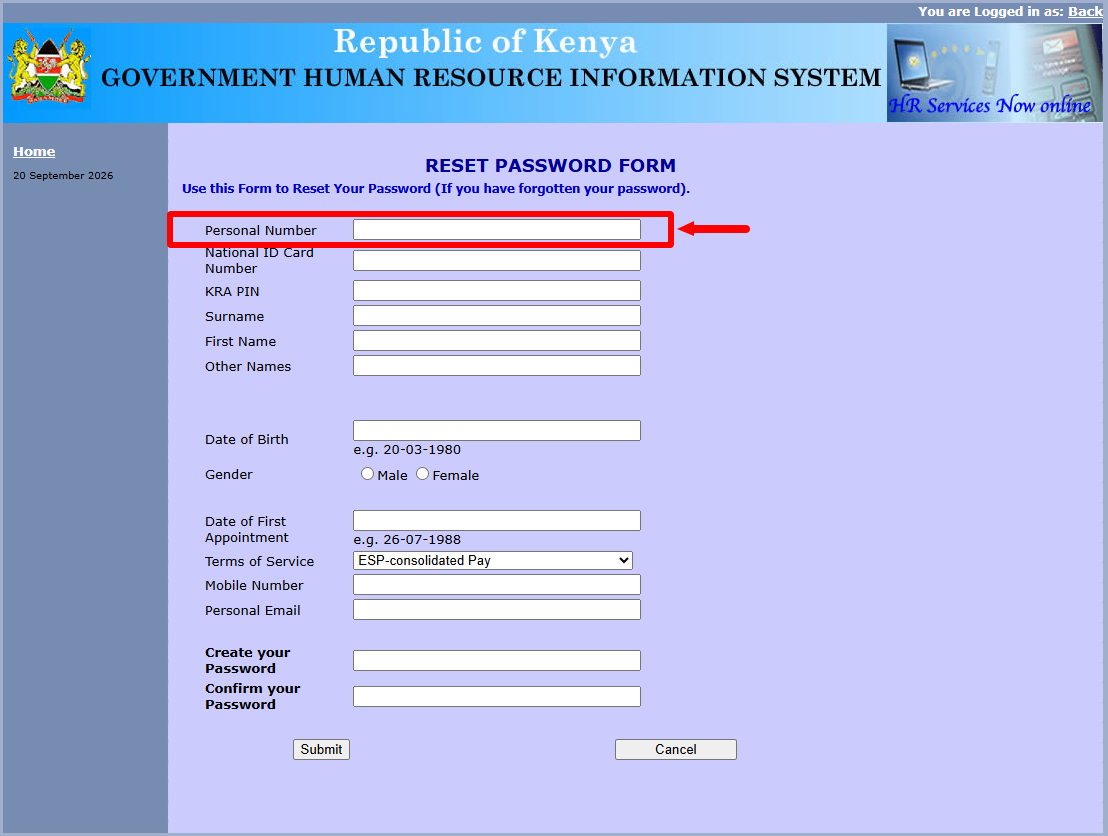
Enter your Personal Number in the required field. Your Personal Number is used to identify your GHRIS account, so make sure you enter the correct number associated with your government employment record.
- Step 5: Enter National ID Card Number
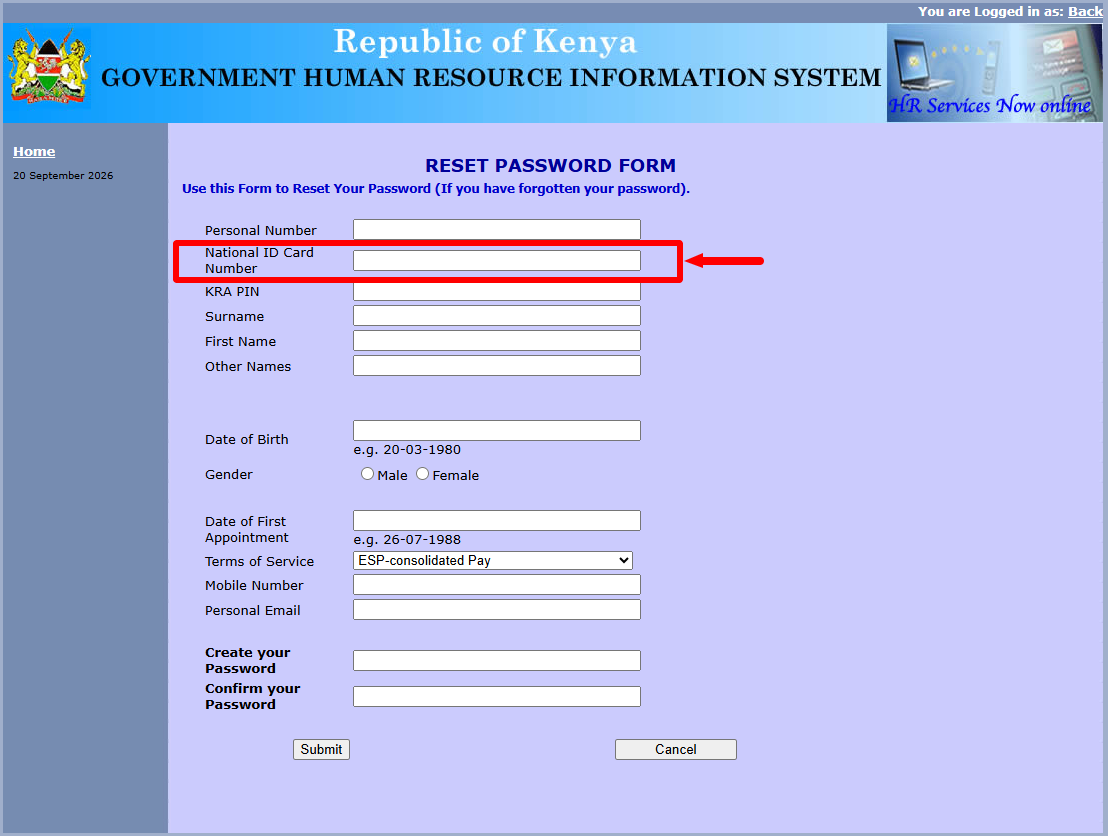
Enter your ID Number in the required field. Ensure that the identification number you provide matches the details registered with your GHRIS account so that the system can verify your account information.
- Step 6: Enter KRA PIN Number
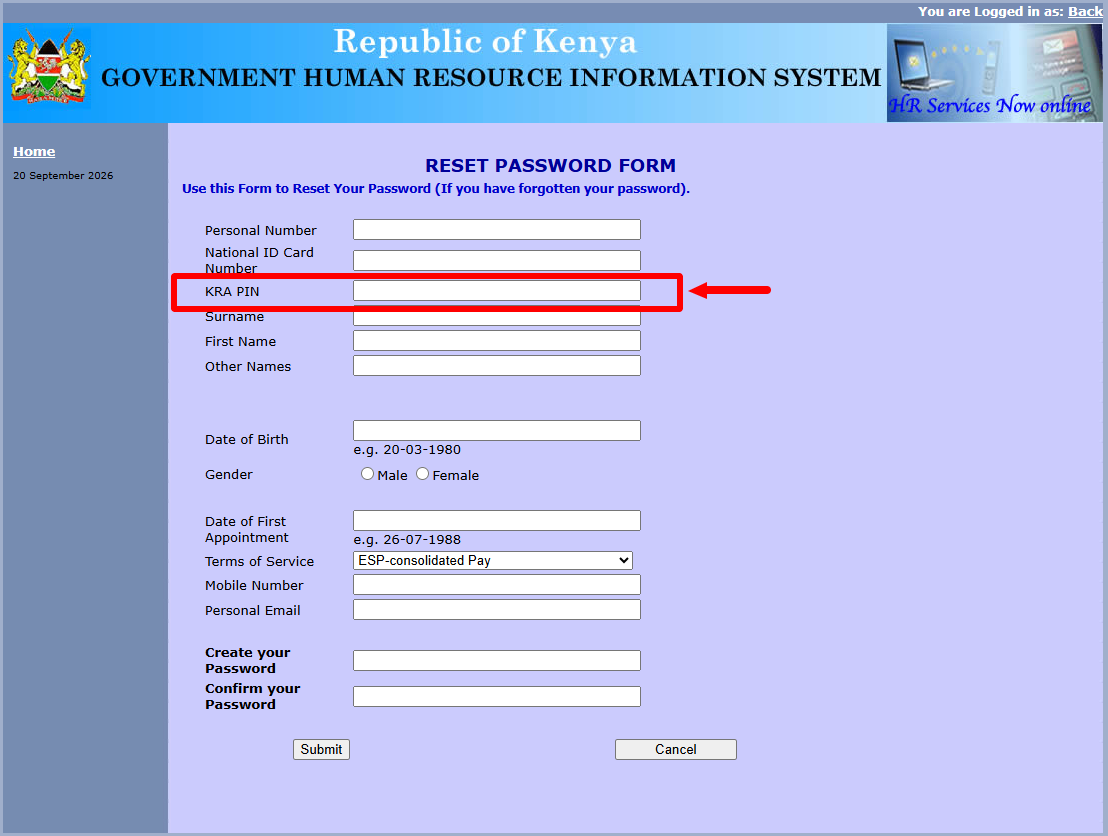
Enter your KRA PIN Number in the appropriate field. Make sure you provide the correct KRA PIN associated with your personal and employment records before proceeding to the next part of the password reset process.
- Step 7: Enter Surname
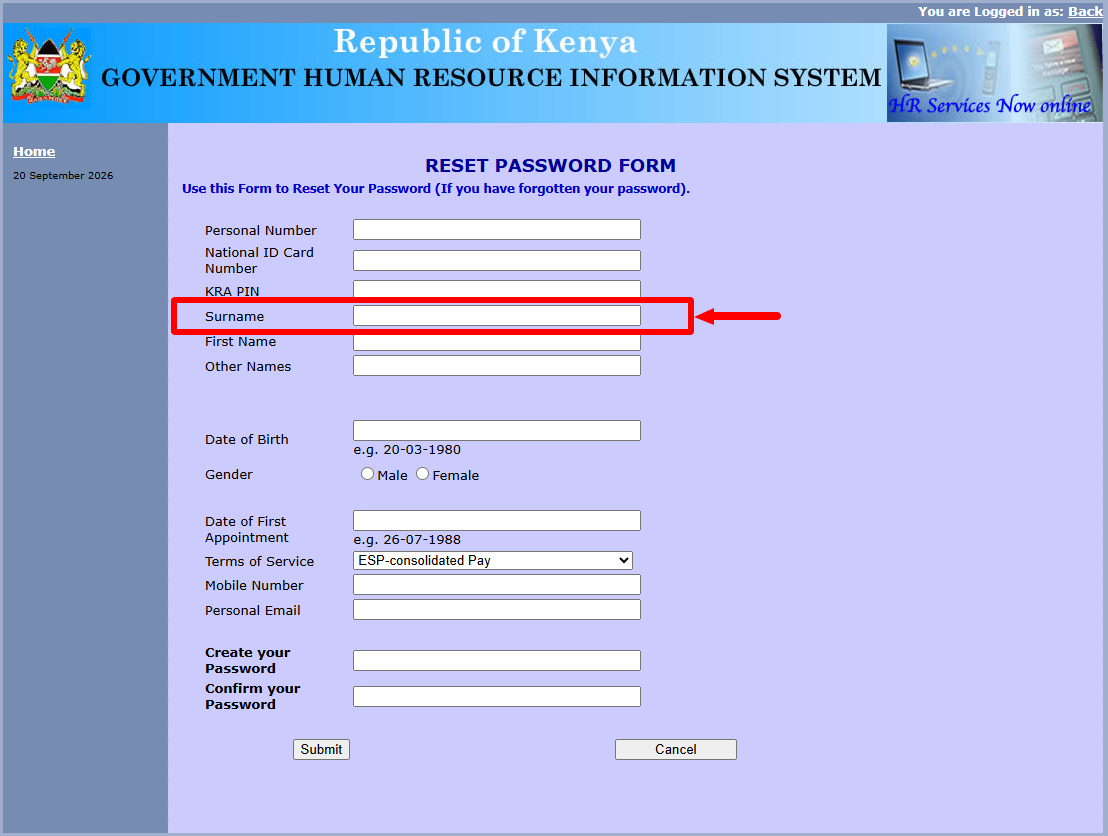
Enter your Surname in the required field. Once you enter your surname, the GHRIS system will populate some of your registered details, such as your Full Names, Job Group, Age, Government Agency, and Deployment Unit, allowing you to review the information displayed.
- Step 8: Enter Date of Birth
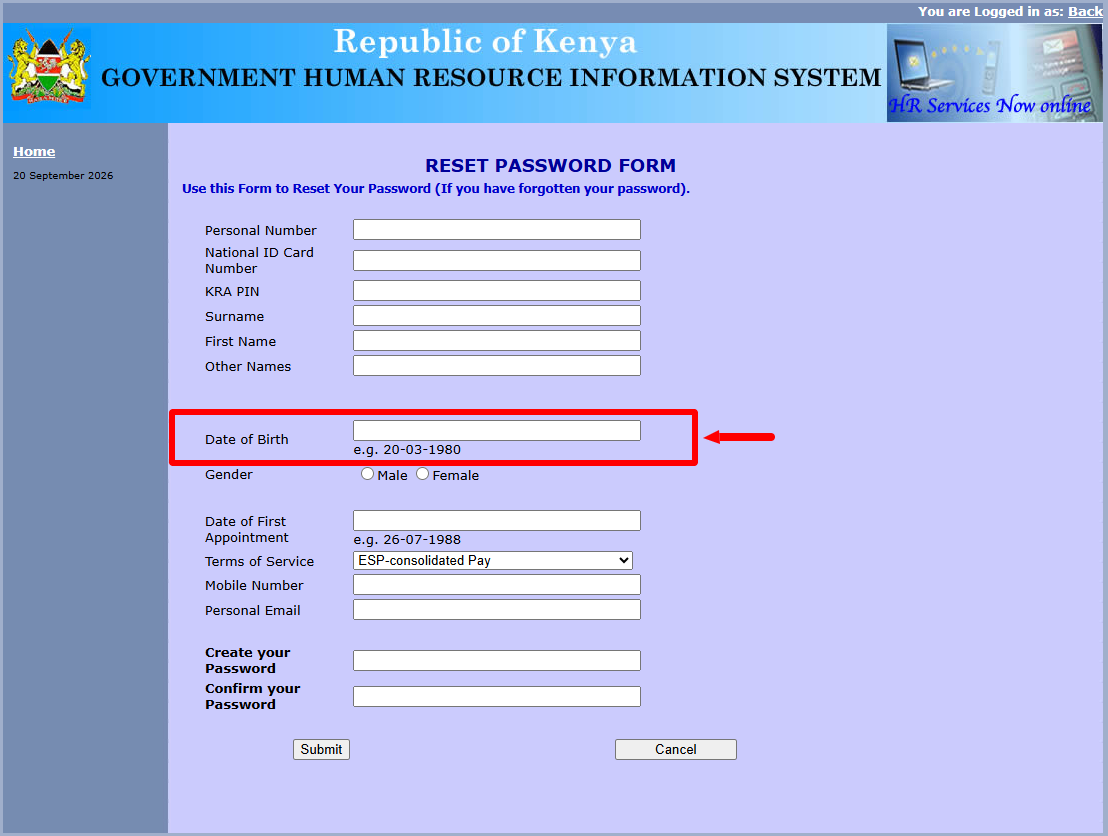
Enter your Date of Birth in the required field. Make sure the date matches the date of birth registered in your GHRIS account so that the information provided can be used to verify your identity.
- Step 9: Select Gender
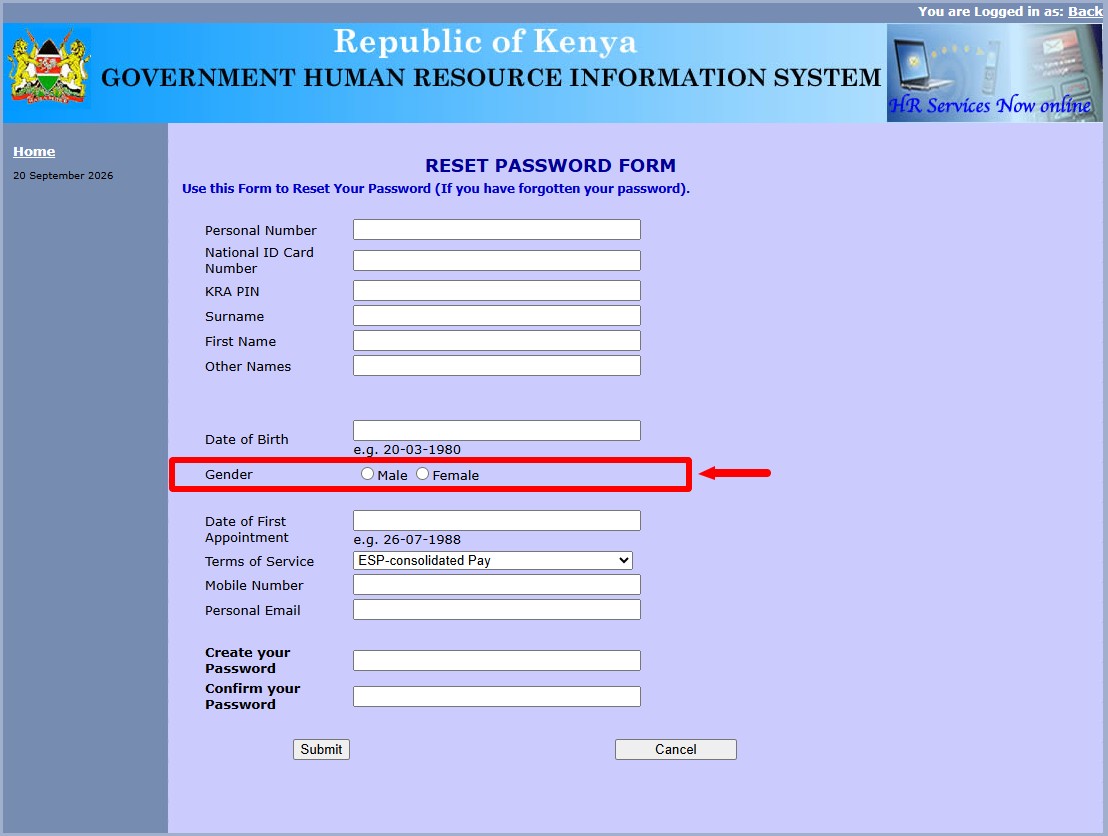
Select your Gender from the available options. Choose the option that corresponds with the gender information registered on your GHRIS account before continuing with the password reset process.
- Step 10: Enter Date of First Appointment
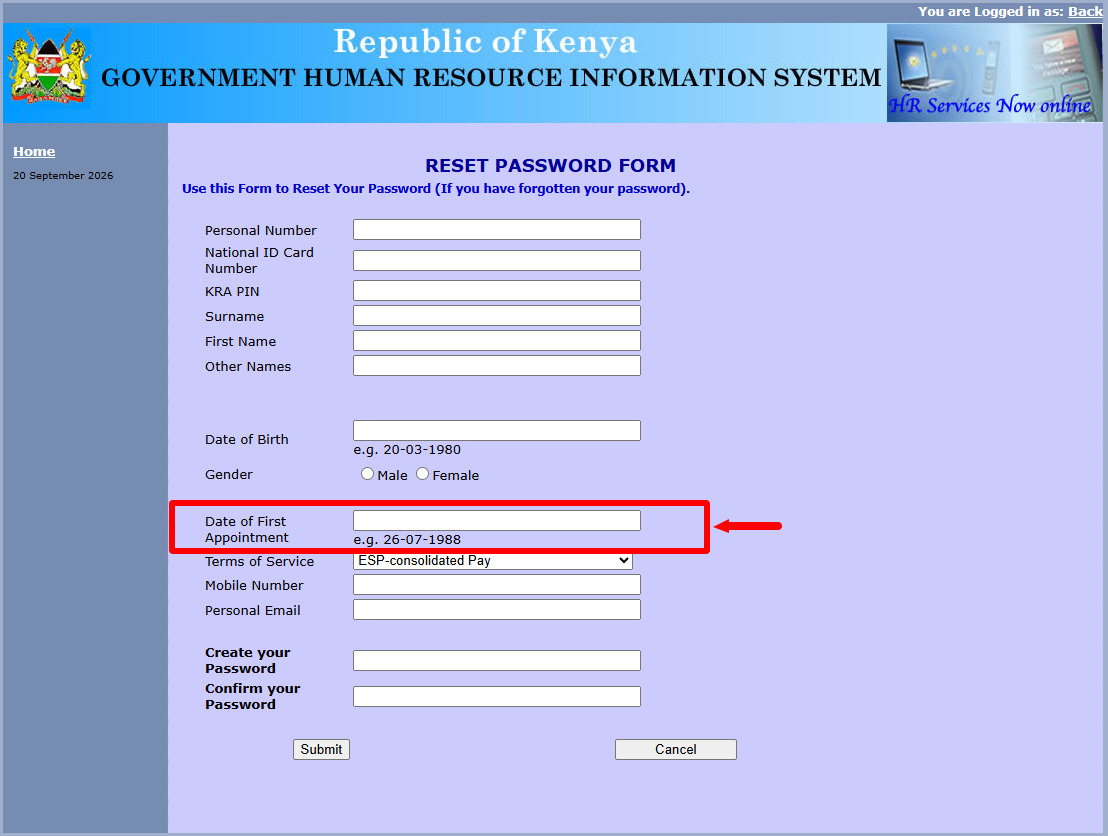
Enter your Date of First Appointment in the required field. Provide the date associated with your first appointment in government employment and ensure that the information matches the employment details registered in the GHRIS system.
- Step 11: Select Terms of Service
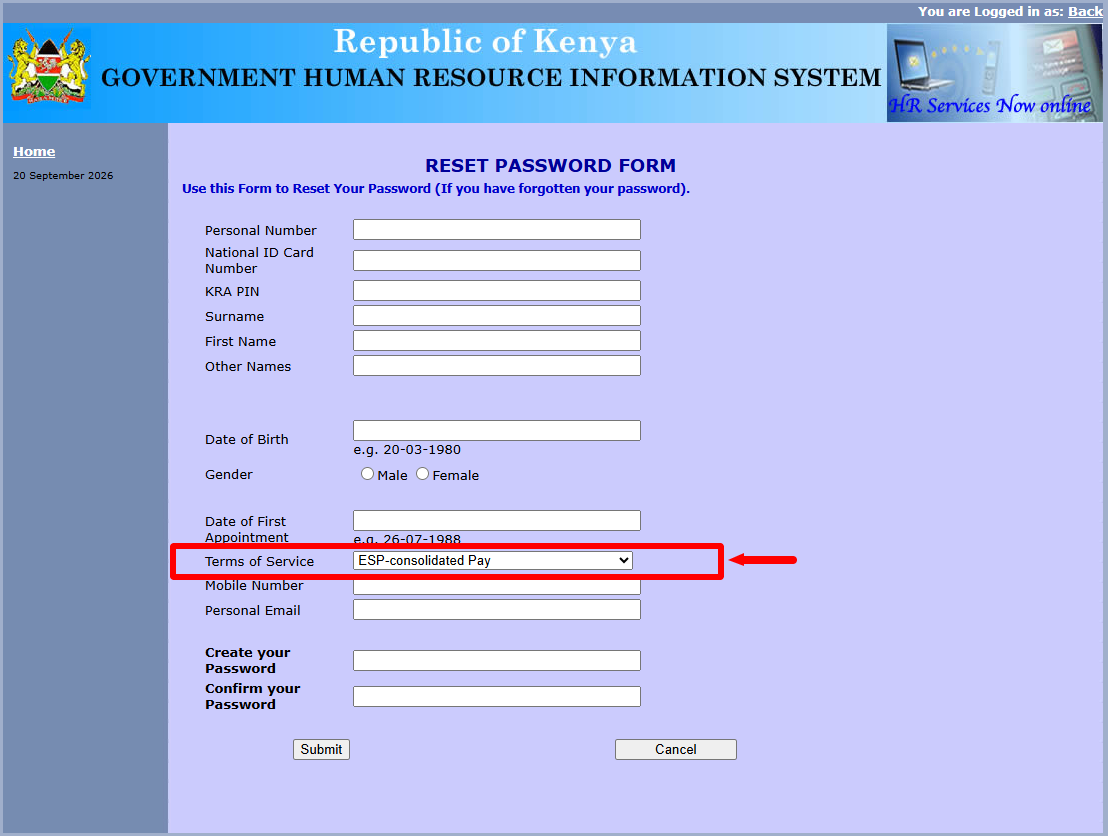
Select your Terms of Service based on your employment arrangement. The available options may include Permanent (Pensionable), Temporary, Probation, Local Contract, and other applicable terms of service, so select the option that corresponds with your employment status.
- Step 12: Enter Mobile Number
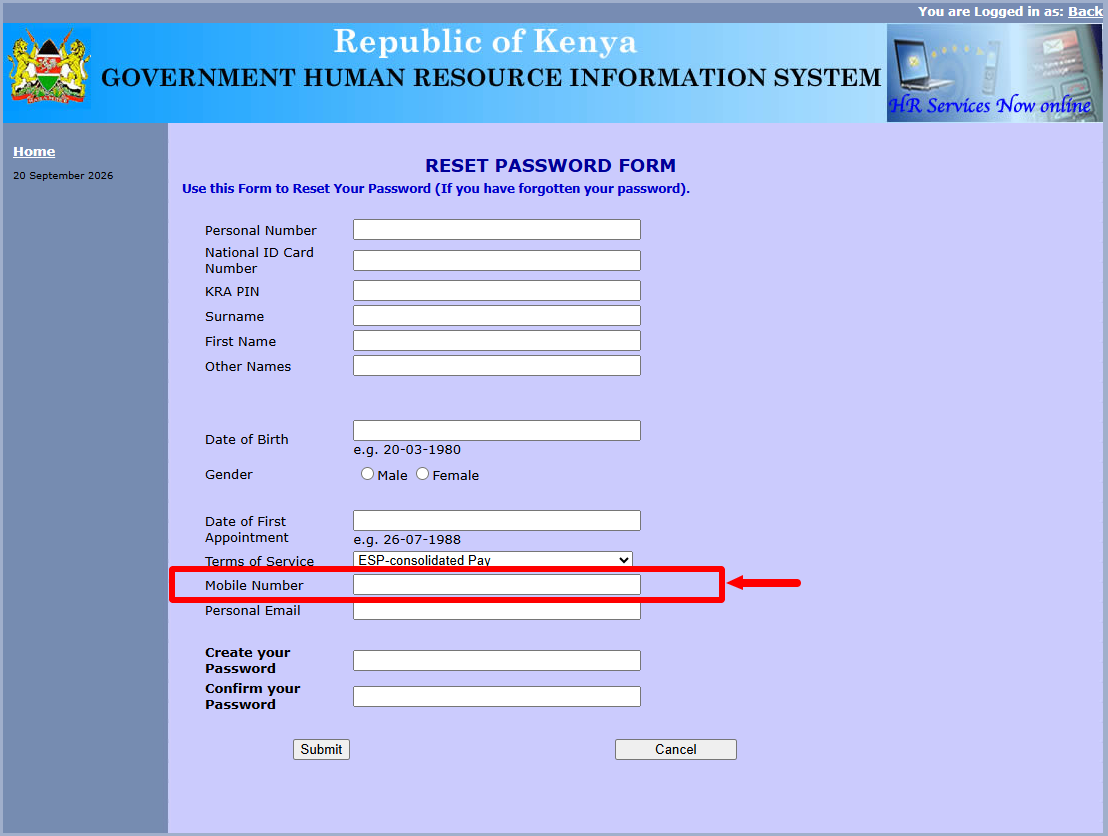
Enter your Mobile Number in the required field. Provide the mobile number associated with your GHRIS account and ensure that you enter the correct number before proceeding to the next step.
- Step 13: Enter Personal Email Address
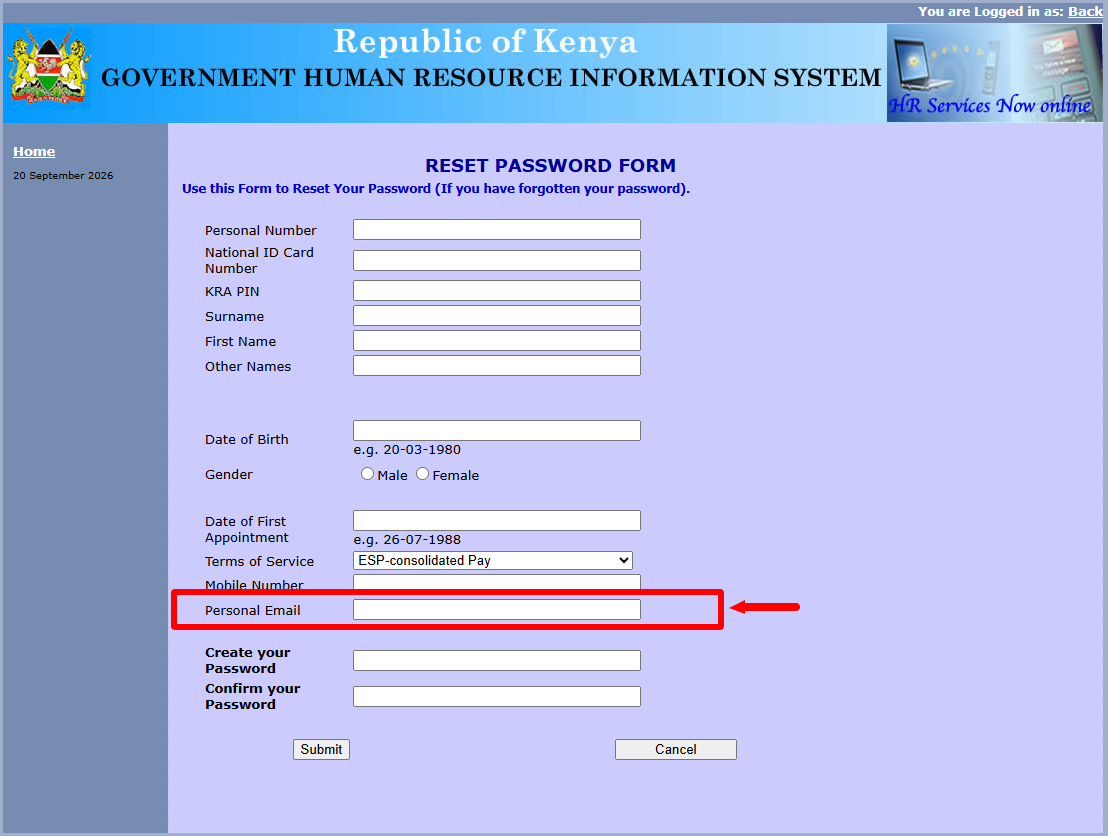
Enter your Personal Email Address in the required field. Make sure you provide the personal email address associated with your account and check that it has been entered correctly before continuing with the password reset process.
- Step 14: Create and Confirm New Password
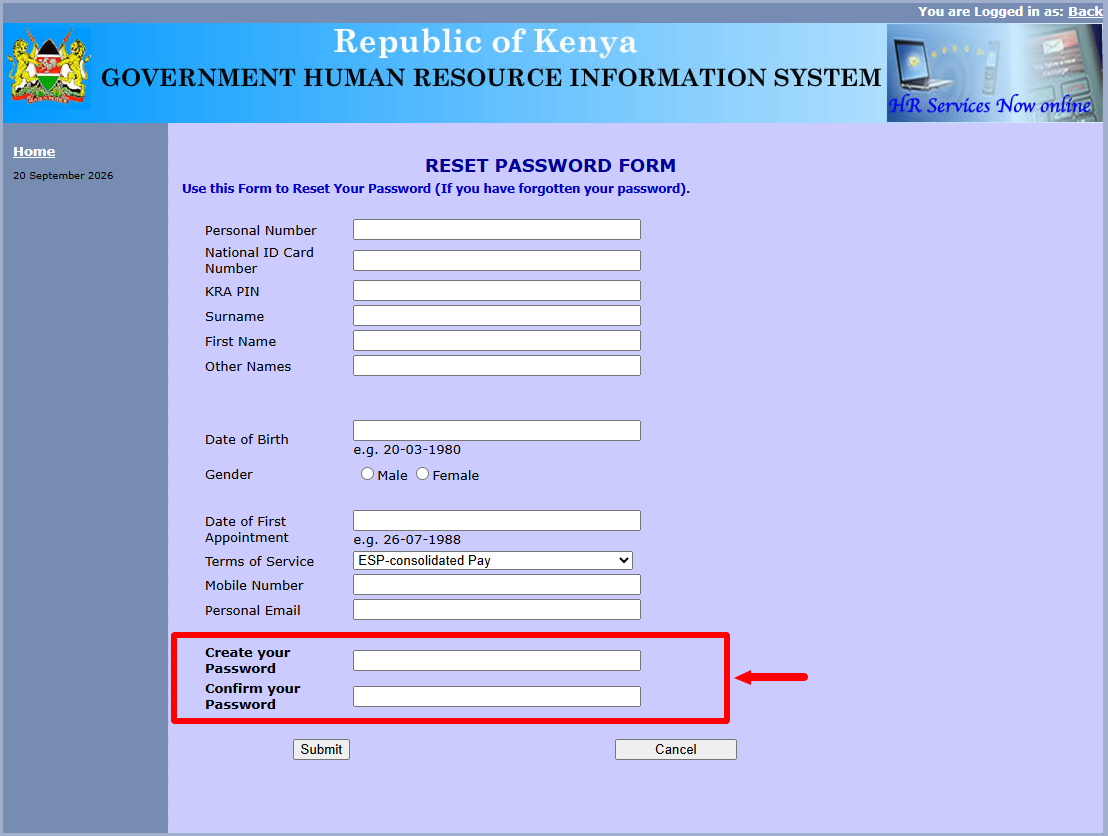
Create a new GHRIS Password and enter it in the required password field. Confirm the new password by entering it again in the confirmation field, making sure that both password entries match before submitting the GHRIS password reset form.
- Step 15: Click Submit
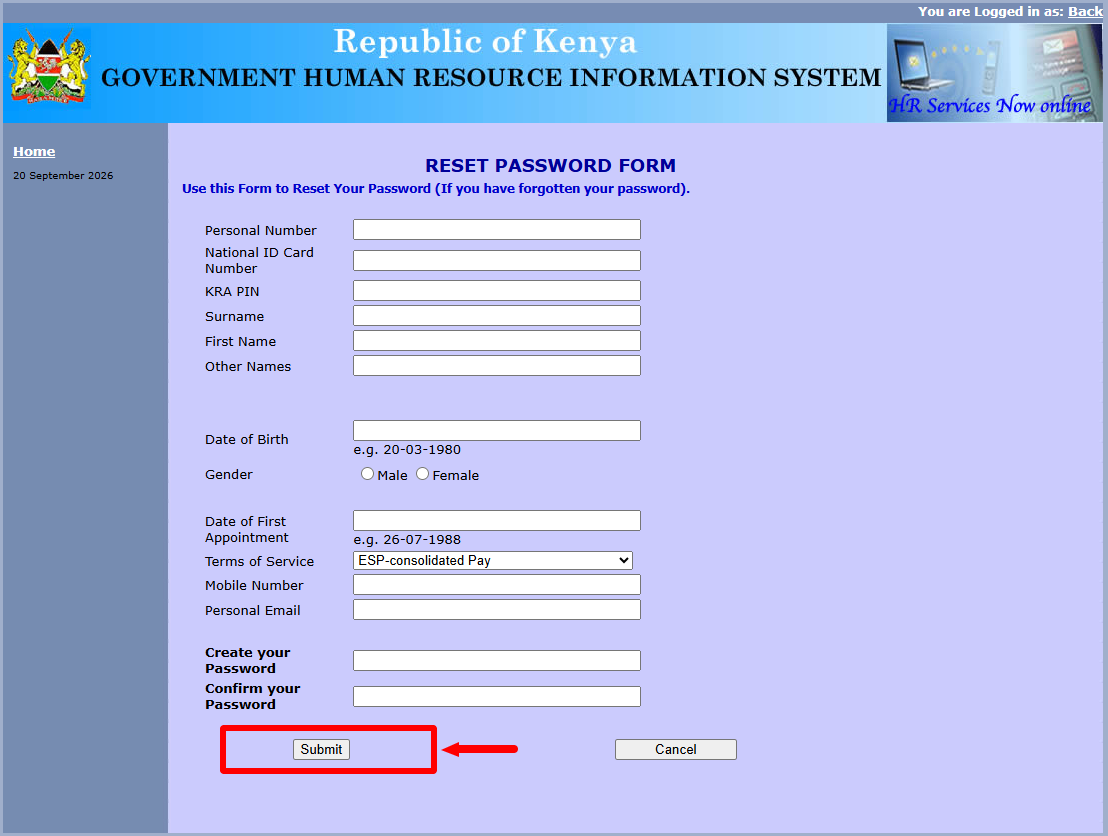
After entering and reviewing all the required information, click Submit to complete the password reset process. If the information provided is accepted successfully, your GHRIS Password will be changed successfully, allowing you to use the new password when logging in to your GHRIS account.
Overview: GHRIS Password Reset
To begin the GHRIS Password Reset, visit the official GHRIS website and click Government of Kenya Employees, then select Forgot Your Password. Enter your Personal Number, ID Number, and KRA PIN Number, followed by your Surname. After entering the surname, the system will populate your registered details, including your Full Names, Job Group, Age, Government Agency, and Deployment Unit. Proceed by entering your Date of Birth, selecting your Gender, and entering your Date of First Appointment.
READ ALSO: How To Log In To GHRIS
Next, select your Terms of Service, such as Permanent (Pensionable), Temporary, Probation, or Local Contract, depending on your employment status. Enter your Mobile Number and Personal Email Address, then create and confirm your new GHRIS Password. After confirming the new password, click Submit to complete the process, and your GHRIS Password will be changed successfully.